

September 2026
Node Configuration Import for GKE and AKS, Redesigned SSO with Google SAML
Connecting a GKE or AKS cluster now imports its existing node pools as node configurations and node templates, completing coverage across all three clouds.
Also this month: separate read-write and read-only hostnames for the database proxy, out-of-memory handling for brand-new workloads, Windows node support in Karpenter rebalancing, edge configuration selection on node templates for OMNI, PDF and Excel export for the Savings Report, and a cluster-level Event Log.
To take full advantage of all features in this release, update your Cast AI umbrella Helm chart to the latest version. You can upgrade by running:
helm repo update castai-helm
helm upgrade -n castai-agent castai-agent castai-helm/castai --reset-then-reuse-values
If you manage Cast AI through Terraform, update the provider to the latest version.
Major Features and Improvements
Node Configuration Import for GKE and AKS
The node configuration import introduced for EKS before now covers GKE and AKS, so it works on all three major clouds. When you connect a cluster via castctl, Cast AI scans your existing node pools and imports them as node configurations and node templates, so you no longer recreate them by hand in the console before autoscaling can do its job.
Run it with castctl cluster import-config. The command scans the cluster, shows exactly what it will create, and waits for your confirmation. Nothing is applied until you approve it. Re-running it is safe because existing configurations are skipped. If you manage Cast AI through Terraform, --output tf produces the result as HCL you can commit.
For more information on this feature, see castctl documentation.
On EKS, the import now also picks up node pools backed by self-managed autoscaling groups, which carry no EKS tags. Each group’s launch template is matched to the cluster through the EKS cluster name in its user data, so node pools you maintain yourself are imported alongside EKS-managed node groups.
Migrating to the Umbrella Helm Chart
Every Cast AI component can be installed and updated as a single umbrella Helm chart, and every existing setup can now be migrated to it:
-
Clusters managed by the Cast AI Operator can be migrated from individual component charts. The operator moves your user-defined Helm values to the umbrella chart, uninstalls the individual charts in reverse order, and installs the umbrella chart with the equivalent configuration. Permissions are checked before anything is touched, health is verified before the last individual release is removed, and a failed verification rolls the cluster back to its individual charts. Migration is one-way. Migrating is also how the operator starts keeping every component up to date — with individual charts, it updates only some of them.
-
GitOps and infrastructure-as-code setups migrate with
castctl cluster migrate, in three deliberate phases that let you pause, verify, and roll back between them:generateinspects the cluster and writes a step-by-step migration plan with the exact commands to run;pre-umbrella-installpreserves your custom Helm values and CRDs and uninstalls only the standalone releases the umbrella chart takes over;post-umbrella-installcleans up what the standalone releases leave behind. ArgoCD, Flux, and Terraform setups are supported (see the migration guide); umbrella installs in the Cast AI Terraform module itself follow. -
Removing the operator no longer tears anything down: the umbrella chart, its component CRDs, and customer workloads stay in place and running.
Redesigned SSO Configuration with Google SAML
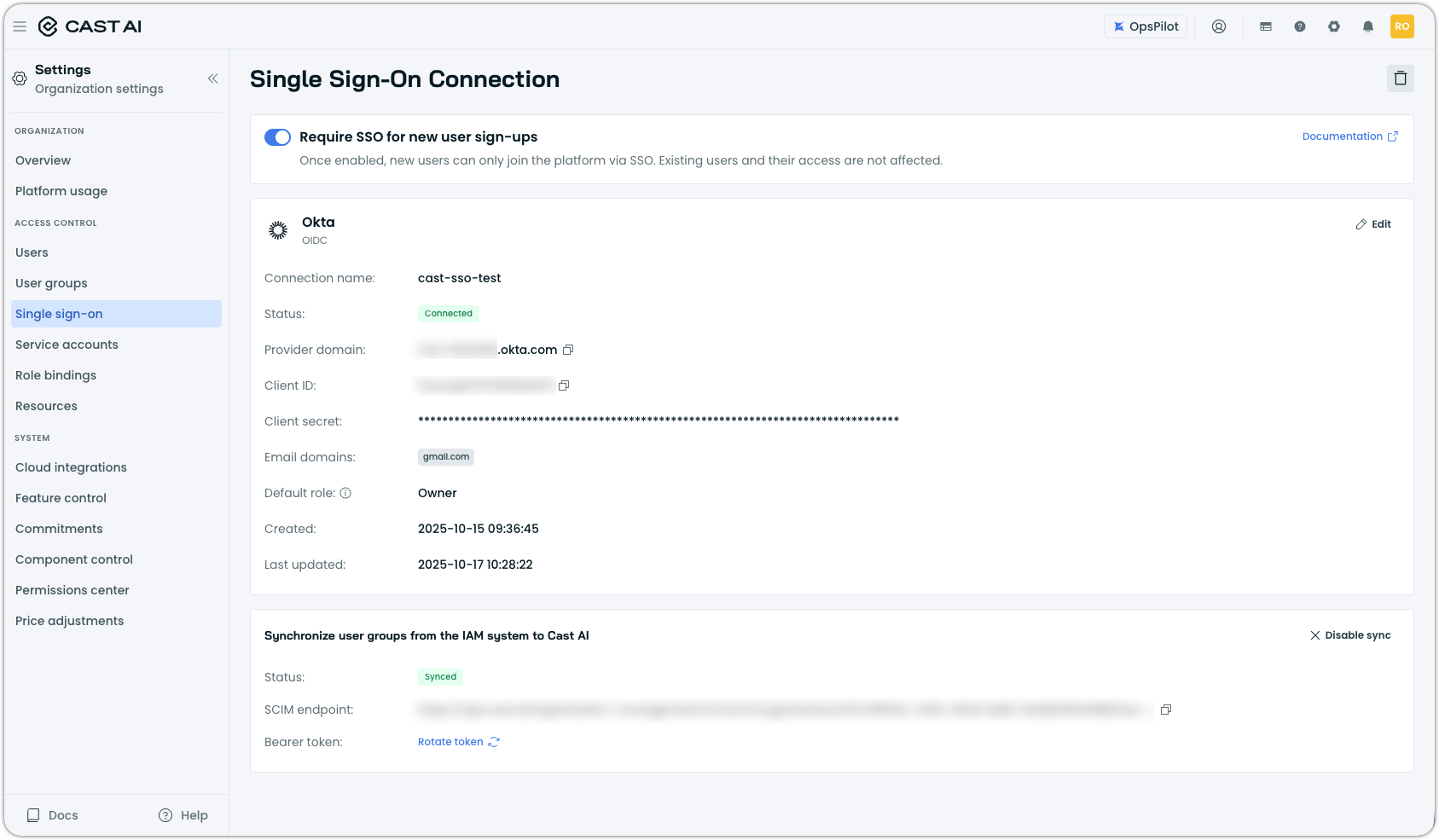
The single sign-on configuration page has been redesigned around a new setup flow. The redesign addresses pain points in the previous flow and makes group sync easier to find.
Google SAML is now available as a configuration method. Cast AI has supported Google SAML login for some time, but it could not be configured in the console until now.
Database Optimization
Onboarding Improvements
Onboarding a database instance is smoother from discovery through deployment:
-
When cloud discovery finishes, a summary shows what the integration found.
-
The permissions requested during onboarding are described in plain language, with a link to the full permission details for the relevant cloud provider.
-
Instances that are not yet optimized show a health page and the databases and queries discovered through Cloud Connect, so you can see what is there before deploying anything.
-
After a successful deployment, the onboarding flow takes you straight to the new instance's dashboard instead of back to the instance list.
Demo Instances in Onboarding
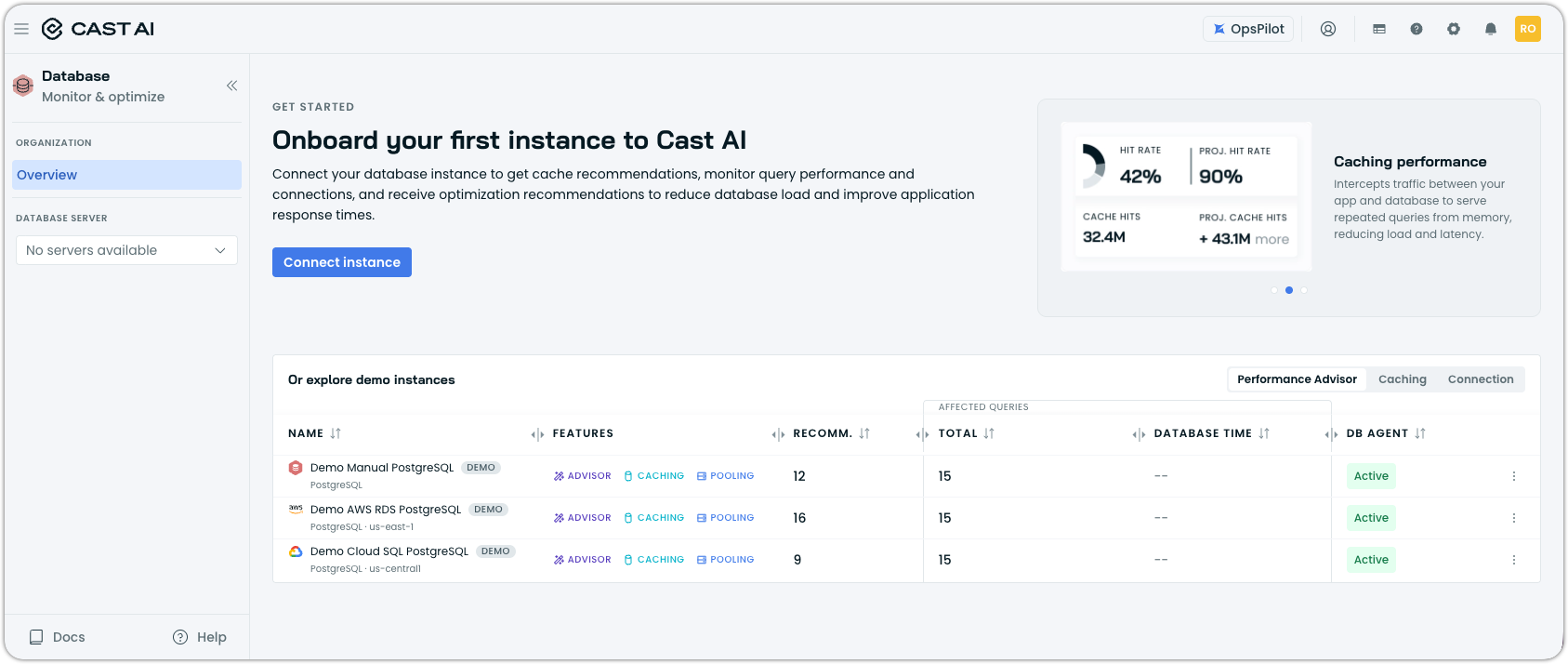
Onboarding includes demo instances, so you can explore Database Optimizer before connecting a real database. The demo covers various scenarios, each with interactive data for metrics, query recommendations, caching, proxy insights, and instance management.
Credentials Stay on Your Side
Credentials for the database agent and for MySQL connection pooling never pass through Cast AI. The install script shown in the console has a placeholder for each credential, which the console fills in locally without sending the values to Cast AI. The script stores them as Kubernetes secrets and passes only references to those secrets to the Helm chart, so passwords never appear in Helm values.
The agent and pooling each take their own username and password, so you can create a purpose-built database user for each. When you rerun the script to upgrade or to enable more components, leave the credential fields empty to keep the ones you provided before.
Component Status
The database proxy and agent report a fuller set of statuses, so you can tell where each one is in its lifecycle: Undeployed, Updating, Awaiting data for a proxy that is deployed but has not yet received data, Active, Need update, and Error. The reworked instance settings page also shows when the agent and proxy were installed.
Endpoint Changes and Redeployment
Changing an instance's endpoint names or ports in the console generates a redeployment script that applies the change to your cluster. Until you run it, a banner on the instance tells you the configuration shown in the console has not been applied yet. Instance updates via the API accept partial requests, so you can send either the name or the endpoint list.
Separate Read-Write and Read-Only Hostnames
The database proxy exposes its read-write and read-only endpoints as two distinct hostnames, each with its own Kubernetes service, for clients that expect separate hostnames or cannot set a custom port. Reported hostnames no longer include the svc.cluster.local suffix, which is not the same under every cluster DNS provider.
Connection Pooling for MySQL
Connection pooling in the database proxy now covers MySQL. The pooler is installed alongside the proxy, and pooling metrics for MySQL are collected in the same way as for PostgreSQL.
Proxy Reliability
Several changes to the database proxy:
-
The proxy waits for Kubernetes to stop routing traffic to a terminating pod before it starts draining connections, so applications no longer get connection refused errors during a rollout or scale-down.
-
Query analysis time for PostgreSQL includes the bind step, so queries run as prepared statements no longer appear to take no analysis time.
-
A cached response is never sent while output from an earlier flushed request is still on its way, which keeps responses in order on connections that use flush.
-
Operational metrics continue to be reported while a large batch of query metrics is being sent.
Workload Optimization
Updating Existing Policies
OpsPilot can update scaling policies it created previously, not only create new ones. Running it again on a cluster adjusts the existing policies to your goals or to how the cluster has drifted, creates a new policy when an existing one no longer fits, and reorders policies as needed.
Out-of-Memory Handling for New Workloads
Workload Autoscaler now reacts to out-of-memory (OOM) kills on workloads with no prior recommendations or metrics, which typically means a brand-new workload. For these workloads, the requests in the workload spec are used as the starting point.
The handling itself is unchanged: memory is increased by up to 250 percent, and optimization can disable itself if the workload keeps getting killed. Vertical scaling must be enabled, and the workload's containers must have memory and CPU requests set in the spec.
Protected Namespaces on AKS
On AKS, admission webhooks are not invoked for workloads in protected namespaces, so Workload Autoscaler recommendations were not applied to those pods when they were created. With Cast AI node autoscaling, which scales capacity assuming recommendations are applied, this caused a mismatch between requests and capacity.
Workloads in protected namespaces are now automatically assigned to a read-only policy, so no recommendations are generated for them. A namespace is considered protected if it is kube-system or carries both the kubernetes.azure.com/managedby: aks and control-plane: true labels. If Workload Autoscaler's mutating webhook configuration carries admissions.enforcer/disabled: "true", workloads in protected namespaces are left as they are.
For more information, see the updated documentation.
Lifecycle Events in the Event Log
Installing and uninstalling Workload Autoscaler on a cluster are recorded in the Event Log, so there is a lasting record of when it was running.
Other Workload Optimization Improvements
Two smaller changes:
-
The When to apply changes setting in scaling policies describes in-place resizing accurately. On supported clusters, changes apply in place without restarting pods under either option. The options only control the fallback when in-place resizing is not available or fails: Immediately restarts pods, and Deferred waits for a natural restart.
-
The custom metrics explorer shows the namespace next to each workload name and can be searched by namespace, which helps when several workloads share a name.
Node Autoscaling
Rebalancing for Pending In-Place Resizes
When Workload Autoscaler resizes a live-migratable pod in place, and the new size does not fit on its current node, the resize remains pending. Node Autoscaler now rebalances the node hosting the pod so the resize can proceed.
Spot Interruption Handling on Windows Nodes
castai-spot-handler now runs on Windows nodes, closing a gap where Spot interruptions on Windows nodes, most commonly on AKS, went unhandled.
Prevented Drain Pods in Terraform
The castai_rebalancing_schedule resource exposes the prevented-drain-pods option under aggressive_mode_config, matching the API and the console. It was the only one of the five aggressive mode options missing from Terraform.
Pod Pinner Log Level
Pod Pinner accepts a LOG_LEVEL environment variable, so you can control how much it logs.
Cluster Onboarding and Node Configuration
Narrower Node Role on EKS
castctl can set up EKS clusters with a narrower node IAM role, using IAM roles for service accounts on top of the cluster's OIDC provider instead of attaching the broader default networking policy to the node role. This limits what node credentials can do if they are ever exposed.
Hibernation on EKS
Two changes to hibernating EKS clusters:
-
Resuming checks the instance metadata service hop limit up front. With a hop limit of 1, the
castai-agentcannot reach the metadata service via the pod network and fails to start unless the cluster name, region, and AWS account are explicitly set via environment variables or the agent runs on the host network. This is now caught as a prerequisite instead of breaking the resume partway. -
Hibernation is blocked only when Fargate nodes are actually running, not merely because Fargate profiles exist.
Larger Init Scripts on AL2023
The init script in an AL2023 node configuration can now be up to 12 KB, up from 8 KB, matching the limit of the other image families.
Karpenter Enterprise Suite
AKS Support
Karpenter Enterprise Suite supports AKS clusters running Karpenter. AKS clusters can be onboarded with castctl or with the umbrella Helm chart instead of separate charts and scripts. One feature gap between supported clouds is currently commitments, which remain EKS-exclusive for now.
Edit Node Pools in the Console
Node pools on Karpenter clusters can now be edited from the console, which was previously read-only. This is meant for teams that do not yet manage node pools through GitOps or infrastructure as code. Edits are not validated beyond what the Kubernetes API server enforces, and conflicts with GitOps-managed node pools are not detected, so a reconciler may revert an edit. Node classes and node overlays remain read-only in the console.
Windows Nodes
Continuous rebalancing and consolidation support Windows nodes on AWS.
Rebalancing Improvements
Rebalancing on Karpenter clusters covers more nodes and behaves more predictably:
-
Cordoned nodes can be included in rebalancing as long as they are consolidatable and do not carry a
do-not-disruptannotation. Previously, any unschedulable node was excluded, leaving savings on the table. They can also be selected when creating a rebalancing plan in the console. -
When you run a manual or scheduled rebalancing plan without Cast AI consolidation enabled, Karpenter's own consolidation is paused for the duration of the plan by marking nodes as
do-not-disrupt, and restored afterward. Previously, the two could compete for the same capacity, leaving pods disrupted and pending. -
Scheduled rebalancing picks nodes with the same cost- and waste-based logic as continuous rebalancing, instead of oldest first.
-
Enabling Ignore blocking PDB in the console takes effect automatically. It also previously depended on two settings that the console does not expose, so PDB-blocked nodes were excluded from the plan.
-
Rebalancing plans are stored in compressed form, so plans for large clusters stay within the Kubernetes object size limit.
Node Pool Limits for Commitments
When node pools created to cover a commitment exceed their limits, rebalancing brings them back within those limits instead of leaving capacity overprovisioned.
Controller Log Volume
The Karpenter Enterprise Suite controller logs at the info level by default, and the level can be changed with the LOG_LEVEL environment variable. Previously, it logged at debug level with no way to change it, which produced a large volume of logs. Set LOG_LEVEL=debug when you need the extra detail.
OMNI
Edge Configurations on Node Templates
A node template can specify which edge configuration to use for each of its edge locations. After you select an edge location on the node template, you choose from the edge configurations defined for that location. If you do not pick one, the default configuration is used. The autoscaler uses the selected configuration when provisioning edge nodes.
Nebius GPU Clusters, Reservations, and Shared Filesystems
Nebius edge configurations cover more of what GPU workloads on Nebius need:
-
GPU cluster and capacity reservation IDs can be set in the edge configuration, via the API, and in the console.
-
One or more existing shared filesystems can be attached to Nebius edge nodes, each with a mount point and read-only or read-write access. The filesystem is mounted when the node starts, so large model weights and datasets can be stored once and shared across nodes rather than copied to each node's disk.
-
Nebius edge configurations are supported in the Terraform provider, and the Nebius edge location module creates the IAM group with the necessary permissions if you do not supply one.
Failed Edge Locations in the Console
Edge locations in a failed state are easier to recover:
-
The edge location drawer shows the reason for the failure, such as a missing VPC or misconfigured security group found during reconciliation.
-
The onboarding script stays available in the drawer, so you can rerun onboarding to fix the location.
-
On a node template, previously selected edge locations remain visible when they are not ready. They are shown disabled with an indication of their state, rather than disappearing from the list.
Edge Node Improvements
Several changes make edge nodes more dependable:
-
Running edge onboarding again on a node that is already connected no longer creates a duplicate edge and leaves the original one not ready. This matters when onboarding runs as part of a VM boot script.
-
The versions of the edge node's Kubernetes distribution and the GPU operator are validated against the OMNI agent version, catching a known incompatibility between them.
-
Metrics for virtual nodes are available again, so
kubectl top, the Horizontal Pod Autoscaler, and observability pipelines work for pods offloaded to edge locations. Collection previously failed when pods offloaded from one namespace were spread across several virtual nodes. -
Gateway upgrades no longer restart every gateway replica at once, and a disruption budget keeps a minimum number of gateways available during node drains.
-
Upgrading the OMNI chart also upgrades the virtual kubelet image on existing virtual nodes, not only on new ones.
Container Live Migration
Faster Migrations from Spot Nodes
When rebalancing, live-migrating a workload off a Spot node is optimized for overall speed rather than the shortest freeze. A workload already running on Spot is assumed to tolerate a longer pause, so the migration completes faster.
Compatibility Checks Before Migration
Pods are checked up front for features that live migration does not support: custom owner references, proxy sidecars, and GPU requests. When one is found, the pod owner is annotated with live.cast.ai/migration-compatible: "false" and the reason in live.cast.ai/incompatibility-reason, and the pod is marked with live.cast.ai/migration-enabled: "false", so the incompatibility is visible before a migration is attempted.
Narrower Permissions
Live migration asks for less access on your cluster:
- When installed through the Cast AI Operator, read access to secrets, which is used to pre-pull images during migrations, is narrowed to
getonly, and image pre-pulling is opt-in, so clusters that do not use it do not need the permission.
Reporting
Organization-Level Efficiency Report
The organization-level efficiency report has been extended. You can filter by clusters and node labels such as team or environment, and see trends over time in node cost and CPU and memory efficiency, looking back up to 90 days.
Savings Report Updates
Three changes to the Savings Report:
-
The report can be exported as a PDF or an Excel file.
-
Workload Autoscaler savings are shown as soon as a single workload is managed in vertical scaling mode, rather than once a fifth of the cluster's workloads are managed in vertical scaling mode.
-
Clusters that are no longer connected still appear in the report, along with their names and statuses.
Budgets
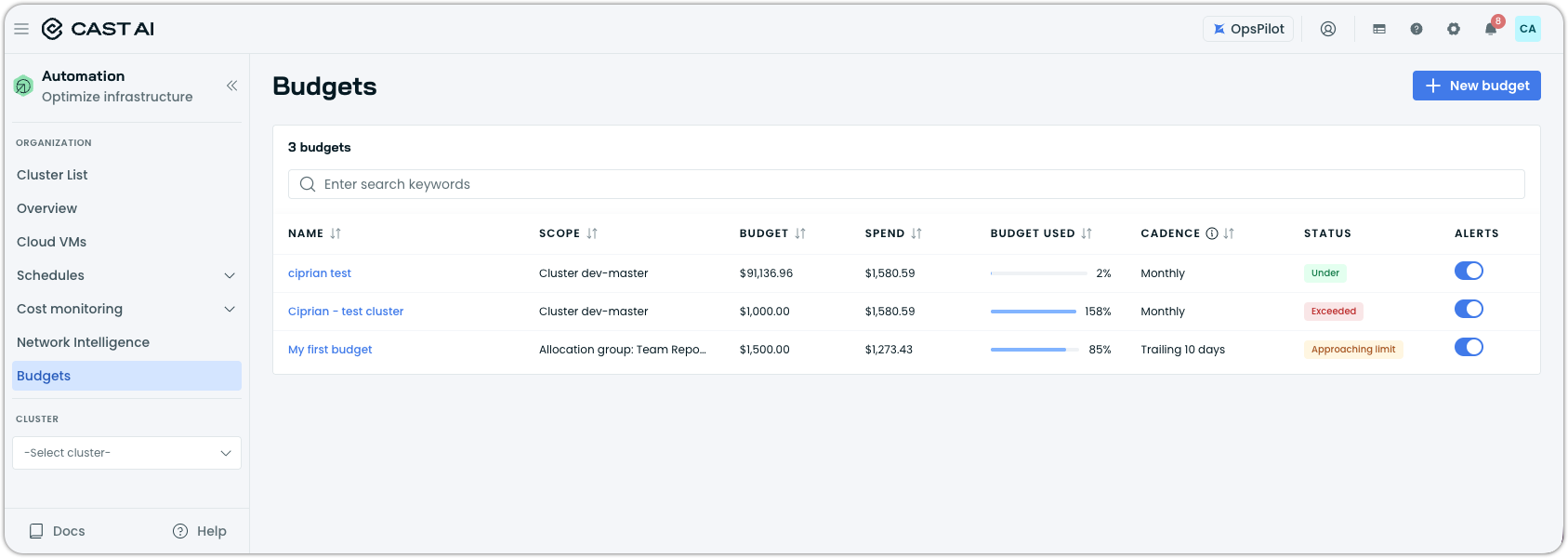
Reporting adds budgets. A cost preview is available while you set one up, and budgets are evaluated on a schedule and raise alerts.
For more information, see Budgets documentation.
GPU Metrics on CPU-Only Nodes
The castai-kvisor monitoring agent skips GPU metrics collection on nodes without GPUs, so it no longer logs connection errors on every CPU-only node.
Excluding Workloads from Optimization Data
A workload can be kept out of the data Cast AI collects about optimization constraints, so it does not appear as a constraint on the cluster’s optimization. Set the reporting.cast.ai/ignore-optimization-constraints annotation to "true" on the workload’s pod template, and its pods are skipped when constraints are collected. This is a way to permanently remove known false positives or other known constraint workloads.
Notifications and Alerts
All Notifications Category
Notification configurations can target the All category, covering every notification category with a single configuration instead of one per category.
Slack Integration
Setting up new Slack notifications now requires entering a channel ID rather than selecting a channel from a list. Private channel names are never shown in Cast AI, aligning with Slack's expectations for handling private channel data, and large workspaces no longer wait for thousands of channels to load just to pick one.
Slack Messages Update When a Notification Resolves
When a notification delivered to Slack is later resolved, the original message in the channel is updated to its resolved state. Previously, resolving a notification updated the record in Cast AI, but the Slack message kept showing the alert as active, so channels accumulated stale alerts that had already cleared.
Organization Management
Cluster-Level Event Log
Each cluster has its own Logs view, built the same way as the organization Event Log, which brings together the event logs that previously sat inside individual product pages. Workload Autoscaler keeps its dedicated log.
Event Log Improvements
Several refinements to the Event Log:
-
The event drawer is wider, displays the event body as formatted JSON with a copy button, lists event attributes as copyable key-value rows, and shows the timestamp's timezone.
-
Hovering over a cluster or resource value in the table lets you add it as a filter.
-
An instance type being blacklisted is recorded as informational rather than as a failure to add a node.
-
Node pool update and rebalancing plan cancellation events are now carried into the current Event Log.
-
The API for listing events can include each event's body, which the audit log receiver uses to forward complete events.
More Identity Events in the Event Log
Following last month's identity and access events, the Event Log also records:
-
Role binding changes, including enterprise-wide role overrides, and group changes, with the members added or removed.
-
SSO connection creation, deletion, and updates with the fields that changed, plus enabling or disabling directory sync.
-
Trial lifecycle changes: started, extended, converted, expired, restricted, and restored.
Platform Usage over 13 Months
Platform Usage can show up to 13 months of data at once, up from 31 days, so you can compare a month against the same month last year without collecting the data month by month. The default range is still one month.
Academy from the Console
An Academy link in the console signs you in to Cast AI Academy directly, without having to enter your email again.
Until now, only customers using the US region console could access Academy. The link is now available in the EU and India regions as well, and users who log in through SSO — previously unable to access Academy at all — can now use it too. Every organization can access Academy, regardless of its region or login method.
Terraform and Helm Chart Updates
We have released an updated version of our Terraform provider. The latest changes are detailed in the changelog on GitHub, and the updated provider and modules are ready for use in your infrastructure-as-code projects via Terraform's registry.
We have also released a new version of the Cast Helm chart. We ship updates multiple times a month, so staying current matters if you want the latest fixes and features as they land.
To upgrade in-place on a cluster:
helm repo update castai-helm
helm upgrade -n castai-agent castai-agent castai-helm/castai-agent --reset-then-reuse-values
If you are managing the agent through GitOps, bump the chart version in your manifest (Helm chart, ArgoCD Application, etc.) and let your reconciler roll out the upgrade. You can also use the Component Control dashboard in the Cast AI console to upgrade the agent directly.