

GCP capacity reservations
Learn how to use Google Cloud Compute Engine on-demand reservations with Cast AI to guarantee VM availability for critical workloads.
GCP reservations guarantee Compute Engine VM availability in a specific zone for a specific machine configuration. Unlike Committed Use Discounts (CUDs), which reduce costs through long-term spend or resource commitments, reservations ensure that the VMs you need are available when you need them, regardless of overall zonal capacity constraints.
Cast AI treats reservations as first-class commitments. Once imported, they appear on the Commitments page under the Reservations tab, where you can assign them to clusters, track their utilization, and configure the autoscaler to provision nodes into reserved capacity.
Cast AI supports Compute Engine on-demand reservations, in both consumption modes:
Automatically consumed reservations are consumed by any VM in the project whose properties match the reservation (machine type, zone, GPUs, Local SSDs). This is the default consumption type in GCP and is the closest equivalent to how Cast AI treats CUDs — no explicit targeting is required.
Specifically targeted reservations are consumed only by VMs that explicitly reference the reservation by name. In Cast AI, this requires targeting the reservation from a Node Template.
Both single-project and shared (cross-project) reservations are supported. Google Cloud documentation.
Key difference from CUDsSpecifically targeted reservations require explicit targeting through Node Templates. The node autoscaler does not automatically consume them the way it does with CUDs. You must configure a Node Template to target the reservation before the autoscaler provisions nodes into it. Automatically consumed reservations are an exception — Cast AI handles them the same way it handles CUDs in terms of consumption.
How reservations work in Cast AI
The overall workflow is:
- Create capacity in GCP. Create on-demand reservations in the zones and machine types you need.
- Import into Cast AI. Run the commitments import script or wait for an active Cloud Connect integration to sync. Cast AI discovers reservations by calling the Compute Engine
reservations.aggregatedListAPI. - Assign to clusters. On the Commitments page, assign the imported reservation to the clusters that should use it.
- Configure Node Templates. For specifically targeted reservations, select which Node Templates should target the reservation for each assigned cluster. The autoscaler only provisions nodes into a specifically targeted reservation when a Node Template explicitly targets it.
- Run workloads. When pending pods match the constraints of a Node Template targeting the reservation, the autoscaler provisions nodes into the reserved capacity first.
Two ways to link reservations and Node TemplatesYou can configure the relationship between reservations and Node Templates from either direction: in the commitment detail drawer, assign one reservation to multiple Node Templates across clusters, or in the Node Template editor, target multiple reservations from a single template.
Provisioning order
When a Node Template targets one or more reservations, the autoscaler follows this priority order:
- Reservations — Provisions into the targeted reservation first, up to the reserved VM count. Cast AI is also aware of and will take into account any external usage of a reservation by systems outside of Cast-managed clusters.
- Other commitment-covered on-demand — If the reservation is fully utilized, it falls back to CUD-covered capacity if available.
- Regular on-demand/Spot — Standard on-demand or Spot VMs if no commitment capacity remains.
If the Node Template lacks fallback options and the reservation is fully utilized, pods remain pending until capacity becomes available.
Reservation statuses
Each reservation has a lifecycle status visible on the Commitments page:
Active — The reservation is ready and available for use. The autoscaler can provision nodes into active reservations when matching pending pods exist.
Pending — The reservation is still being created or updated in GCP. The autoscaler does not provision into it until it becomes active.
Deleted — The reservation no longer exists in GCP, either because it was deleted manually or because its auto-delete time was reached. Cast AI reflects this status after the next Cloud Connect sync (up to 1 hour). The autoscaler ignores deleted reservations.
Auto-deleteGCP reservations can be created with an auto-delete time, after which Compute Engine removes them automatically. Cast AI does not manage the auto-delete setting — it reflects the reservation's state after it is applied. Nodes running when a reservation is deleted keep running and are billed at the standard rate.
Prerequisites
Before importing reservations, ensure the following:
GCP permissions. The service account used by Cloud Connect must be able to read reservations in the project — the compute.reservations.get and compute.reservations.list permissions, included in the roles/compute.viewer role. See Cloud permissions for the full set of permissions. The script for uploading commitments requires the same permissions.
Existing integration. You need either Cloud Connect configured for your GCP project or use the commitments import script. Reservations are discovered through the same import mechanism used for CUDs.
Cluster connected. At least one GCP cluster must be connected to Cast AI in the same region as the reservation for it to be visible in the user interface after importing.
Shared reservations. For a shared reservation to be discovered, Cast AI needs read access to the owner project — the project where the reservation was created. Granting access only to a consumer project is not sufficient, as GCP lists each shared reservation only in the project that created it.
Importing reservations
Reservations are imported using the same workflow as other GCP commitments.
If you already have a commitments import or Cloud Connect set up, newly created reservations are discovered automatically during the next sync cycle.
To import manually:
- Navigate to Optimization > Commitments (Classic Console) or Settings > System > Commitments (Enhanced Console) in the left sidebar.
- Click Upload commitments in the top right corner.
- Run the script. Cast AI discovers all commitment types, including reservations.
Once imported, reservations appear under the Reservations tab on the Commitments page:
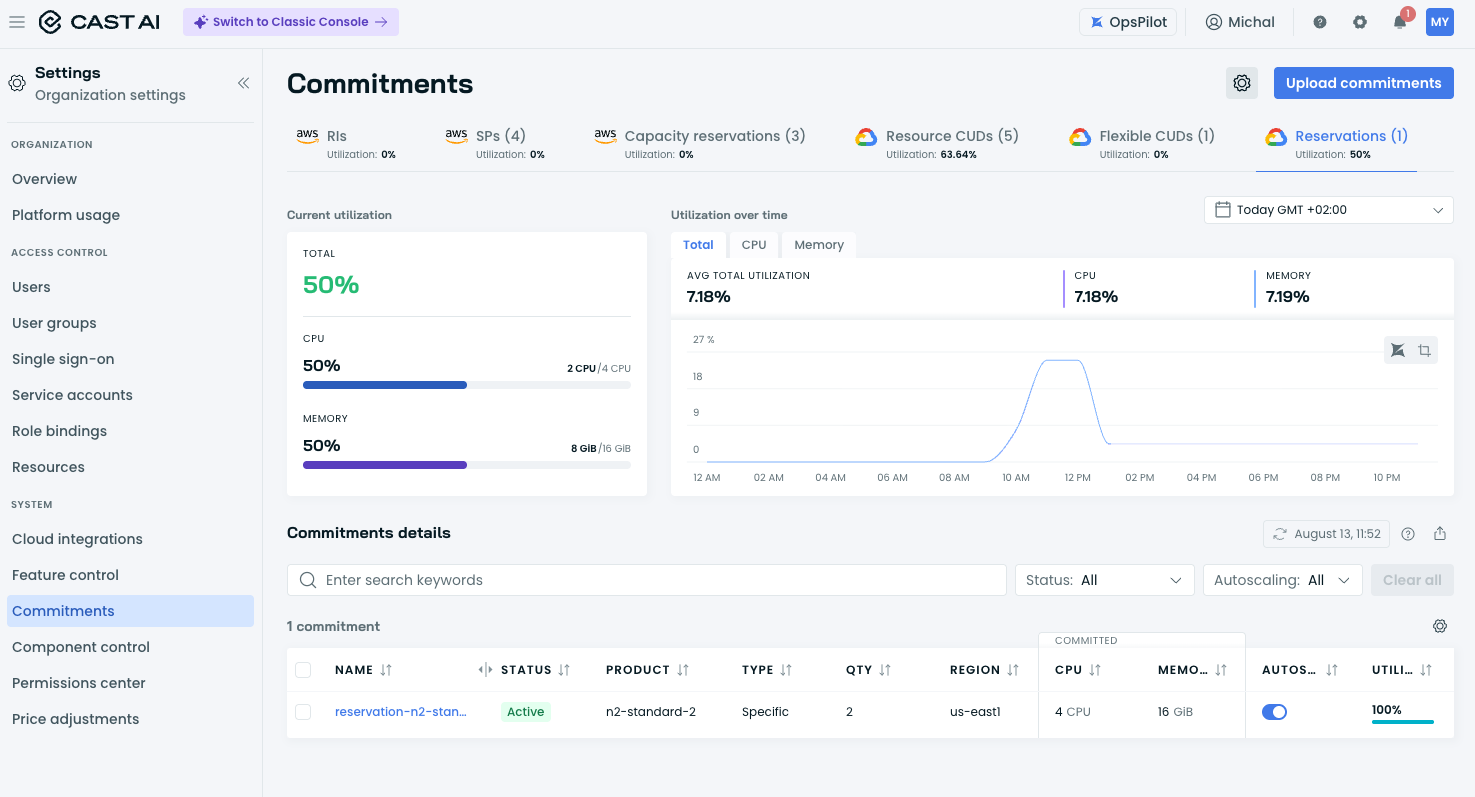
The Reservations tab on the Commitments page showing imported reservations
Assigning reservations to clusters
After importing, assign the reservation to the clusters that should use it:
- Click on a reservation name to open the detail drawer.
- Under Assign clusters to the commitment, select the clusters that should have access to this reservation.
- For each assigned cluster, select at least one Node Template from the dropdown. This is mandatory for specifically targeted reservations — the autoscaler requires explicit Node Template targeting to consume them.
- Click Save.
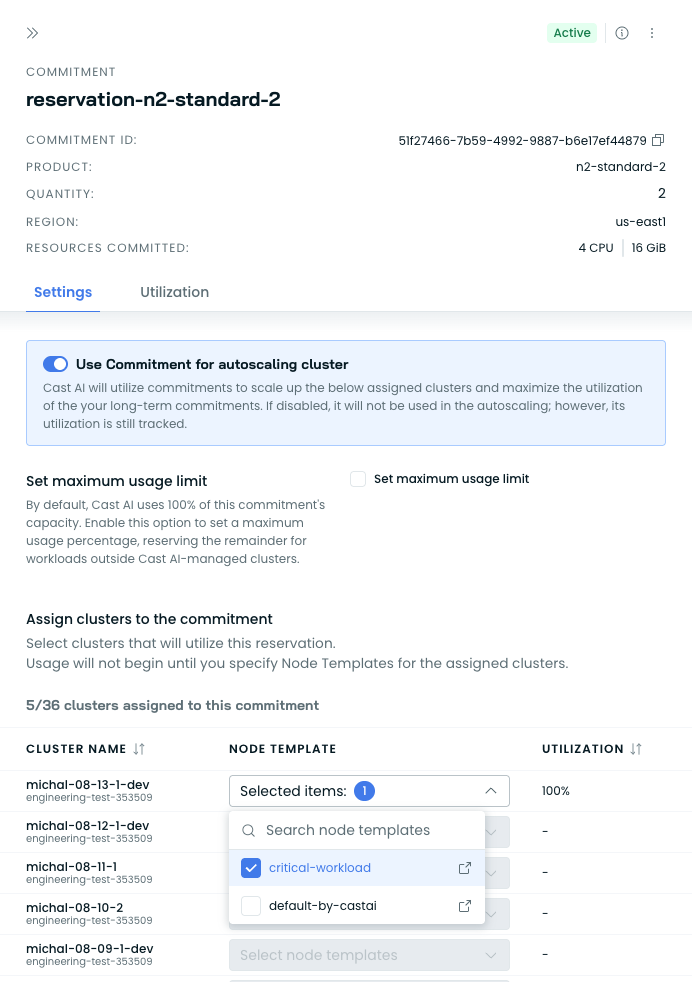
Assigning clusters and Node Templates to a reservation in the detail drawer
The detail panel also allows you to configure:
Use Commitment for cluster autoscaling — When enabled, Cast AI uses this reservation when scaling up assigned clusters. When disabled, the reservation is not used in autoscaling decisions, but its utilization is still tracked.
Set maximum usage limit — Optionally restrict Cast AI to use only a percentage of the reservation's capacity, reserving the remainder for workloads outside Cast AI-managed clusters.
Consumption type determines what is requiredFor specifically targeted reservations, Node Template selection is mandatory. If no Node Template is selected, the autoscaler cannot provision into the reservation. For automatically consumed reservations, matching nodes consume the reservation without Node Template targeting, though you can still target them explicitly to control which workloads land on reserved capacity.
Configuring Node Templates for reservations
To target a reservation from a Node Template, use the Target capacity reservations field in the Node Template configuration:
- Navigate to your cluster's Configuration > Node autoscaler page, then choose the Node templates tab.
I'm using Classic Console
Navigate to your cluster's Autoscaler > Node templates page.
- Create a new Node Template or edit an existing one.
- In the Target capacity reservations section, select one or more reservations from the dropdown.
- Save the template.
GCP consumes a reservation only when the VM's properties match the reservation's properties exactly, so any mismatch means the node is created outside the reservation. Cast AI matches nodes to a reservation on machine type, zone, and GPU (accelerator type and count). Cast AI does not currently match on the reservation's minimum CPU platform or Local SSD configuration, so a reservation that specifies either of those is not used by the autoscaler. See Known limitations.
For specifically targeted reservations, Cast AI provisions nodes with a GCP reservation affinity (consumeReservationType: SPECIFIC_RESERVATION, key compute.googleapis.com/reservation-name) that references the reservation by name, so the VM consumes only that reservation. Automatically consumed reservations do not require reservation affinity — a matching VM consumes them without explicit targeting.
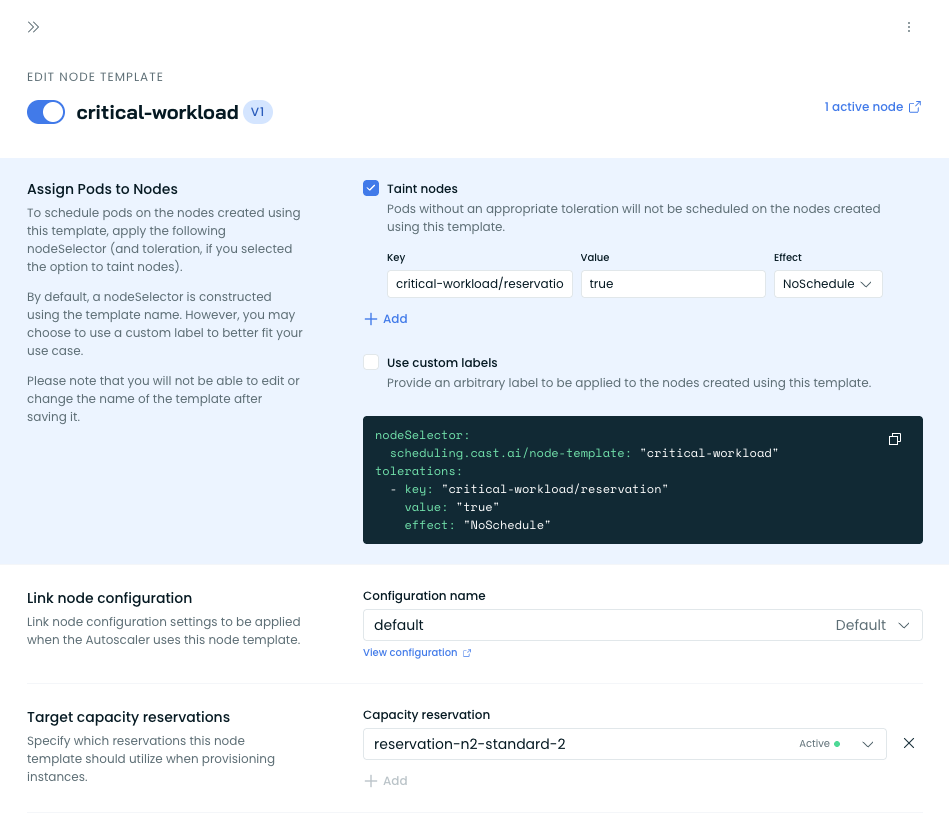
Node Template configuration showing the field for targeting reservations
For full Node Template documentation, see Node Templates.
Automatically consumed vs. specifically targeted reservations
GCP reservations have a consumption type that determines which VMs can use them, and Cast AI handles each differently:
Automatically consumed reservations (the GCP default) are applied to any VM in the project matching the reservation's machine type, zone, and optional resources. Cast AI-provisioned nodes consume this capacity as soon as they match, without any Node Template targeting. Note that other systems in your project may also consume the same capacity.
Specifically targeted reservations are consumed only by VMs that reference the reservation by name. Cast AI provisions nodes with the corresponding reservation affinity only when a Node Template is explicitly tied to the reservation in the Commitments interface.
If a project has VMs that can automatically consume multiple reservations, GCP consumes all single-project reservations before any shared ones.
Shared reservations
A shared reservation can be consumed by VMs in the project that created it (the owner project) and in any project it is shared with (consumer projects), as configured through the reservation's share settings in GCP.
Cast AI imports a shared reservation from the owner project and makes it available to clusters in any of the projects that are connected to your Cast AI organization and included in the reservation's share settings. Utilization is tracked per reservation across all consuming clusters and projects.
Keep the following in mind:
- Cloud Connect must have read access to the owner project for the reservation to be discovered at all.
- If a cluster runs in a project that is not listed in the reservation's share settings, its nodes cannot consume the reservation even if the reservation is assigned to that cluster in Cast AI.
- Sharing settings themselves are managed in GCP, not in Cast AI. Changes are reflected after the next sync.
Setting up a reservation
-
Create the reservation in GCP. Create an on-demand reservation for the machine type, zone, and VM count you need. If you plan to use specific targeting, create it as a specifically targeted reservation.
-
Import into Cast AI. Import commitments or wait for Cloud Connect to sync. Reservations appear under the Reservations tab with their current status.
-
Assign to your cluster. Select the cluster and, for specifically targeted reservations, the Node Templates that should use this reservation.
-
Configure the Node Template. Select the reservation under Target capacity reservations. Ensure the Node Template's constraints (machine type, zone, and GPU configuration) match the reservation's properties — GCP requires an exact match for the reservation to be consumed. For specifically targeted reservations, Cast AI provisions nodes with a GCP reservation affinity that references the reservation by name so the VM consumes only that reservation.
-
Deploy workloads. The autoscaler provisions nodes into the reservation when matching pods are pending, up to the reserved VM count. If the reservation is fully utilized, the autoscaler falls back to other options configured on the Node Template.
-
Monitor utilization. Track utilization on the Commitments page. Because a reservation is billed for as long as it exists regardless of whether it is consumed, maximizing utilization directly reduces wasted spend.
Interaction with Rebalancer
The Rebalancer respects reservations when evaluating node replacements. Nodes backed by active reservations are not replaced with non-reserved alternatives. The Rebalancer can also help re-pack workloads onto reserved nodes to maximize utilization of a reservation.
Troubleshooting
Reservation not being utilized
If the autoscaler is not provisioning into an available reservation, verify:
Node Template targeting. For specifically targeted reservations, the reservation must be selected in the Target capacity reservations field of at least one enabled Node Template assigned to the cluster.
Cluster assignment. The reservation must be assigned to the cluster, and Node Templates must be selected for that cluster.
Reservation status. The reservation must be Active. Pending reservations are not used for provisioning, and deleted reservations are ignored.
Property match. GCP requires an exact match between the VM and the reservation. Cast AI matches on machine type, zone, and GPU type and count. Cast AI does not match on the reservation's minimum CPU platform or Local SSD configuration, so a reservation that specifies either is not used by the autoscaler (see Known limitations). A reservation with a compact placement policy can only be consumed by VMs using the same policy.
Project and share settings. The cluster's project must be either the owner project or one of the consumer projects listed in the reservation's share settings.
Matching workloads. Pending pods must match the Node Template's constraints (labels, tolerations, resource requests). The provisioned VM's properties (machine type, zone, GPU) must also match the reservation's properties exactly for GCP to consume the reservation.
Autoscaling toggle. The Use Commitment for cluster autoscaling toggle must be enabled on the reservation.
Quota. Reserved resources consume project quota. If the project is out of quota for the reserved machine type, node creation fails even though reserved capacity exists.
Known limitations
On-demand reservations only. Cast AI supports Compute Engine on-demand reservations. Future reservations, including future reservations in calendar mode, are not currently supported.
Zonal scope. Reservations are zonal resources. A reservation can only be consumed by nodes in the same zone, which constrains any Node Template that targets it to a single zone.
Minimum CPU platform and Local SSD are not matched. Cast AI matches nodes to a reservation on machine type, zone, and GPU accelerators (type and count). It does not currently match on the reservation's minimum CPU platform or Local SSD configuration. If a reservation specifies a minimum CPU platform or Local SSDs, the autoscaler will not provision nodes into it. GPU accelerators are supported.
Shared reservation discovery. Shared reservations are only discovered through the owner project. If Cloud Connect has access only to a consumer project, the reservation will not appear in Cast AI.
Shared reservation tracking. If multiple clusters or Node Templates target the same reservation, Cast AI tracks utilization per reservation across all of them. GCP enforces capacity limits, so over-assignment may result in some workloads not receiving reserved capacity.
See also
- Commitments — Overview of discount-based commitments (CUDs, RIs, Savings Plans)
- Node Templates — Configure Node Templates including reservation targeting
- Cloud permissions — Required GCP permissions for importing reservations
- About reservations — Google Cloud documentation
- Consume a reservation — Google Cloud documentation
Updated last month