

How-to: Configure HPA on a workload
This guide walks you through enabling and configuring Horizontal Pod Autoscaling (HPA) on individual workloads. When configured, Cast AI creates a native Kubernetes HorizontalPodAutoscaler resource in your cluster and manages it on your behalf.
Overrides are not recommendedFor most use cases, configuring HPA at the scaling policy level is the preferred approach. It provides consistent settings across workloads and reduces per-workload management overhead.
See Horizontal autoscaling in scaling policies. Use workload-level configuration only when a specific workload needs settings that differ from its policy.
Before you begin
Ensure the following prerequisites are met:
- The following minimum component versions are installed in your cluster:
| Component | Version |
|---|---|
| castai-workload-autoscaler | v0.44.0 or later |
| castai-agent | v0.60.0 or later |
- The workload is a supported type: Deployment, StatefulSet, ReplicaSet, or Rollout (Argo)
- If the workload already has a native HPA that you want Cast AI to manage, it must not be owned by a third-party controller such as KEDA and must use only basic resource targets (CPU or memory utilization). See Eligibility for full requirements.
Configure via the Cast AI console
Enable HPA on a workload
- Navigate to Workload Autoscaler > Optimization
- Select the workload you want to configure
- In the workload page, select the Horizontal autoscaling tab
If the workload does not yet have HPA configured (via a native Kubernetes HPA object), you will see one of two states:
-
If HPA is configured in the workload's scaling policy, the workload inherits those settings and displays them here, allowing you to override them for this workload. Note that until HPA is enabled, these settings remain passive.
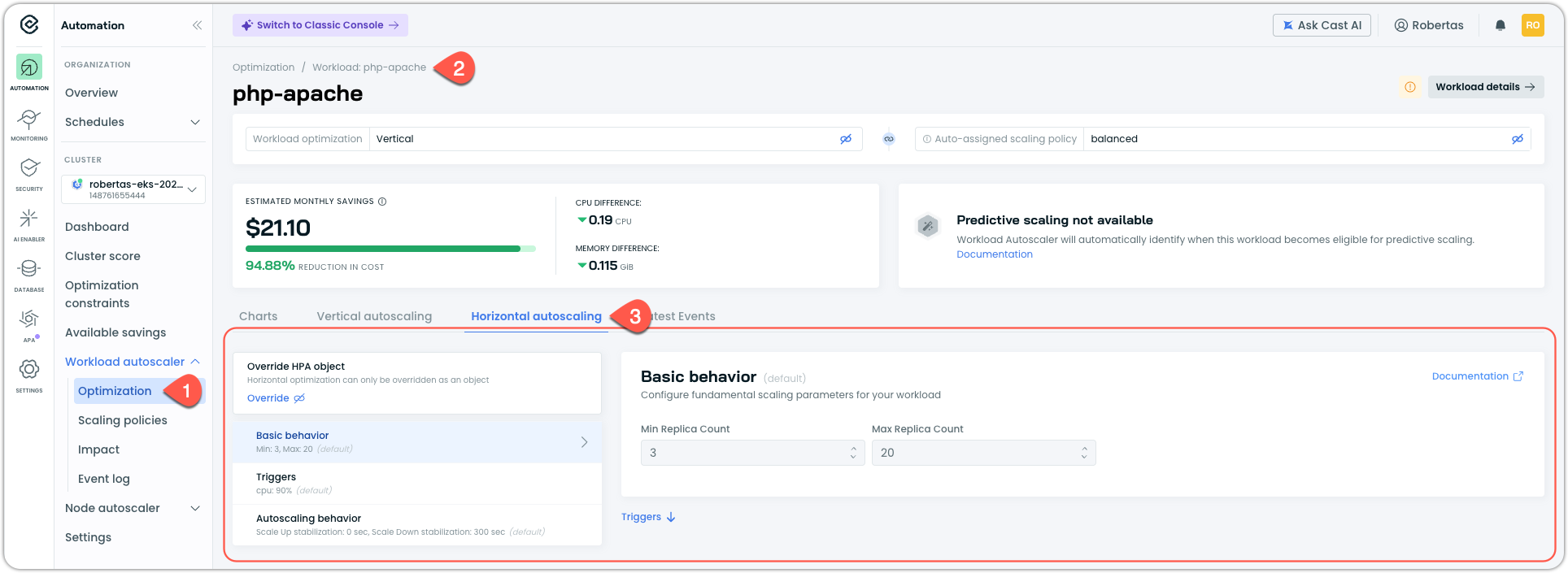
Workload page with the Horizontal autoscaling tab open
-
If the policy does not have HPA configured, you will see a Missing HPA configuration message. The options for adding HPA to a workload in the Console vary:
- Create HPA object (workload-level override) is always available for an individual workload that supports HPA
- Configure in policy (recommended) is only available for workloads that are not assigned to a system policy but to a custom policy that does not yet have HPA configuration defined.
-
To create a workload-level configuration, click Create HPA object
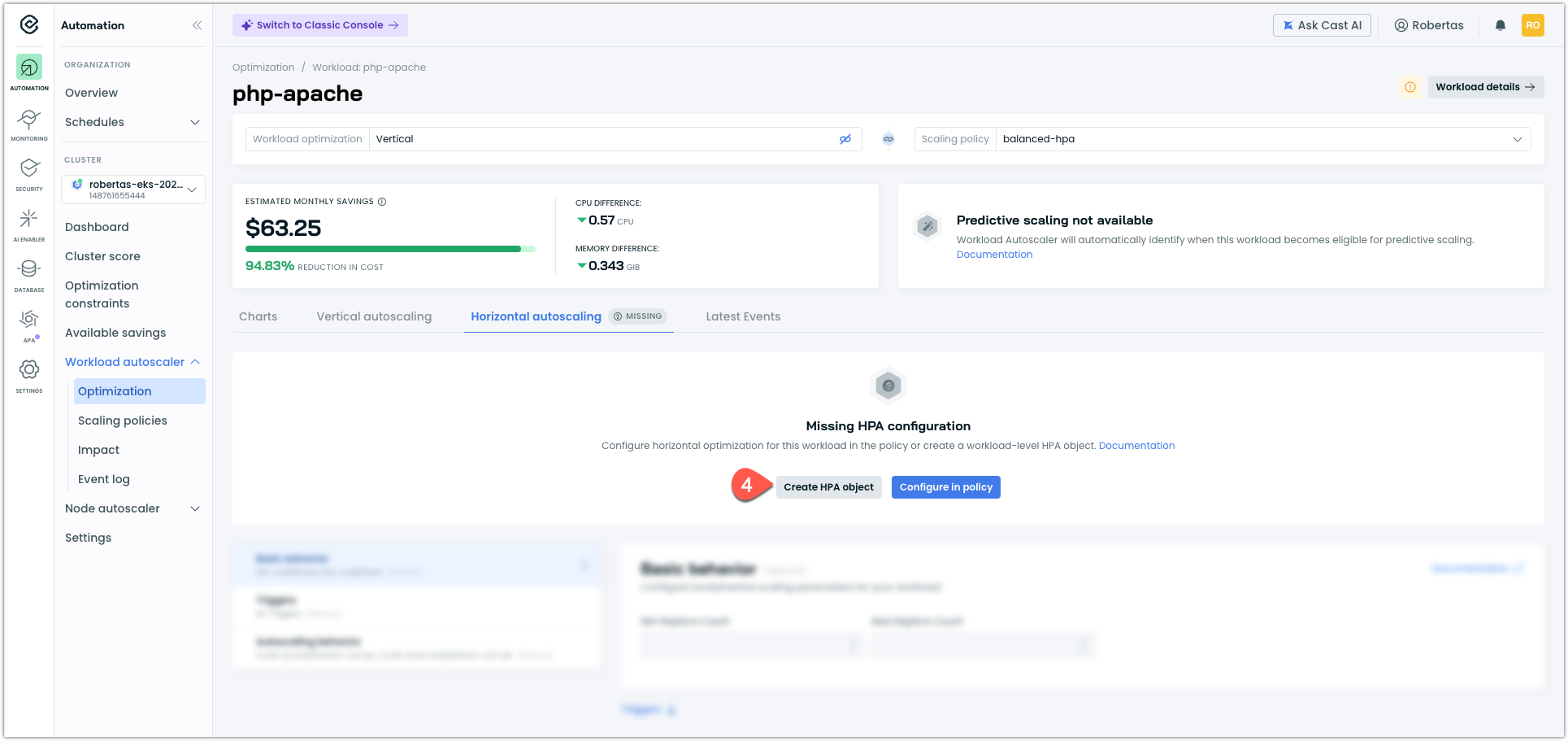
NoteCreating a workload-level HPA is a workload-level override. The workload's HPA settings are no longer inherited from its scaling policy. See HPA in scaling policies for details on how overrides work.
Configure pod count
Under Pod count, set the minimum and maximum number of replicas the autoscaler can manage. The autoscaler will not scale below the minimum or above the maximum.

Configure triggers
Under Triggers, configure the resource utilization metrics that drive scaling decisions. You can add CPU utilization, memory utilization, or both as triggers.
For each trigger, set the target utilization percentage. For example, setting CPU utilization to 70% means the autoscaler will attempt to keep average CPU utilization across all pods at approximately 70% by adding or removing replicas.
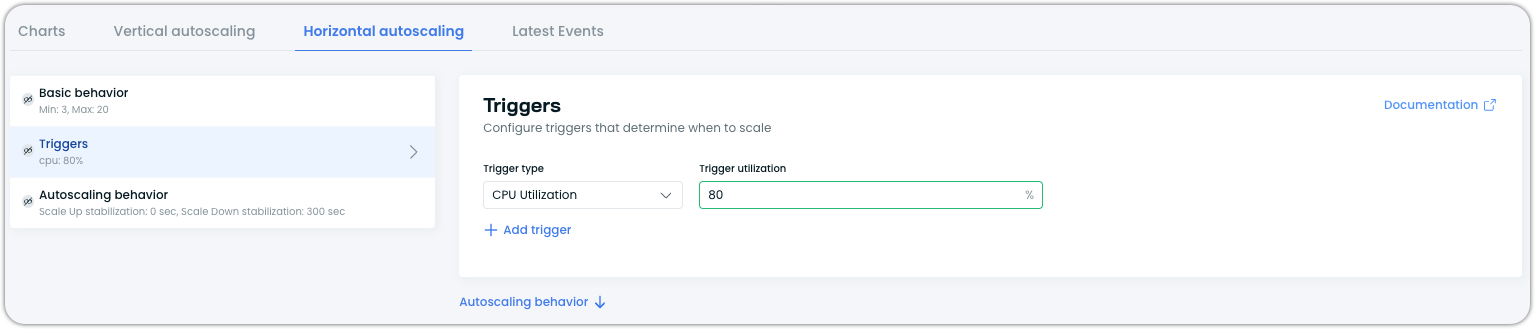
Configure autoscaling behavior (optional)
Under Autoscaling behavior, you can fine-tune how the autoscaler responds to metric changes. This section supports separate configuration for scale-up and scale-down directions.
Stabilization windows control how long the autoscaler waits before acting on new scaling recommendations, preventing rapid fluctuations (flapping):
| Field | Description |
|---|---|
| Scale Up Stabilization | Seconds to wait before scaling up. Set to 0 for immediate response. |
| Scale Down Stabilization | Seconds to wait before scaling down. 300 (5 minutes) is a common starting point. |
Scaling policies control the rate at which replicas are added or removed. You can define one or more policies per direction:
| Field | Description |
|---|---|
| Policy Type | The unit for the rate limit: Pods (absolute count) or Percent (percentage of current replicas). |
| Value | Maximum amount of change allowed per period. |
| Period | Time window in seconds for the rate limit. |
When multiple policies are defined for the same direction, Kubernetes uses the policy that allows the most change by default. To control this selection behavior via annotations, see the selectPolicy field in the Annotations reference.
These settings are optional. If not configured, Kubernetes defaults apply.
Save your configuration
Click Save changes to apply your configuration. Workload Autoscaler will create a native HorizontalPodAutoscaler resource in your cluster matching this configuration.
Configure via annotations
You can configure HPA using the workloads.cast.ai/configuration annotation on your workload manifest. This creates the same native HPA as the console method.
Console or API recommendedAnnotations provide a declarative option for HPA configuration, but the Cast AI console or API is generally easier to manage and validate. Annotations do not surface configuration errors until the workload is applied, whereas the console provides immediate feedback. Consider using annotations only when you need GitOps-style configuration or have specific workflow requirements.
Basic configuration
The minimum required annotation configures the optimization mode, enables native HPA, sets replica bounds, and defines at least one scaling trigger:
apiVersion: apps/v1
kind: Deployment
metadata:
  name: my-app
  annotations:
    workloads.cast.ai/configuration: |
      horizontal:
        optimization: true
        useNative: true
        minReplicas: 2
        maxReplicas: 10
        metrics:
          - type: resource
            resource:
              name: cpu
              target:
                type: Utilization
                averageUtilization: 80
Verify the HPA was created
After applying the annotation to your manifest, confirm that a native HPA resource exists and reflects your configuration:
# Check that the HPA was created
kubectl get hpa -n <namespace>

# Inspect details — confirm target, min, and max replicas
kubectl describe hpa <workload-name> -n <namespace>

# Confirm the deployment scaled to at least minReplicas
kubectl get <workload-kind> <workload-name> -n <namespace>
Note that you can apply the annotation to any workload, but only eligible workloads will have the HPA resource created. If your workload is ineligible (for example, a CronJob or a workload with an incompatible existing HPA), the Cast AI console displays a misconfiguration error explaining why the HPA was not created.
Configuration with scaling behavior
To add custom scaling behavior, include the behavior block. This example configures a conservative scale-down (10% of replicas per minute, with a 5-minute stabilization window) and a more aggressive scale-up (up to 4 pods per minute):
apiVersion: apps/v1
kind: Deployment
metadata:
  name: my-app
  annotations:
    workloads.cast.ai/configuration: |
      horizontal:
        optimization: true
        useNative: true
        minReplicas: 2
        maxReplicas: 20
        metrics:
          - type: resource
            resource:
              name: cpu
              target:
                type: Utilization
                averageUtilization: 80
        behavior:
          scaleUp:
            stabilizationWindowSeconds: 60
            selectPolicy: Max
            policies:
              - type: Pods
                value: 4
                periodSeconds: 60
          scaleDown:
            stabilizationWindowSeconds: 300
            selectPolicy: Min
            policies:
              - type: Percent
                value: 10
                periodSeconds: 60
Verify the behavior configuration
Confirm the behavior spec was applied to the HPA:
# Check the behavior section in the HPA description
kubectl describe hpa <workload-name> -n <namespace> | grep -A 20 "Behavior:"

# Or inspect the full YAML
kubectl get hpa <workload-name> -n <namespace> -o yaml | grep -A 30 "behavior:"
To observe the behavior in action, generate load against your workload and watch the HPA react:
# Watch HPA scaling decisions in real time
kubectl get hpa -n <namespace> --watch
Scale-up should happen according to your scale-up policies.
Multiple triggers
You can configure both CPU and memory triggers. The autoscaler evaluates all triggers and uses the one that results in the highest replica count:
annotations:
  workloads.cast.ai/configuration: |
    horizontal:
      optimization: true
      useNative: true
      minReplicas: 2
      maxReplicas: 15
      metrics:
        - type: resource
          resource:
            name: cpu
            target:
              type: Utilization
              averageUtilization: 80
        - type: resource
          resource:
            name: memory
            target:
              type: Utilization
              averageUtilization: 80
Verify both metrics are active
Confirm both metrics appear in the HPA:
kubectl describe hpa <workload-name> -n <namespace> | grep -A 5 "Metrics:"Both CPU and memory targets should be listed.
Combining HPA and vertical autoscaling
To use both HPA and vertical autoscaling together, include both blocks in the same annotation. Cast AI automatically coordinates between the two dimensions to prevent conflicts:
annotations:
  workloads.cast.ai/configuration: |
   scalingPolicyName: balanced
   vertical:
      optimization: on
    horizontal:
      optimization: true
      useNative: true
      minReplicas: 2
      maxReplicas: 10
      metrics:
        - type: resource
          resource:
            name: cpu
            target:
              type: Utilization
              averageUtilization: 80
For details on how vertical and horizontal scaling interact, see Vertical & horizontal workload autoscaling.
For the complete field reference, see the horizontal section in the Annotations reference.
Take ownership of an existing native HPA
If your workload already has a native Kubernetes HPA that is not managed by a third-party controller, Cast AI can take ownership of it. This replaces the existing HPA's configuration with your Cast AI-managed settings.
Eligibility
Not all existing HPAs can be taken over. Cast AI can only take ownership of HPAs that meet the following criteria:
- The HPA is not managed by a third-party controller (such as KEDA)
- The HPA uses only CPU or memory utilization metrics at the workload level
- The HPA does not use external metrics, pod metrics, or object metrics
- The HPA does not use container-level resource targets
If a workload's HPA uses unsupported features, the Horizontal autoscaling tab displays Cannot transfer HPA ownership, explaining that the workload's HPA uses features not currently supported by scaling policies. These workloads retain their existing HPA and are not affected by Cast AI's horizontal autoscaling.
Via scaling policies (recommended)
Taking ownership of existing HPAs is managed through scaling policies in the Cast AI console. This applies the policy's HPA settings to all eligible workloads assigned to the policy.
- Navigate to Workload Autoscaler > Scaling policies
- Open the policy assigned to the workloads whose HPAs you want to take over
- In the Horizontal Autoscaling tab, check Replace existing HPAs with policy settings
- Configure your desired HPA settings (pod count, triggers, behavior)
- Save the policy
For details, see Enable take ownership at the policy level.
Via annotations
To take ownership on a specific workload, set takeOwnership: true in the horizontal configuration block:
annotations:
  workloads.cast.ai/configuration: |
    horizontal:
      optimization: true
      useNative: true
      takeOwnership: true    # controls ownership of native k8s HPA you had before
      minReplicas: 2
      maxReplicas: 10
      metrics:
        - type: resource
          resource:
            name: cpu
            target:
              type: Utilization
              averageUtilization: 80
Verify ownership transfer
The most reliable way to confirm Cast AI has taken ownership is to check the ownerReferences field on the HPA resource for a Recommendation owner:
kubectl get hpa <workload-name> -n <namespace> -o yaml | grep -A 5 "ownerReferences:"You should see a Recommendation resource listed as an owner, confirming that Workload Autoscaler owns this HPA.
The HPA also includes an autoscaling.cast.ai/hpa-revert-configuration annotation containing a JSON snapshot of the original HPA spec as it existed before Cast AI took ownership. This preserved configuration is what Cast AI restores if you later revert ownership. For example:
autoscaling.cast.ai/hpa-revert-configuration: '{"hpaSpec":{"scaleTargetRef":{...},"minReplicas":1,"maxReplicas":5,"metrics":[...]},"ownerReference":null}'
ImportantEven though taking ownership replaces the existing HPA configuration entirely, and the values you specify in your Workload Autoscaler configuration become the new HPA settings, the existing HPA configuration is preserved by Cast AI and can be restored at any time.
Webhook protection for managed HPAs
Once Workload Autoscaler owns an HPA object, a validating webhook protects it from external modifications:
- Manual edits to the
HorizontalPodAutoscalerresource viakubectl editor other tools are rejected by the webhook. All configuration changes must be made through the Cast AI console, API, or annotations. - Manual deletes of the
HorizontalPodAutoscalerresource are also rejected. Even without the webhook, thecastai-workload-autoscalerwould recreate a deleted HPA on its next reconciliation cycle as long as HPA is enabled for the workload.# Attempt to delete HPA kubectl delete hpa -n <namespace> --all # Admission webhook protection Error from server (Forbidden): admission webhook "hpa-ownership.cast.ai" denied the request: HPA is managed by workload-autoscaler - To stop Cast AI from managing an HPA, disable horizontal autoscaling for the workload through the Cast AI console or API, uncheck the Take ownership option, or remove the
horizontalblock from the annotation. This is the correct way to remove a Workload Autoscaler-managed HPA.
ArgoCDBecause Workload Autoscaler modifies and protects the HPA resource, ArgoCD may detect a diff between the desired state in Git and the live cluster state. Cast AI updates the replica field owner to prevent ArgoCD from reporting an out-of-sync status for replica counts, but the HPA resource itself will appear as managed by Workload Autoscaler rather than your Git repository. Consider excluding Workload Autoscaler-managed HPA resources from ArgoCD sync if you encounter persistent warnings.
Revert HPA ownership
If you had Cast AI take ownership of a workload's native HPA and want to return to the original configuration, you can revert ownership. Cast AI preserves the original HPA spec at the time of takeover, so reverting restores the HPA to its pre-ownership state.
Revert at the policy level
If ownership was enabled at the policy level via the HPA ownership toggle, revert through the policy:
- Navigate to the policy's Horizontal Rightsizing tab
- Toggle the HPA ownership to off
- Save the policy
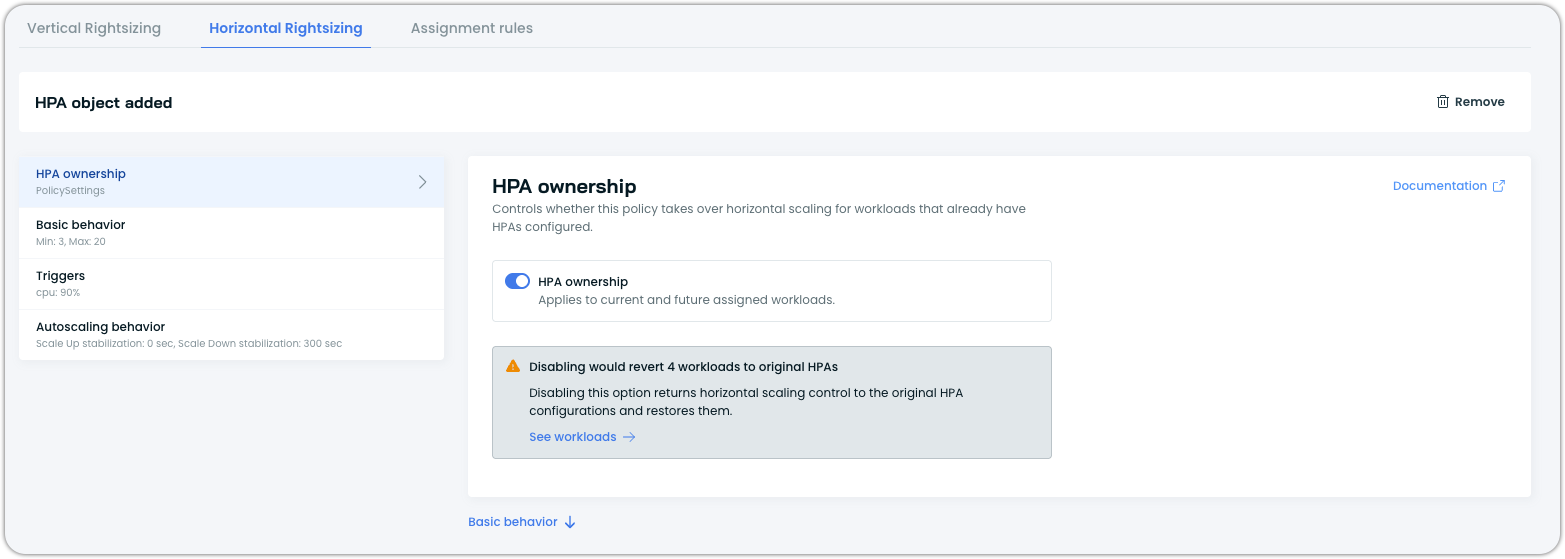
Cast AI releases ownership on all workloads that were taken over through this policy and restores their original HPA configurations.
Revert via annotations
If ownership was taken on a specific workload via the takeOwnership: true annotation, revert by updating the annotation:
annotations:
  workloads.cast.ai/configuration: |
    horizontal:
      optimization: true
      useNative: true
      takeOwnership: false
      minReplicas: 2
      maxReplicas: 10
      metrics:
        - type: resource
          resource:
            name: cpu
            target:
              type: Utilization
              averageUtilization: 80
Setting takeOwnership to false (or removing the field entirely) causes Cast AI to release ownership and restore the original HPA configuration from the preserved snapshot.
NoteThere is no UI path to take or revert ownership on individual workloads. Workload-level ownership is managed exclusively through annotations or the API. For UI-based ownership management, use the policy-level approach.
What gets restored
When you revert ownership, Cast AI restores the exact HPA spec that existed before takeover. This is stored in the autoscaling.cast.ai/hpa-revert-configuration annotation on the HPA resource. You can inspect it before reverting to confirm what will be restored:
kubectl get hpa <workload-name> -n <namespace> \
  -o jsonpath='{.metadata.annotations.autoscaling\.cast\.ai/hpa-revert-configuration}' | jq .
The restored configuration includes the original minReplicas, maxReplicas, metrics, and behavior settings. If the original HPA had no owner reference (i.e., it was a standalone HPA), it returns to that state.
Revert vs. disable
Reverting ownership and disabling horizontal autoscaling are different actions:
- Revert ownership restores the original native HPA that existed before Cast AI took over. The HPA continues to function as it did before Cast AI management, just without Cast AI controlling it.
- Disable horizontal autoscaling removes the Cast AI-managed HPA entirely. If the workload had no HPA before Cast AI created one (i.e., Cast AI created it from scratch rather than taking ownership), disabling removes the HPA. There is no original configuration to restore in this case.
Verify the revert
After reverting, confirm the HPA has been restored to its original configuration:
# Check that the Cast AI management annotation is gone
kubectl get hpa <workload-name> -n <namespace> -o yaml | grep -i cast

# Inspect the HPA to confirm original values are restored
kubectl describe hpa <workload-name> -n <namespace>
The autoscaling.cast.ai/hpa-managed annotation should no longer be present. The HPA's minReplicas, maxReplicas, and metrics should match the original values from the preserved configuration.
Verify your configuration
After configuring HPA, verify that the native HPA resource was created successfully.
Check via kubectl
kubectl get hpa -n <namespace>You should see a HorizontalPodAutoscaler resource for your workload, managed by Workload Autoscaler.
Check via the Cast AI console
In the workload's Horizontal autoscaling tab, you should see the current HPA configuration displayed.
The workload always shows an H badge when horizontal optimization is active:

See also
Updated 5 months ago