

Set up Slack notifications
Learn how to connect your Slack workspace to Cast AI and configure alerts to be delivered to your Slack channels.
Overview
In this tutorial, you'll learn how to connect your Slack workspace to Cast AI and configure alerts to be delivered to your Slack channels. This tutorial is intended for those who want to receive Cast AI notifications directly in Slack without manually configuring webhooks.
By the end of this tutorial, you'll be able to:
- Connect a Slack workspace to your Cast AI organization
- Create an alert that delivers notifications to the Slack channels you add
- Test the connection to verify alerts are working
- Manage connected workspaces and troubleshoot connection issues
Background
Cast AI's native Slack integration is the recommended method for receiving cluster notifications in Slack. Unlike the webhook-based approach, which requires you to manually create and manage Slack incoming webhooks, this integration uses OAuth to connect your Slack workspace directly to Cast AI. This means you can set up notifications in a few clicks without any technical configuration in Slack.
Slack notifications include key information about cluster events, such as severity, a summary message, and a link to the Cast AI console. Full notification details remain available in the console.
For details on how Cast AI handles data collected through this integration, see the Cast AI Privacy Policy.
ImportantYou must initiate the Slack connection from the Cast AI console. The setup will not work if you attempt to start it from within Slack.
Before you start
Before you begin, ensure you have:
- Access to the Cast AI console with permissions to manage notifications (Organization Owner or Enterprise Owner role)
- A Slack workspace where you want to receive notifications
- Permission to install apps in your Slack workspace, or access to a Slack workspace administrator who can approve app installations
ImportantEach Cast AI organization must connect to its own Slack workspace. If the same Slack workspace is already connected to a different Cast AI organization, the connection attempt will fail during the Connect step. To connect this organization, use a different Slack workspace or disconnect the workspace from the other organization first.
Create a Slack alert
Creating a Slack alert involves configuring the alert details and connecting your Slack workspace. If you haven't connected a workspace yet, you'll do so as part of this process.
-
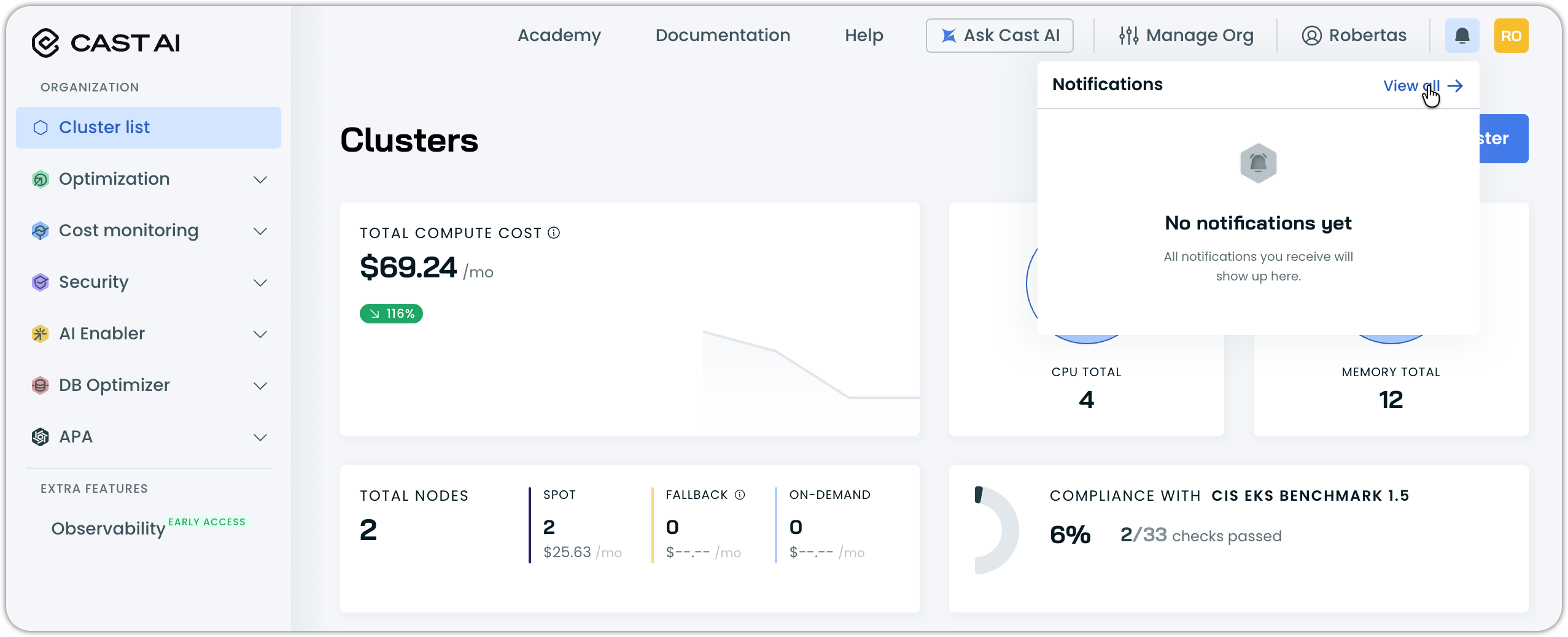
In the Cast AI console, click the Notifications icon in the top navigation, then click View all.
-
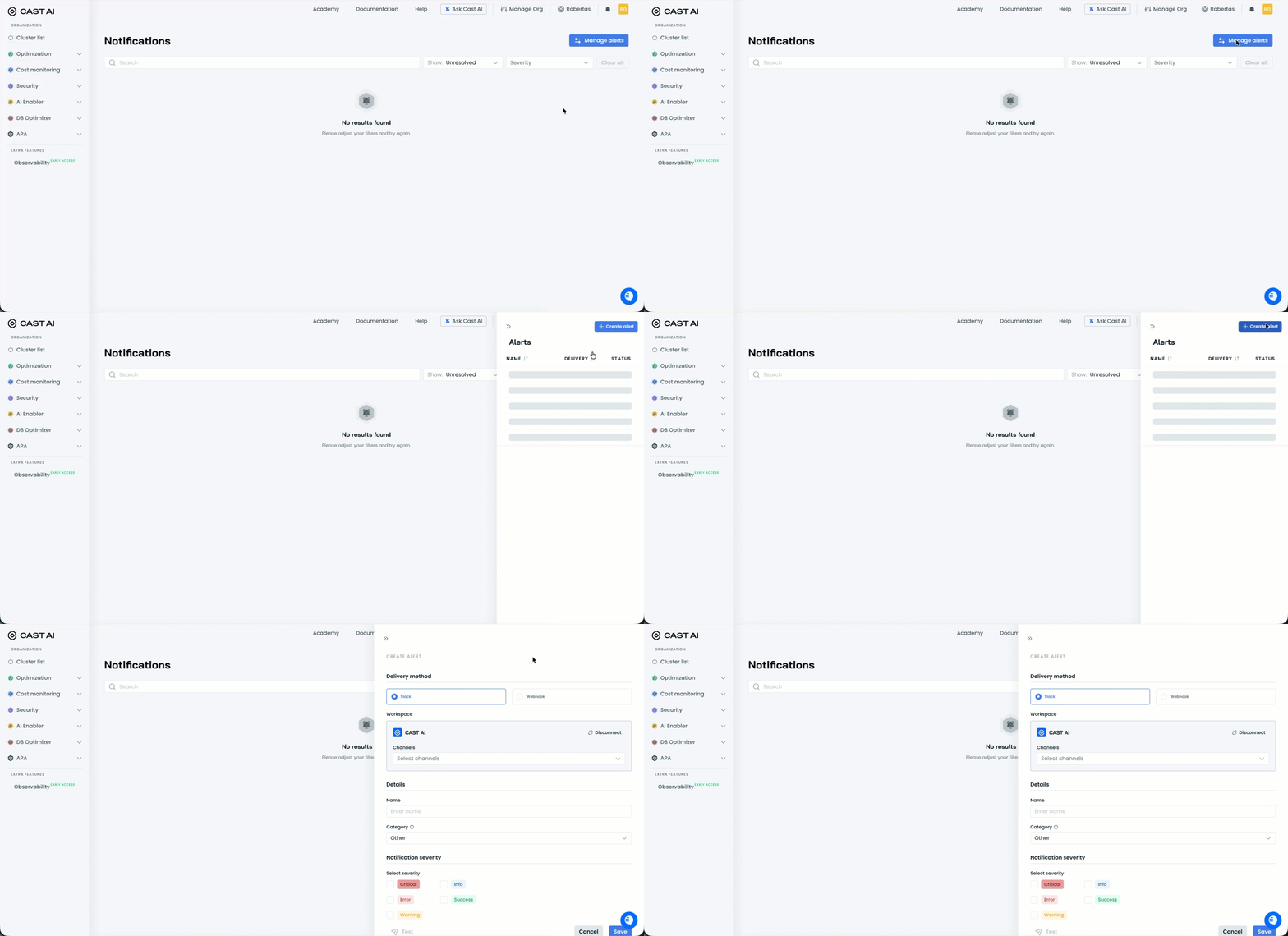
Click Manage alerts, then click Create alert.
-
Under Delivery method, verify that Slack is selected. Slack is the default delivery method.
-
Click Connect to link your Slack workspace.
This opens a Slack authorization page in a new window.
-
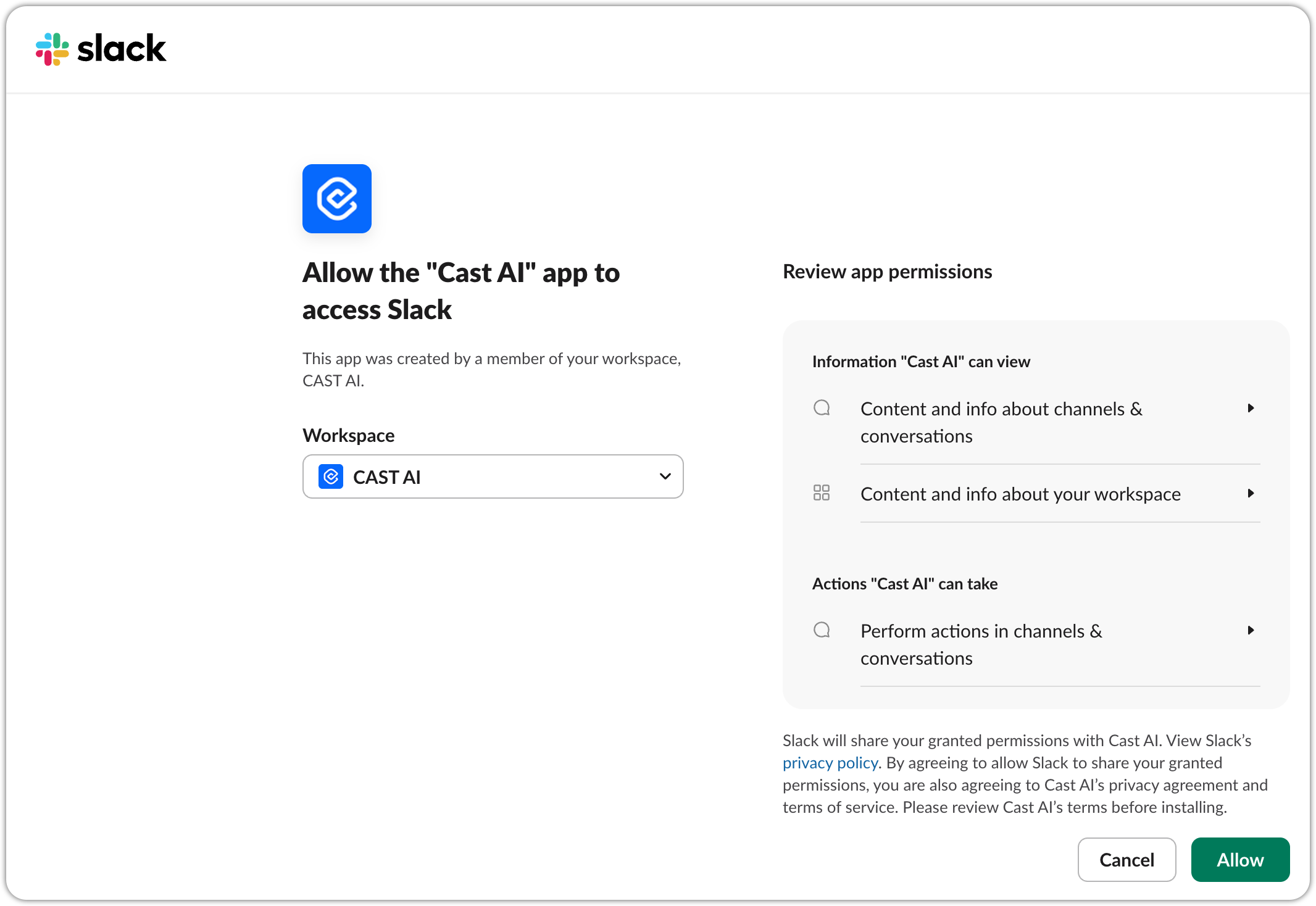
On the Slack authorization page, select the workspace you want to connect from the Workspace dropdown.
NoteThe dropdown lists Slack workspaces you belong to. Each Cast AI organization must use its own Slack workspace — connecting the same workspace to another Cast AI organization will fail.
The page displays the permissions Cast AI is requesting:
- Content and info about channels & conversations — Allows Cast AI to see which channels are available for posting notifications
- Content and info about your workspace — Allows Cast AI to identify the workspace connection
- Perform actions in channels & conversations — Allows Cast AI to post notification messages to channels you select
-
Click Allow to grant permissions and complete the connection.
You're redirected back to the Cast AI console. What happens next depends on your Slack workspace settings:
-
If the app is automatically approved: The workspace name appears in the Workspace section, and you can proceed to add channels.
-
If admin approval is required: The Workspace section shows a Pending status with the message "Your Slack workspace admin must approve this connection. The request expires in 7 days."
-
-
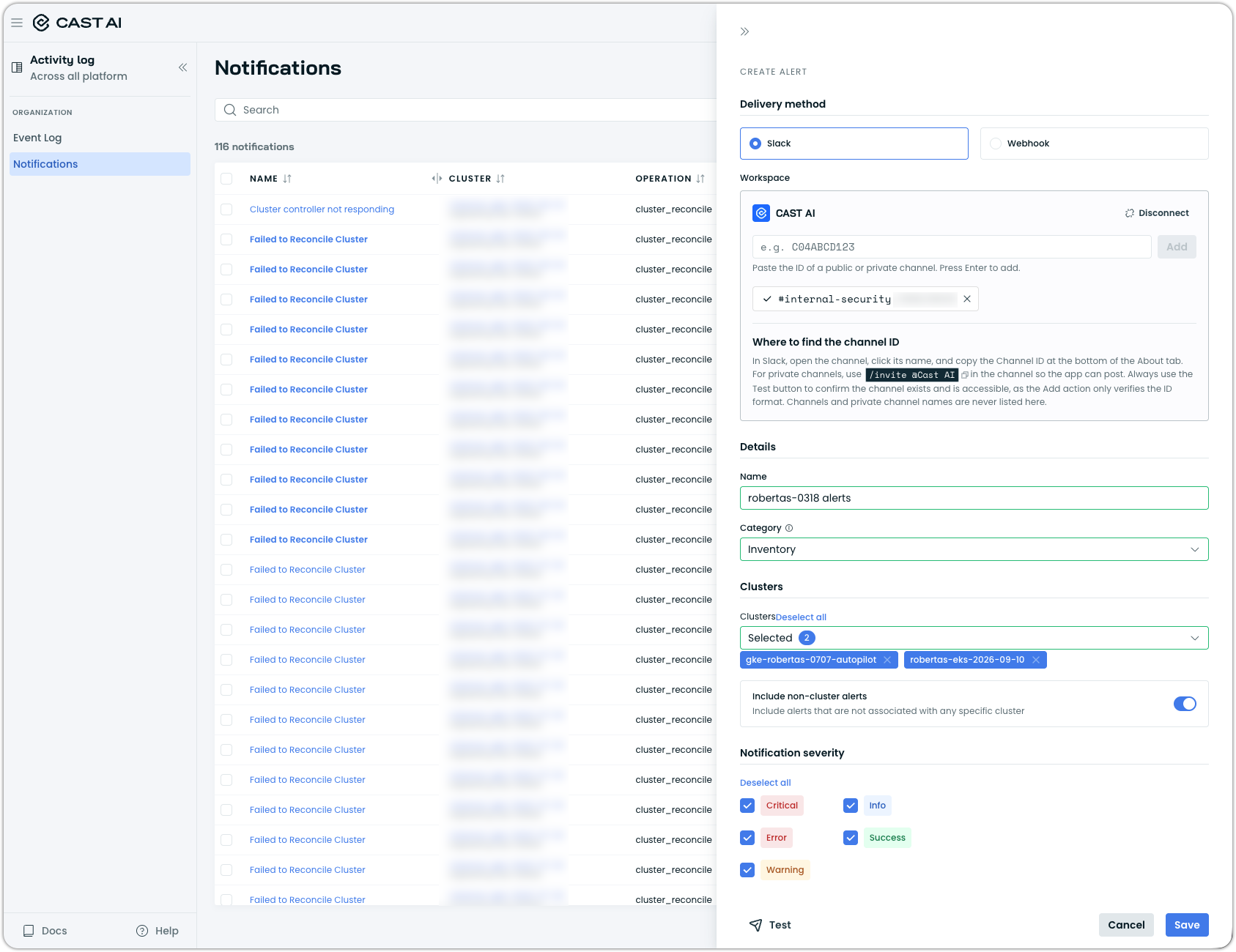
Once the workspace is connected, click the Channels field and paste the ID of a Slack channel, then press Enter. Repeat for each channel where you want notifications delivered.
You can add up to 5 channels per alert. Added channels appear as tags below the field. To remove one, click the tag.
To find a channel's ID, open the channel in Slack, click the channel name, and copy the Channel ID from the About tab.
NoteCast AI does not list your Slack channels, so you add each channel by its ID. The Add action verifies only that the ID is valid. It does not confirm that the channel exists or that the Cast AI app can post to it. Use the Test button to verify delivery.
For a private channel, you must also invite the Cast AI app so it can post. Open the private channel in Slack and run
/invite @Cast AI, or go to the channel's settings and add Cast AI from the Integrations tab. Private channels are never listed by name; the alert shows them as Private channel with the channel ID. -
Under Details, enter a Name for your alert.
-
Under Category, specify which type of notifications trigger this alert. Select All to capture every notification category with a single selection, or select individual categories to narrow the alert's scope. Categories include:
- All
- Workload Autoscaler
- Node Autoscaler
- Reporting anomalies
- Inventory
- Security
- Other
For descriptions of each category, see Notifications.
-
Under Clusters, select which clusters trigger this alert. Leave All clusters selected to trigger on every cluster in your organization, or select specific clusters to limit the alert's scope.
The Include non-cluster alerts toggle is on by default and includes alerts that are not associated with any specific cluster, such as organization-level notifications. Turn it off to receive only alerts tied to the selected clusters.
-
Under Notification severity, select which severity levels should trigger notifications. Options include:
- Critical
- Error
- Warning
- Success
- Info
-
Click Save to create the alert.
Test the connection
After saving an alert, you can send a test notification to verify that messages are delivered to your configured Slack channels.
-
In the Alerts list, click on the alert you want to test.
-
Click the Test button in the bottom-left corner of the alert details panel.
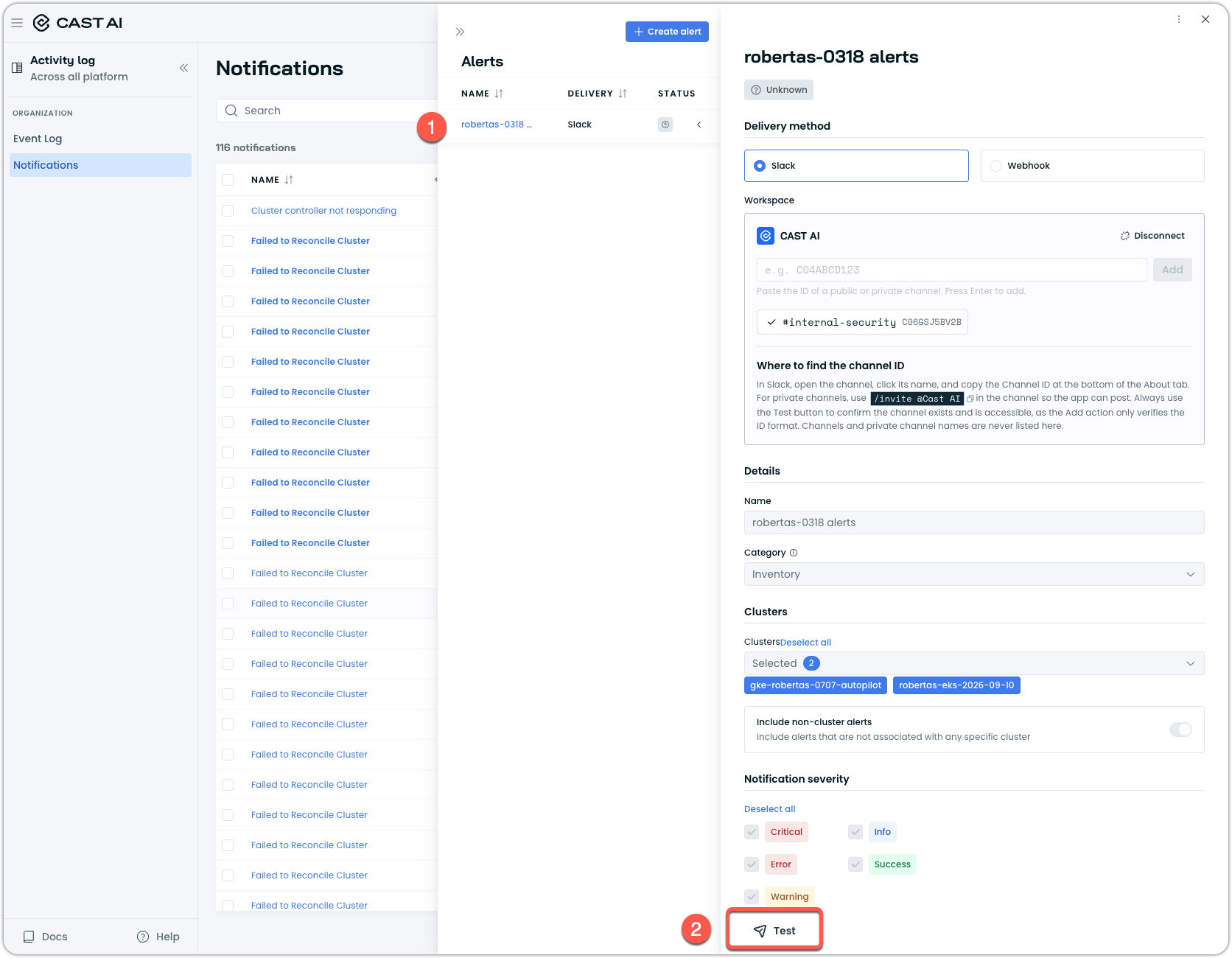
Cast AI sends a test notification to all configured Slack channels for this alert.
-
Check your Slack channels to confirm the test message arrived.
If the test message doesn't appear, see Troubleshooting for common issues and solutions.
Manage connected workspaces
You can disconnect a Slack workspace from Cast AI at any time. Disconnecting a workspace removes the connection but doesn't uninstall the Cast AI app from Slack.
To disconnect a workspace:
-
Open an existing alert that uses the workspace, or create a new alert.
-
Under Delivery method, select Slack.
-
In the Workspace section, click Disconnect next to the workspace name.
The workspace is removed from your Cast AI organization. Any alerts configured to use this workspace will no longer deliver notifications to Slack until you reconnect a workspace and update the alert configuration.
Next steps
Consider exploring these related topics:
- Notifications — Learn about all notification types and severity levels available in Cast AI
- How to set up notification webhooks — Configure webhooks for external systems like PagerDuty or OpsGenie
- Webhook integration examples — See example configurations for various notification destinations
Troubleshooting
Connection shows Pending status
If your connection shows "Pending" after authorizing the Cast AI app, your Slack workspace requires administrator approval for new app installations. Contact your Slack workspace administrator and ask them to approve the Cast AI app. The approval request expires after 7 days—if it expires, you'll need to initiate the connection process again.
Test notification not received
If the test notification doesn't reach a channel:
- Verify the channel ID is correct. Open the channel in Slack, click the channel name, and compare the Channel ID in the About tab with the ID on the alert.
- For a private channel, invite the Cast AI app so it can post. Open the channel in Slack and run
/invite @Cast AI, or add Cast AI from Settings > Integrations > Add apps. - Verify the channel still exists and hasn't been archived.
- Verify the Cast AI app is still installed in your Slack workspace.
- Try disconnecting and reconnecting the workspace.
Connection fails when initiated from Slack
The Slack integration must be set up from within the Cast AI console. If you attempt to add Cast AI from Slack's app directory or workspace settings, the connection will not link properly to your Cast AI organization. Always start the connection process by clicking Connect in the Cast AI console.
Slack workspace already linked to another organization
A failure during the Connect step, after you select a Slack workspace and click Allow, usually means the Slack workspace you're trying to connect is already linked to a different Cast AI organization. Cast AI does not support sharing one Slack workspace across multiple organizations.
To resolve this:
- Connect a different Slack workspace to this Cast AI organization, or
- Have an admin of the other Cast AI organization disconnect the workspace first, then retry the connection from this organization.
Updated yesterday