

Enterprise organizations
Centrally manage multiple child organizations, users, and access controls from a single Enterprise workspace in Cast AI.
An Enterprise in Cast AI introduces a hierarchical structure where a parent workspace — the Enterprise — manages multiple child organizations. Each child organization operates independently with its own clusters, billing, and cost reports. Users, roles, SSO, and user groups can be managed centrally at the Enterprise level, and each child organization can also manage them within its own scope.
- Organization — a single workspace where clusters and users are managed directly.
- Enterprise — a parent workspace that contains multiple child organizations, each with its own clusters. Access can be managed from the Enterprise, from within a child organization, or both.
The Enterprise itself does not have clusters and does not expose organization-level features such as cluster management or cost monitoring. All clusters live within child organizations.
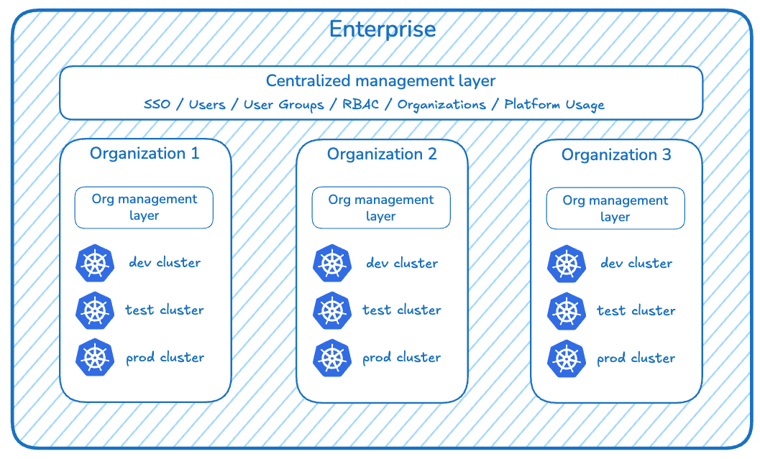
How Enterprise organizations work
An Enterprise enables centralized visibility and control while preserving autonomy and isolation for individual business units:
- Centralized access management — users, roles, SSO connections, and user groups can be configured at the Enterprise level and cascade to child organizations. You can also synchronize user groups from your identity provider so group membership and access stay in sync with your IdP. IdP user and group sync is also available for child organizations if multi-tenant SSO is enabled
- Child organization autonomy — each child organization maintains its own clusters, billing data, and cost reports. Teams work independently and can manage access within their own scope: remove users, change a user's role in that child organization, and create user groups. When multi-tenant SSO is enabled, a child organization can also configure its own SSO connection.
- Consolidated reporting — features like Platform usage and Enterprise commitments aggregate data across all child organizations.
Enterprise navigation
Organization switcher
The organization switcher in the top navigation lists the Enterprise and its child organizations:
- Click the Enterprise name to open Settings for the Enterprise. The left sidebar then includes Organizations, which only the Enterprise has.
- Click a child organization to switch to it. You stay on the same page type (for example, switching while on the Cluster List opens the Cluster List of the selected organization).
- Click Create organization to create a standalone organization (outside the Enterprise) or a child organization within the Enterprise.
- Manage Enterprise appears only when you are in the Enterprise or one of its child organizations, and only for users with the Enterprise Owner or Enterprise Viewer role.
NoteChild organization Owners and Viewers see Manage Org / View Org instead of Manage Enterprise, and cannot access Enterprise-level data.
Settings
You can also open Settings by expanding the left sidebar and selecting Settings at the bottom.
At the top of the Settings sidebar, the View by dropdown shows which organization you are managing. With the Enterprise selected, the sidebar lists:
- Overview
- Organizations — child organizations in this Enterprise
- Users
- User groups
- Single sign-on
- Platform usage
Select a child organization in View by to manage that organization instead.
Enterprise roles
Enterprise organizations use two additional roles that span the parent and all child organizations:
| Role | Access level |
|---|---|
| Enterprise Owner | Full access to all product features, including organization management for parent and child organizations. |
| Enterprise Viewer | Read-only access to all product features, including organization management for parent and child organizations. |
Enterprise roles are assigned at the Enterprise level. Standard organization roles (Owner, Member, Viewer, Analyst) still apply within individual child organizations. For the full permissions matrix, see Role-Based Access Control (RBAC).
API access in Enterprise setups
When using a parent organization API key to access resources that live in a child organization, include the X-CastAi-Organization-Id header with the child organization's ID:
curl --request GET \
  --url https://api.cast.ai/v1/<endpoint> \
  --header 'X-API-Key: <parent-org-api-key>' \
  --header 'X-CastAi-Organization-Id: <child-org-id>' \
  --header 'accept: application/json'
Without this header, the API resolves the request against the parent organization and returns 404 for resources that belong to a child organization.
API keys scoped to a specific child organization work without the header — they are already scoped to the correct organization.
For more details on API keys and service accounts, see Service Accounts.
Set up an Enterprise
Enterprise organizations cannot be created in the Cast AI console. Contact your Cast AI account representative.
To set up a new Enterprise, create a regular organization in the console first. Cast AI converts that organization into an Enterprise. The person who created it becomes Enterprise Owner. You can rename the organization later.
Cast AI can also attach your existing organizations as children. When an organization is attached:
- Its users are moved to the Enterprise.
- Its clusters stay in that organization. Clusters cannot be transferred automatically.
If those organizations already have SSO:
- One organization with SSO — that connection can be moved to the Enterprise and used as the centralized SSO.
- Several organizations with SSO — by default the Enterprise supports one SSO connection. Choose which connection to move to the Enterprise. The others inherit it unless multi-tenant SSO is enabled.
- No SSO — confirm whether all users share one identity provider. If subsidiaries or departments use different IdPs, ask Cast AI to enable multi-tenant SSO.
After the Enterprise exists, you can create child organizations, invite users, and configure access. See Manage child organizations and Manage Enterprise users.
Limitations
- Clusters cannot be transferred between child organizations. To move a cluster, disconnect it from one child organization and connect it to another.
- By default, only one SSO connection can be configured per Enterprise. Child organizations inherit the Enterprise connection until a child configures its own, which requires multi-tenant SSO. Contact your Cast AI account representative to enable this — it is not self-service. See SSO in Enterprise organizations.
- Enterprise Owner and Viewer roles grant access to all child organizations — there is no built-in way to restrict an enterprise-scoped user to a subset of child orgs. To limit a user's visibility to specific child organizations only, do not assign them an Enterprise-level role. Instead, invite them directly to each child organization they should access.
- Enterprise organizations are not intended for separating development, staging, and production environments. Use user groups with cluster-scoped roles to control access by environment instead.
Related resources
Understand Enterprise and organization roles, permissions, and resource scopes.
Configure SSO at the Enterprise level, or on child organizations when multi-tenant SSO is enabled.
Synchronize user groups from your identity provider for automated access control.
Updated last month