

Cloud SQL Proxy quick start
This quick start connects Google Cloud SQL databases to Cast AI DBO. You connect your Google Cloud project through cloud connect, DBO discovers your Cloud SQL instances (including instances with private IPs), and you deploy the DBO components with the script or Helm command the console provides. Connectivity via a Cloud SQL Proxy sidecar is a legacy setup that is not supported with the current DBO components.
Prerequisites
- A Google Cloud project with the Cloud SQL instances you want to optimize.
- A Kubernetes cluster (for example Google GKE) or an Amazon ECS environment where the DBO components will run, with network access to your Cloud SQL instances.
- For the Kubernetes path:
kubectlconfigured to access your cluster and thehelmCLI installed.
Connect your Google Cloud project
- Sign in to the Cast AI console and select Database in the left navigation.
- On the Overview page, click + Connect instance.
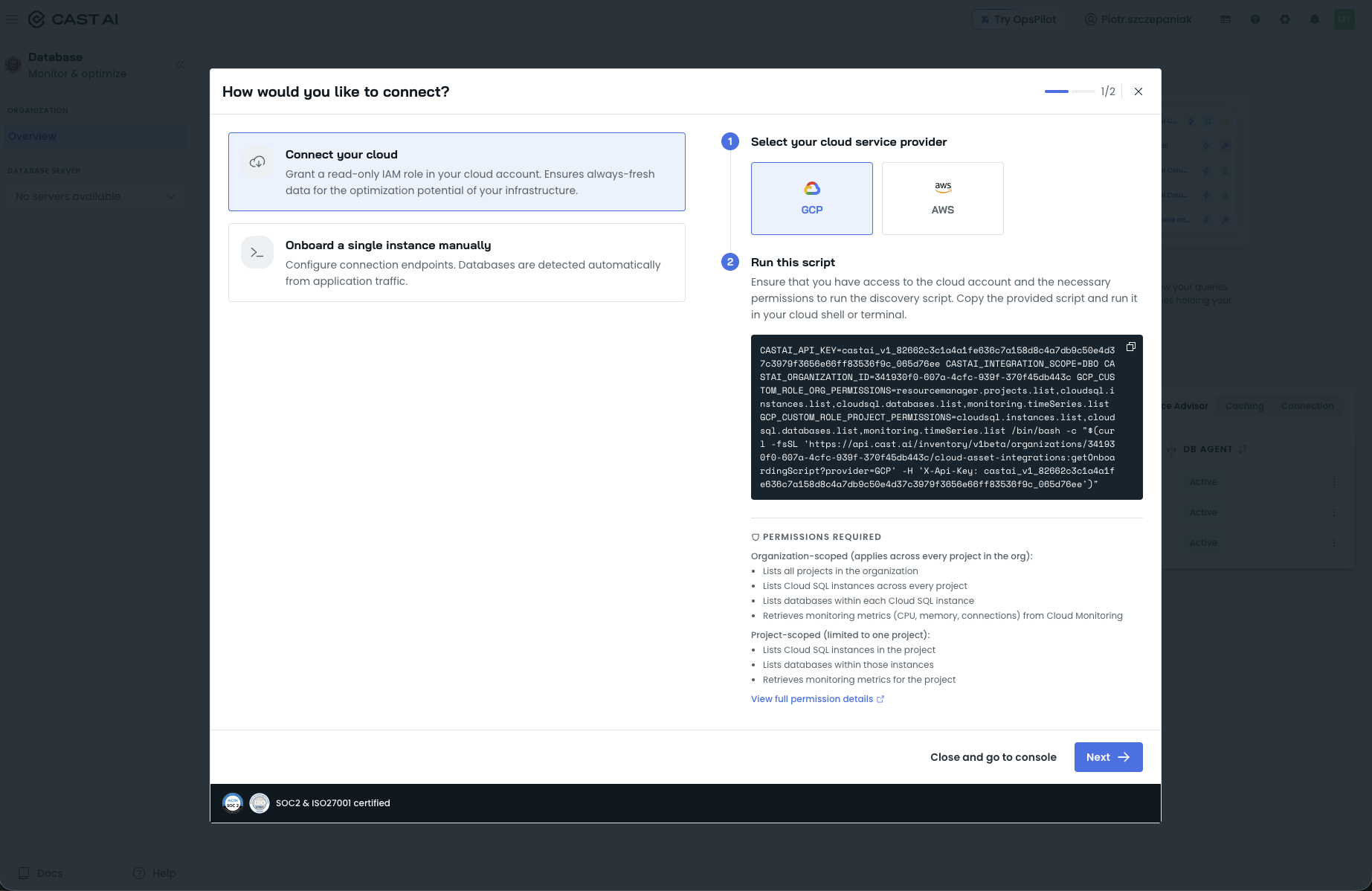
- In the How would you like to connect? dialog, select Connect your cloud and pick GCP under Select your cloud service provider.
- Run the provided discovery script in your cloud shell or terminal. The script creates the Google Cloud service account DBO uses, grants it the permissions it needs, and scans your projects to discover database instances; you do not create or attach anything manually.
- The Connecting to cloud dialog tracks discovery (Verify connection, Discover database clusters, Analyze your environment; up to 10 minutes, and it continues in the background if you click Close and go to console).
The Connecting to cloud dialog discovery progress.
Enable optimization and deploy the components
- When discovery completes, your Cloud SQL instances appear on the Overview page, ranked by optimization opportunity. Click Enable database optimizer on the instance you want to start with.
- In the Enable Database optimization dialog, the optimization features are pre-checked: Performance advisor (marked Recommended), Database proxy, Cache manager, and Connection pooling. Copy the deployment script or Helm command the console provides and run it. DBO deploys into the
castai-db-optimizernamespace in your Kubernetes cluster, or into your ECS environment. Instances with private IPs are discovered automatically, so no extra connectivity configuration is required. - Once the agent is deployed, the Performance Advisor starts analyzing your workload. It requires no proxy routing, and first recommendations typically appear within about 30 minutes.
Verify the deployment
In your cluster, check that the DBO pods are running:
kubectl get pods -n castai-db-optimizerIn the console, your Cloud SQL instance appears in the Select database server picker alongside your other instances, listed with its engine (for example, POSTGRESQL), and its dashboard status row shows Advisor agent and Database proxy as Active.
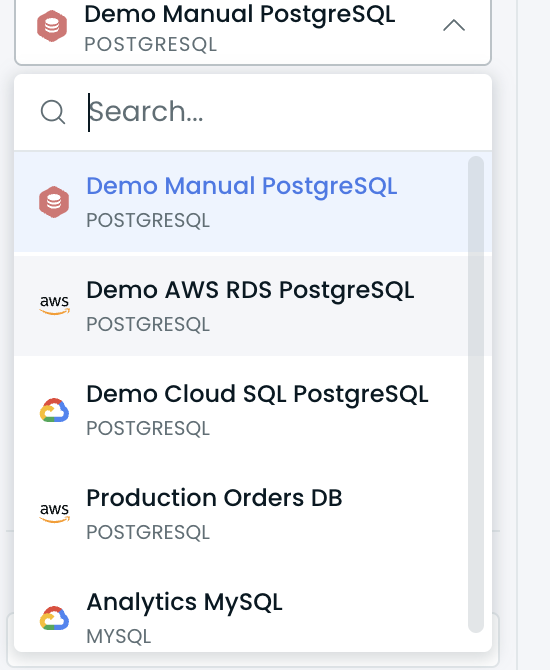
The Select database server picker listing connected PostgreSQL and MySQL instances, including Demo Cloud SQL PostgreSQL.
Point your application at the proxy
Update your application's connection strings to point at the DBO proxy instead of directly at Cloud SQL, and keep the rest of the connection parameters unchanged. See Connecting client applications for connection-string details.
Your databases are detected as traffic arrives, and the proxy starts in passthrough mode: monitoring your workload and collecting projected hit rate, projected cache hits, and projected database time savings without caching anything.
Enable caching
When the projections justify it, open the database's Caching section and enable caching in Auto mode (recommended). See Caching for modes and rule configuration.
Next steps
Updated 3 hours ago