

Create and manage budgets
Create a cost budget in the Cast AI console, then edit it, pause its alerts, or delete it as spend patterns change.
This guide explains how to create a budget in the Cast AI console and how to edit or delete it later. For the concepts behind budgets, see Budgets.
Before you start
- You have access to the Cast AI console for your organization.
Create a budget
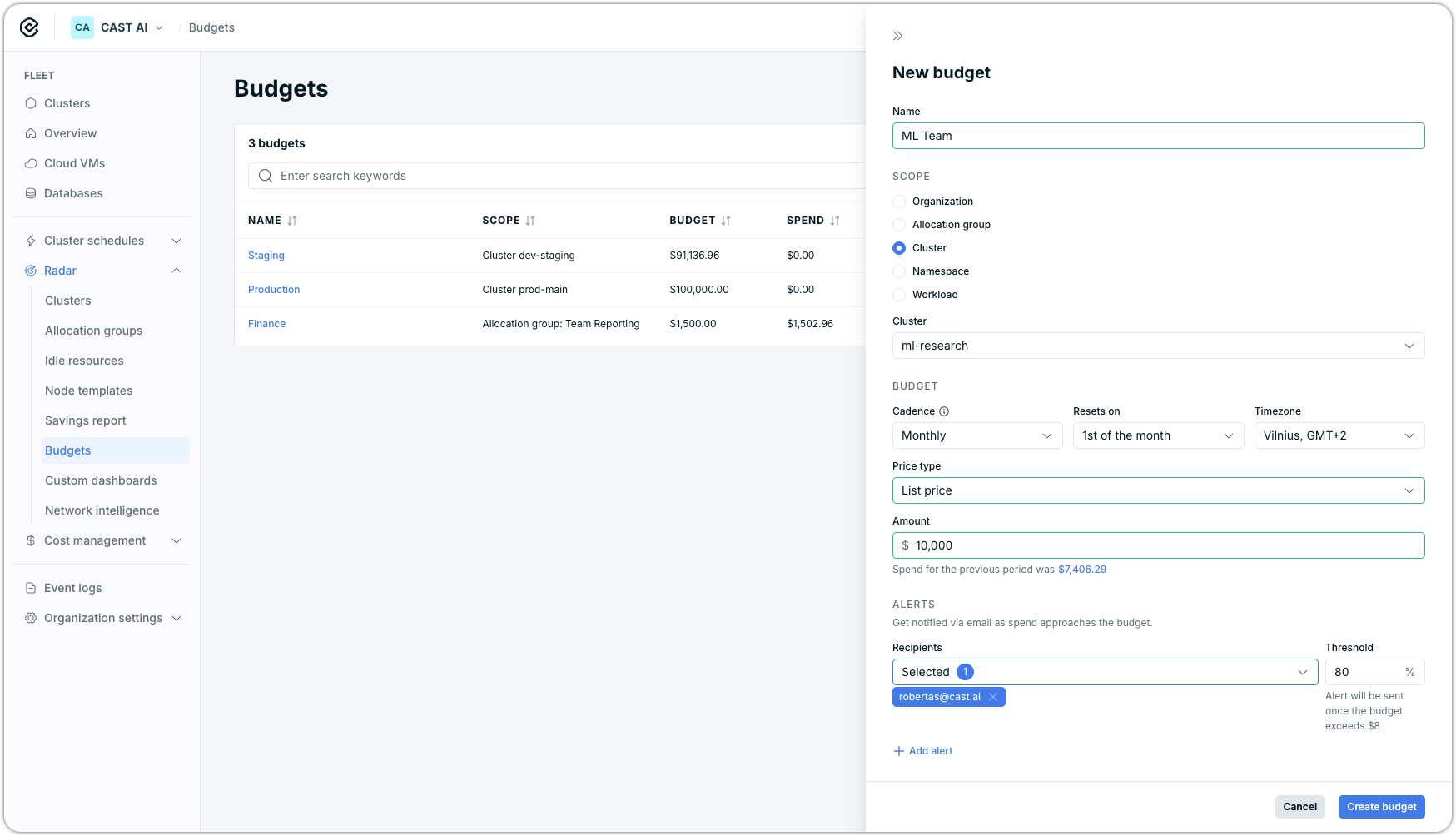
The New budget form, with the Scope, Budget, and Alerts sections.
-
In the main menu, go to Radar → Budgets and click New budget.
-
Enter a Name.
-
Under Scope, choose what the budget tracks. Depending on the scope, select the cluster, namespace, workload, or allocation group.
-
Under Budget, choose the Cadence:
- Monthly: choose the reset day in Resets on.
- Trailing hours or Trailing days: enter the number of hours or days.
Select the Timezone used to derive the window boundaries.
-
Choose the Price type: Discounted price or List price. If available for the scope, decide whether to Include idle costs.
-
Enter the Amount, or click the previous-period spend to use it as the amount.
-
Under Alerts, add at least one alert: set the Threshold percentage and pick the Recipients to notify.
-
Click Create budget.
The budget appears in the budgets table with its current spend. Cast AI evaluates it for alerts within an hour.
Edit a budget
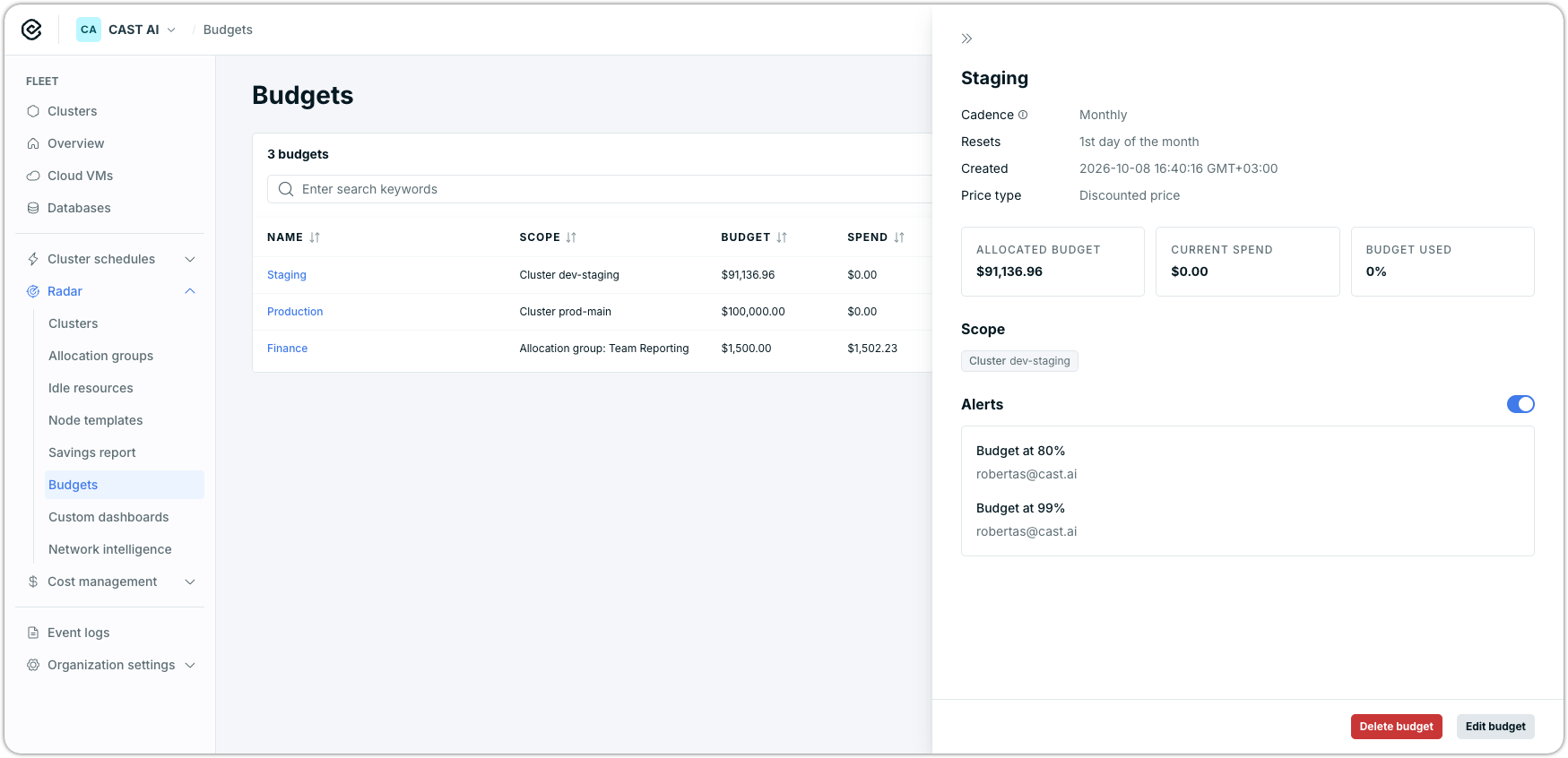
The budget details, with the alerts toggle, scope, and the Delete budget and Edit budget actions.
- In the budgets table, click the budget to open its details.
- Click Edit budget and change any setting: name, scope, cadence, price type, amount, or alerts.
The next hourly evaluation uses the new settings.
Pause or resume alerts
- Find the budget in the budgets table.
- Use the toggle in the Alerts column or in the budget details to pause or resume all configured alerts.
While paused, the budget sends no alerts and skips the hourly check; see How Cast AI evaluates budgets.
Delete a budget
- In the budgets table, click the budget to open its details.
- Click Delete budget and confirm the deletion.
Cast AI removes the budget permanently. You cannot restore it.
Updated 39 minutes ago