

How-to: HPA in scaling policies
Scaling policies are the recommended way to manage horizontal autoscaling across your workloads. By configuring HPA at the policy level, you apply consistent settings to all workloads assigned to the policy, reducing per-workload configuration overhead and ensuring uniform scaling behavior.
This guide covers how to add horizontal autoscaling to a scaling policy, how taking ownership of existing HPAs works at the policy level, and how workload-level overrides interact with policy-inherited settings.
For configuring horizontal autoscaling on individual workloads outside of a policy, see Configure HPA on a workload.
Before you begin
Ensure the following prerequisites are met:
- The following minimum component versions are installed in your cluster:
| Component | Version |
|---|---|
| castai-workload-autoscaler | v0.44.0 or later |
| castai-agent | v0.60.0 or later |
- You have an existing scaling policy, or the ability to create one (see Create a scaling policy)
- If workloads assigned to the policy have existing native HPAs that you want Cast AI to manage, they must use only basic resource targets (CPU or memory utilization) and not be owned by a third-party controller. See Eligibility for take ownership for full requirements.
Add HPA to a scaling policy
-
Navigate to Workload Autoscaler > Scaling policies
-
Click on the policy you want to configure, or create a new policy
-
Open the Horizontal Rightsizing tab
-
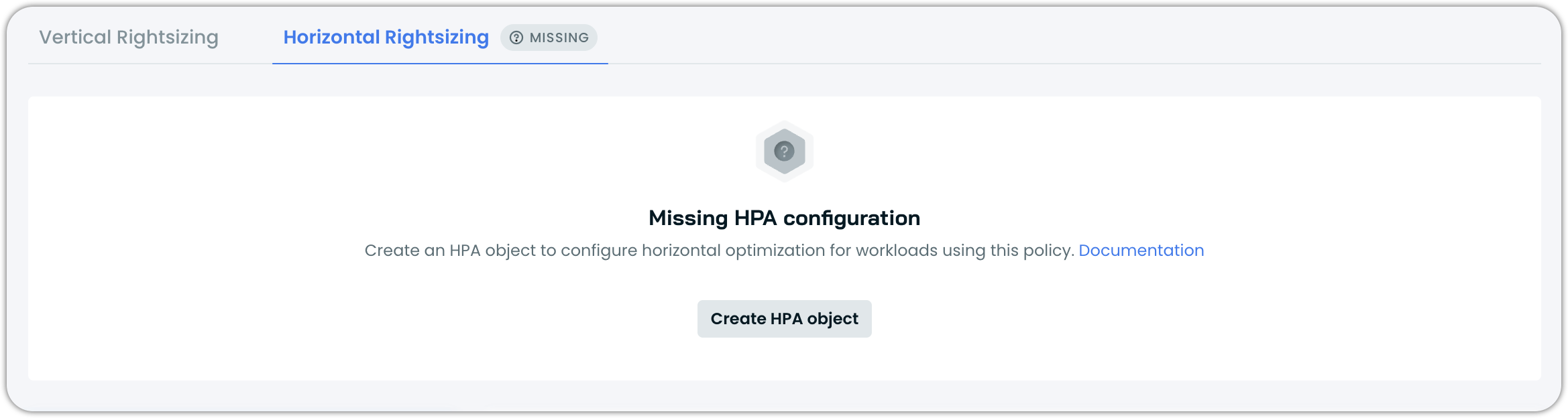
Click Create HPA object
-
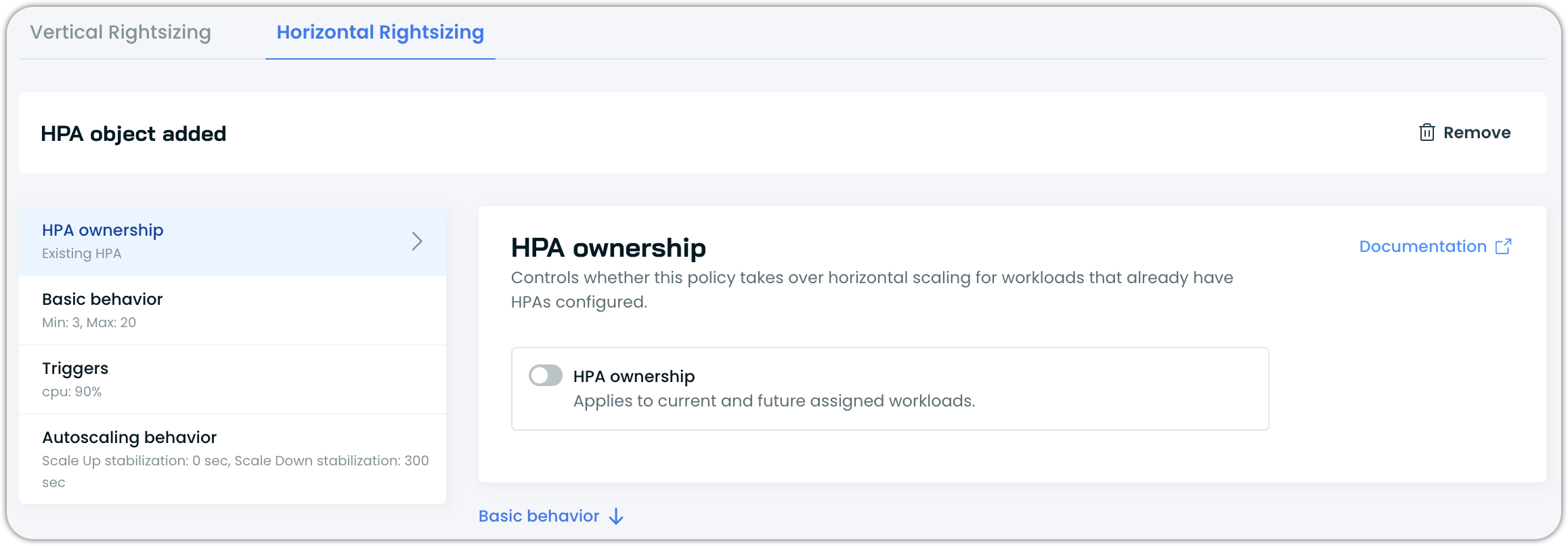
Configure the HPA settings:
- HPA ownership — Control whether this policy takes over native HPAs of workloads that already have them configured
- Basic behavior — Set the minimum and maximum number of replicas
- Triggers — Add CPU utilization, memory utilization, or both, with target percentages
- Autoscaling behavior (optional) — Configure stabilization windows and scaling policies for scale-up and scale-down directions. See the Configure horizontal autoscaling guide for a detailed breakdown of each field. Additional options like
selectPolicyare available via annotations.
-
Save the policy
Once saved, all workloads assigned to this policy that are eligible for horizontal autoscaling will inherit these settings. Cast AI creates a native HorizontalPodAutoscaler resource for each eligible workload.
NoteHorizontal autoscaling is optional in a policy. Not all policies need to have HPA configured. Workloads assigned to policies without HPA configuration will not have horizontal autoscaling unless configured at the workload level.
Verify policy-level HPAs were created
After saving the policy, confirm that native HPA resources were created for workloads assigned to this policy:
# List HPAs across all namespaces to find policy-managed ones
kubectl get hpa --all-namespaces

# Check a specific workload's HPA
kubectl describe hpa <workload-name> -n <namespace>
The HPA targets should match the values you configured in the policy (pod count range, trigger percentages).
Enable take ownership at the policy level
Take ownership allows Cast AI to assume management of existing native HPAs on workloads assigned to the policy. When enabled, Cast AI replaces the existing HPA configuration on eligible workloads with the settings defined in the policy.
- In the policy's Horizontal Rightsizing tab, locate the HPA ownership section
- Toggle HPA ownership to on
- Configure your desired HPA settings (pod count, triggers, behavior)
- Save the policy
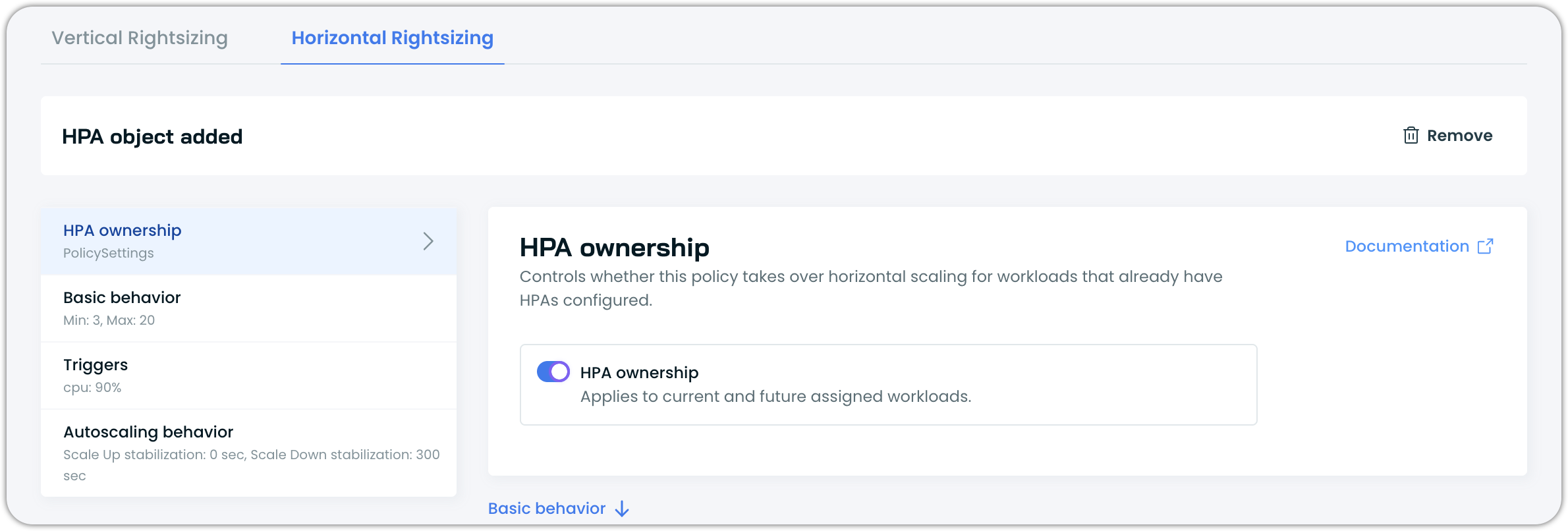
When the policy is saved, Cast AI evaluates all workloads assigned to the policy that have existing native HPAs. For eligible workloads, Cast AI takes over the HPA and applies the policy's settings. The policy becomes the source of truth for those workloads' horizontal autoscaling configuration. This applies to both current and future workloads assigned to the policy.
Eligibility for take ownership
Not all existing HPAs can be taken over. Cast AI can take ownership only of HPAs that meet the following criteria:
- The HPA is not managed by a third-party controller (such as KEDA)
- The HPA uses only CPU or memory utilization metrics at the workload level
- The HPA does not use external metrics, pod metrics, or object metrics
- The HPA does not use container-level resource targets
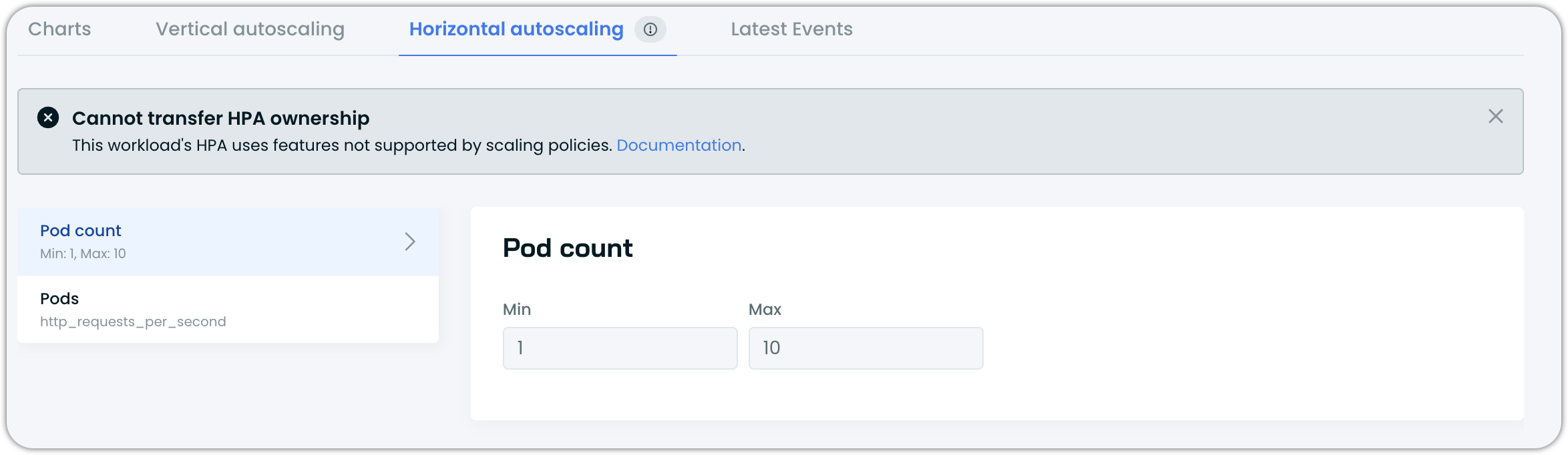
Workloads whose HPAs use unsupported features are skipped. The Cast AI console displays a Cannot transfer HPA ownership message on these workloads, explaining that the HPA uses features not currently supported by scaling policies. These workloads retain their existing HPA and are not affected by the policy's horizontal autoscaling settings.
ImportantTaking ownership replaces the existing HPA configuration entirely with the policy's settings. The original HPA configuration is preserved by Cast AI in an annotation on the HPA resource and will be restored if you disable the take-ownership setting.
Verify take ownership and inspect preserved configuration
After enabling take ownership and saving the policy, confirm Cast AI has taken over HPAs on eligible workloads by checking the ownerReferences field for a Recommendation owner:
kubectl get hpa <workload-name> -n <namespace> -o yaml | grep -A 5 "ownerReferences:"You should see a Recommendation resource listed as an owner, confirming that Workload Autoscaler owns this HPA.
  ownerReferences:
  - apiVersion: autoscaling.cast.ai/v1
    blockOwnerDeletion: true
    controller: true
    kind: Recommendation
    name: app
The HPA also includes an autoscaling.cast.ai/hpa-revert-configuration annotation containing a JSON snapshot of the original HPA spec before Cast AI took ownership. To inspect the preserved original configuration in detail:
kubectl get hpa <workload-name> -n <namespace> \
  -o jsonpath='{.metadata.annotations.autoscaling\.cast\.ai/hpa-revert-configuration}' | jq .
This is the configuration that Cast AI restores if you later disable take ownership.
Revert at the policy level
If ownership was enabled at the policy level via the HPA ownership toggle, revert through the policy:
- Navigate to the policy's Horizontal Rightsizing tab
- Toggle the HPA ownership to off
- Save the policy
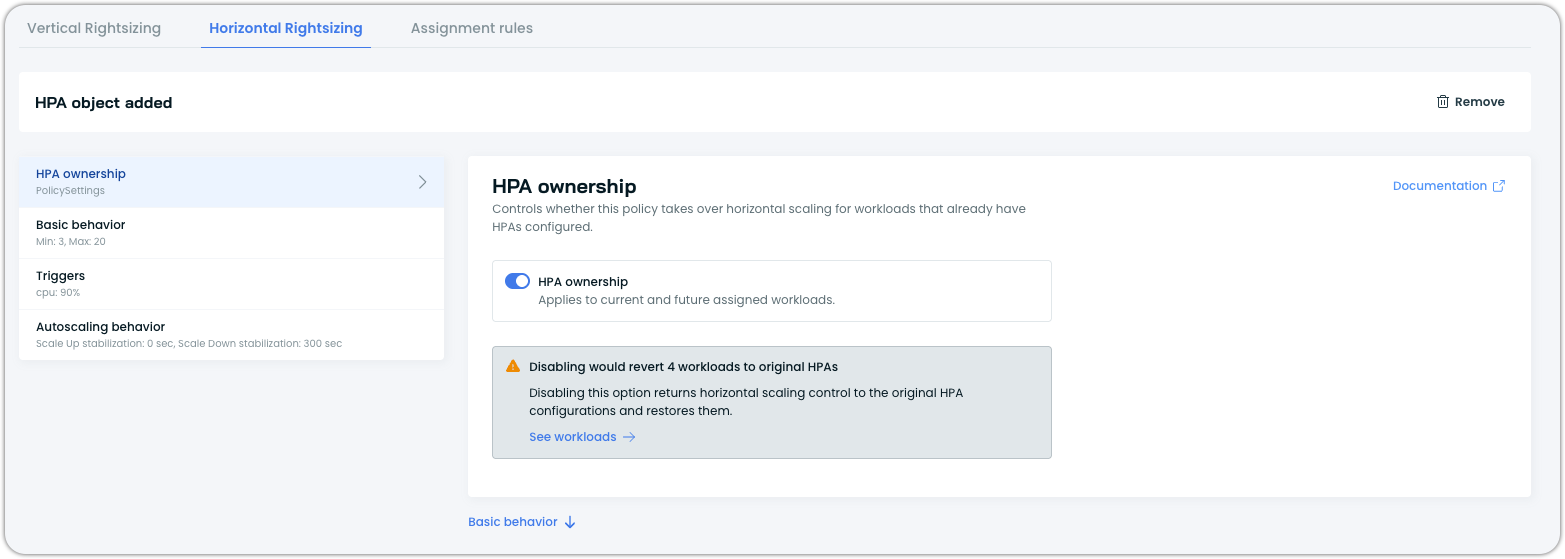
Cast AI releases ownership on all workloads that were taken over through this policy and restores their original HPA configurations.
How workloads inherit HPA settings
When a scaling policy has horizontal autoscaling configured, workloads assigned to that policy inherit the HPA settings automatically. The behavior depends on the workload's current state:
Workload has no existing HPA — Cast AI creates a new native HorizontalPodAutoscaler resource with the policy's settings.
Workload has an existing native HPA and take ownership is enabled — Cast AI takes ownership of the HPA and applies the policy's settings, provided the workload is eligible (see eligibility criteria above).
Workload has an existing native HPA and take ownership is disabled — The existing HPA remains unmanaged. The workload does not get horizontal autoscaling from Cast AI unless you enable take ownership or configure HPA at the workload level.
Workload type is unsupported (such as Jobs or other workloads not eligible for horizontal scaling) — The workload is skipped for horizontal autoscaling.
Webhook protection
Once Cast AI takes ownership of an HPA — whether through a policy or a workload-level configuration — a validating webhook protects the HPA resource from external modifications. Manual edits and deletes via kubectl or other tools are rejected. All changes must be made through the Cast AI console, API, or annotations. To stop managing an HPA, disable horizontal autoscaling through the Cast AI console or API, uncheck the Take ownership option, or remove the configuration via annotations.
For details on webhook behavior and CI/CD considerations (including ArgoCD), see Webhook protection for managed HPAs in the workload configuration guide.
Test webhook protection on a policy-managed HPA
Verify that the webhook rejects external modifications on an HPA managed through the policy:
# Attempt to edit — should be rejected
kubectl edit hpa <workload-name> -n <namespace>

# Attempt to delete — should also be rejected
kubectl delete hpa <workload-name> -n <namespace>
Both operations should fail with a webhook denial message. To correctly remove horizontal autoscaling, disable it through the Cast AI console or API, uncheck the take ownership option, or remove the configuration via annotations.
Workload-level overrides
Overrides are not recommendedFor most use cases, configuring HPA at the scaling policy level is the preferred approach. It provides consistent settings across workloads and reduces per-workload management overhead. Use workload-level overrides only when a specific workload needs settings that differ from its policy.
Any change to horizontal autoscaling settings at the workload level creates a full configuration override. Once overridden, the workload's HPA is no longer inherited from its scaling policy, and future changes to the policy's HPA settings will not affect that workload.
This differs from vertical scaling, which uses field-level overrides. For horizontal autoscaling, the entire HPA configuration is replaced as a single object.
Create a workload-level override
How you create an override depends on whether the workload's policy already has HPA configured.
Override a policy with HPA configured
- Navigate to Workload Autoscaler > Optimization
- Select the workload you want to configure
- Open the Horizontal autoscaling tab
- Click Override
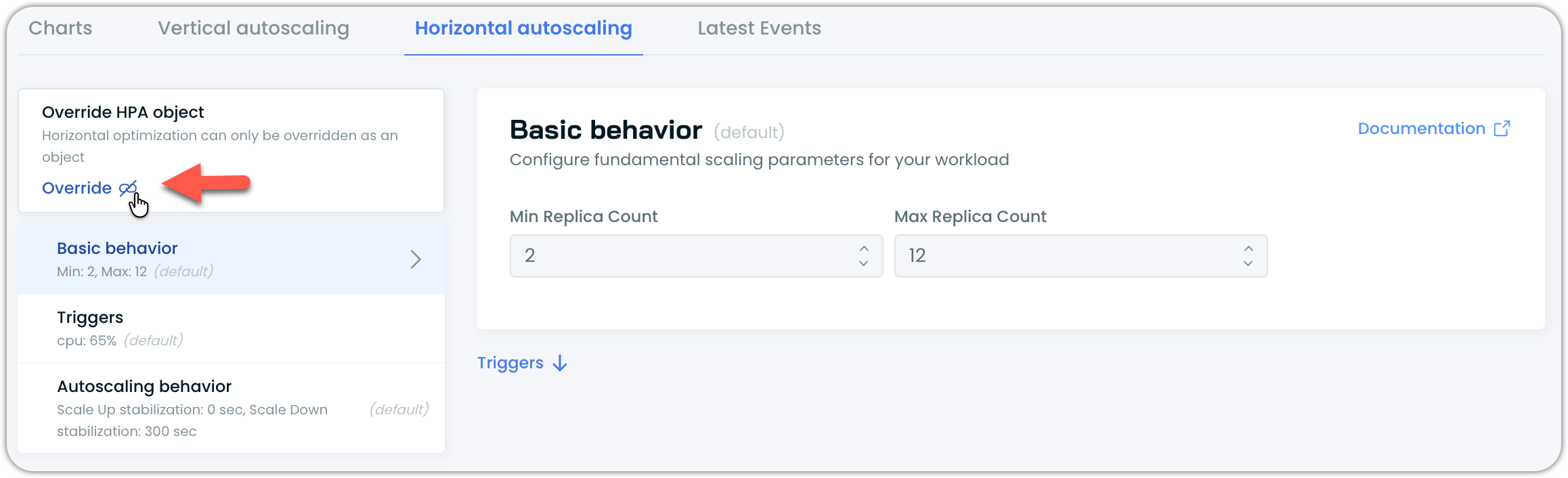
This essentially copies the policy's HPA settings to the workload level, where you can modify them. The Override HPA object indicator in the left panel confirms the workload is now using workload-level settings.
Override a policy without HPA configured
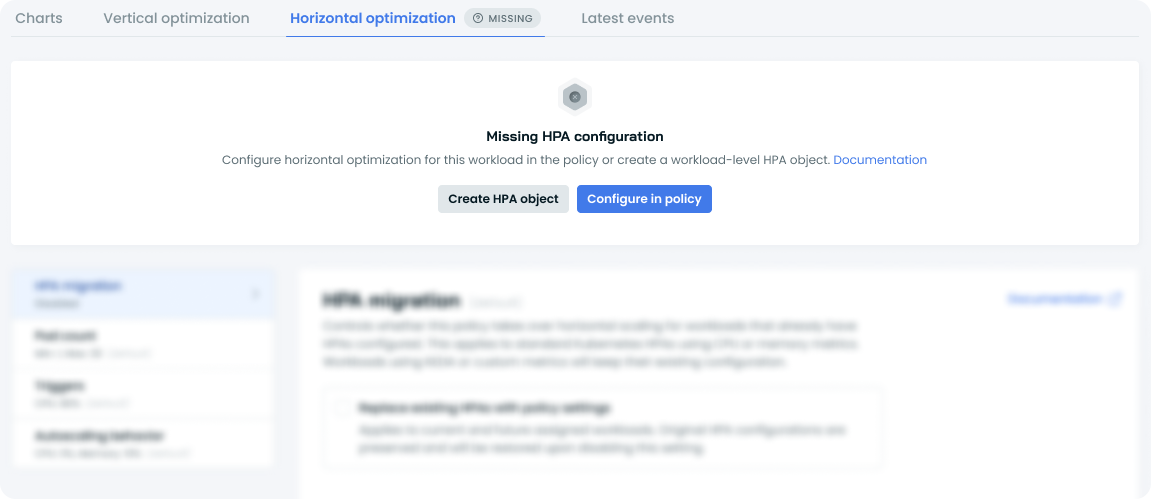
If the workload's scaling policy does not have HPA configured, the Horizontal autoscaling tab shows a Missing HPA configuration message. The available options depend on the policy type:
- Create HPA object — Always available. Creates a workload-level override for this individual workload.
- Configure in policy (recommended) — Available only for workloads assigned to a custom policy that does not yet have HPA configured. Not available for workloads assigned to system policies, as they are not user-editable.
Revert to policy values
To remove the workload-level override and return to inheriting HPA settings from the policy:
- Navigate to the workload's Horizontal autoscaling tab
- Click Revert to policy values in the left panel
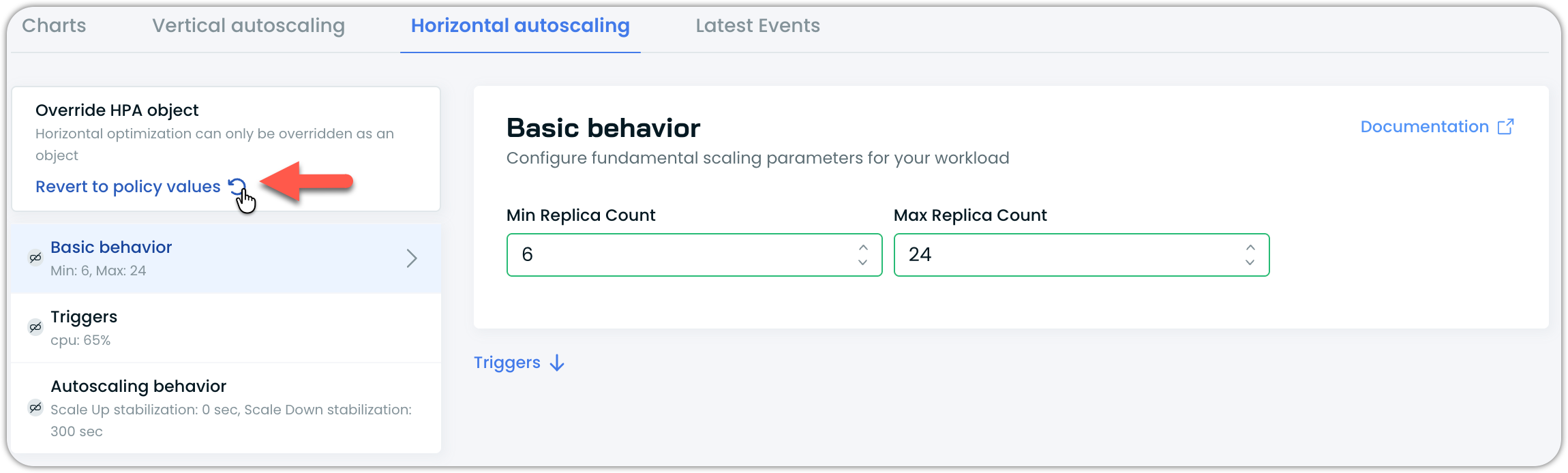
This removes the workload-level override. The workload resumes inheriting horizontal autoscaling settings from its assigned scaling policy and the resulting HPA. If the policy does not have HPA configured, horizontal autoscaling is removed from the workload entirely.
Verify override and revert
After creating an override, confirm the HPA reflects the workload-level values:
kubectl describe hpa <workload-name> -n <namespace>After reverting, confirm the HPA reverts to the policy's values (or is removed if the policy has no HPA configured):
kubectl get hpa -n <namespace>Overrides when switching policies
Workload-level HPA overrides are tied to the workload, not the policy. When you move a workload from one policy to another, any existing workload-level overrides persist. The workload continues using its override settings regardless of what the new policy defines for horizontal autoscaling.
To apply the new policy's HPA settings instead, revert the override after reassignment.
Enabling and disabling HPA optimization
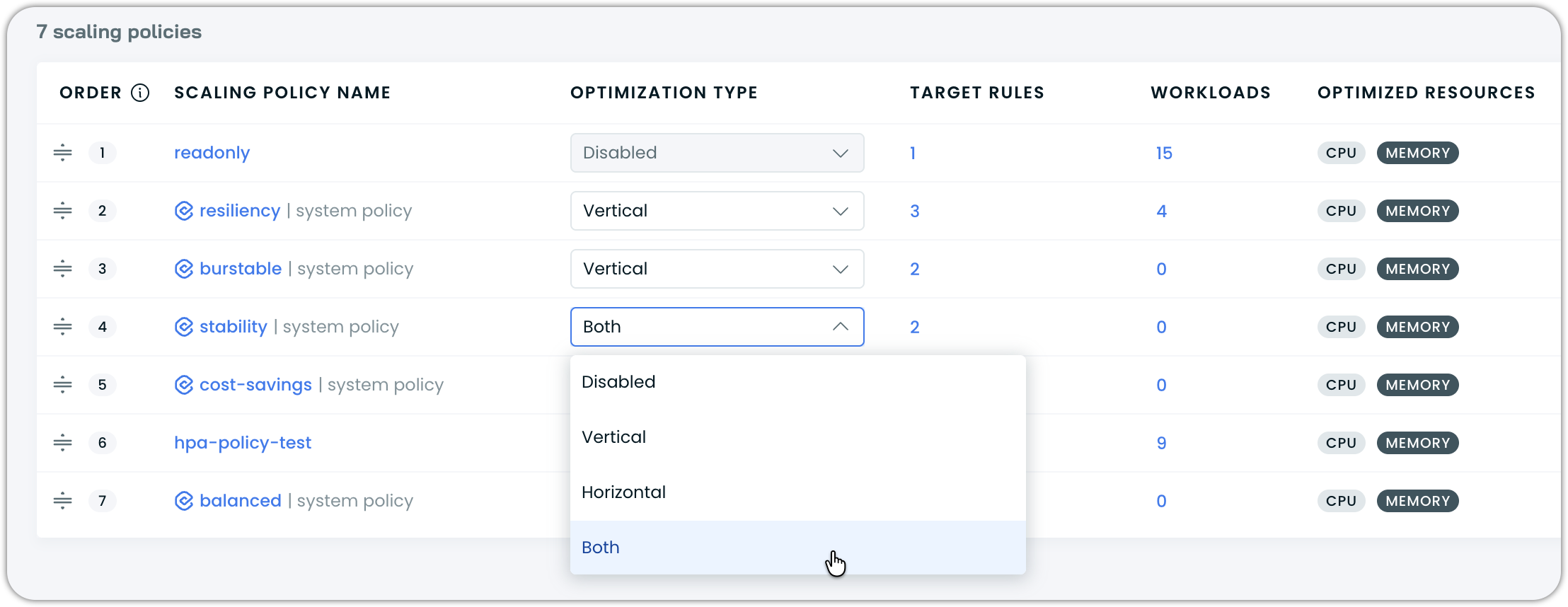
Configuring HPA in a policy does not automatically trigger workload scaling horizontally (or at all). Optimization must be enabled separately, just as with vertical scaling:
- Select your desired optimization type: Vertical, Horizontal, Both
- Confirm your selection in the confirmation modal
See also
Updated 5 months ago