
Batch processing
Batch processing lets you submit large volumes of inference requests as a single job that runs asynchronously against a self-hosted model deployed in your cluster. Instead of sending requests one at a time over a real-time endpoint, you upload a file of requests, create a batch job, and retrieve the results when processing completes.
This is designed for workloads where latency is not a constraint but throughput and cost matter — data processing pipelines, model evaluation runs, bulk embedding generation, and content generation at scale. Batch jobs are scheduled to complete within 24 hours of creation and use the same hosted model infrastructure you already have deployed through AI Enabler.
The API follows the OpenAI Batch API standard, so if you've used OpenAI's batch endpoints before, the workflow is the same.
NoteBatch processing currently supports self-hosted models only. Support for SaaS providers (OpenAI, Anthropic, Vertex AI) is planned for a future release.
How it works
When you create a batch job, the following happens:
- You upload a JSONL input file containing your inference requests through the OpenAI-compatible Files API.
- You create a batch job referencing that file. The job starts immediately.
- Cast AI deploys a short-lived Kubernetes job (the batch job processor) in your cluster that reads the input file, dispatches inference requests to AI Enabler, and writes results to an output file.
- Input and output files are stored in an encrypted, private Google Cloud Storage (GCS) bucket in your cloud project.
- You retrieve the output file through the Files API when the job completes, or download partial results while it's still running.
All inference requests flow through AI Enabler, which means batch job activity appears in your analytics dashboard alongside real-time requests.
flowchart LR
    subgraph CastAI_Cloud["CastAI cloud"]
        SaaS["CastAI SaaS"]
    end

    subgraph Customer_Cloud["Customer's cloud"]
        User["User"]
        FilesAPI["Files API"]
        BatchAPI["Batch API"]
        Proxy["AI Enabler proxy"]
        InferenceAPI["Inference API"]
        BatchJob["Batch job processor job"]
        Storage["AI Enabler proxy storage bucket"]
        Model["Hosted Model"]

        User -->|"Upload files"| FilesAPI
        User -->|"Submit batch"| BatchAPI
        FilesAPI --> Proxy
        BatchAPI --> Proxy
        Proxy -->|"Service Management Reporting"| SaaS
        SaaS -->|"Deploy / Teardown"| BatchJob
        BatchJob --> InferenceAPI
        InferenceAPI --> Proxy
        Proxy --> Storage
        Proxy --> Model
    end
Batch job lifecycle
A batch job transitions through the following statuses:
| Status | Description |
|---|---|
validating | The input file is being checked line by line for structure, size limits, and model availability. If validation fails, the job moves to failed. |
in_progress | Validation passed. The batch job processor is dispatching inference requests to the hosted model and writing results to the output file. |
finalizing | All requests have been processed. The system is calculating usage and cost statistics. |
completed | Processing finished, and results are ready. Some individual requests may have returned errors — check the error file for details. |
failed | Processing could not start or continue due to a validation or system error. |
expired | The job did not complete within the 24-hour completion window. |
cancelling | A cancel request was received. Processing stops, and the job deployment is taken down. This may take up to 10 minutes. |
cancelled | The job was cancelled. Partial output files remain available. |
Spot interruption handling
Batch processing runs on GPU nodes that may use Spot Instances. If a spot interruption occurs, the batch job processor saves a checkpoint after each successfully processed request. When the node is reclaimed, the processor restarts on a new node and resumes from the last checkpoint. No manual intervention is required.
Storage
Batch processing requires a GCS storage bucket in your cloud project to store input and output files. This bucket is created automatically during standard AI Enabler cluster onboarding. It is encrypted by default, has no public access, and is managed by a dedicated service account.
The storage component is provisioned by the onboarding script via the INSTALL_AI_OPTIMIZER_STORAGE=true flag, which is enabled by default. This is only relevant if you've installed AI Enaler via other means or have an otherwise custom installation.
The bucket name follows the pattern castai-ai-optimizer-proxy-storage-<CLUSTER_ID_PREFIX>, where the prefix is the first 8 characters of your cluster ID. For example, a cluster with ID c1adf1fc-d66f-4d7d-9c01-b401e09e0048 gets a bucket named castai-ai-optimizer-proxy-storage-c1adf1fc.
You can verify the bucket exists with:
gcloud storage buckets describe gs://castai-ai-optimizer-proxy-storage-<CLUSTER_ID_PREFIX>Supported endpoints
Batch jobs support two inference endpoints:
/v1/chat/completions— for chat completion requests/v1/embeddings— for embedding generation requests
All requests within a single batch job must target the same endpoint.
Input and output file format
Both input and output files use JSONL format (one JSON object per line), following the OpenAI specification.
Input file — each line must contain:
{"custom_id": "request-1", "method": "POST", "url": "/v1/chat/completions", "body": {"model": "llama3.2:1b", "messages": [{"role": "user", "content": "Hello"}], "max_tokens": 1000}}The custom_id field is a unique identifier you assign to each request. Use it to correlate results in the output file, since output lines are not guaranteed to appear in the same order as the input.
Output file — each line contains the result for one request:
{"id": "batch_req_123", "custom_id": "request-1", "response": {"status_code": 200, "request_id": "req_123", "body": {"id": "chatcmpl-abc", "object": "chat.completion", ...}}, "error": null}If individual requests fail, the error field contains the error details. A separate error file is also available through the batch job response and contains only the failed request entries.
Monitoring batch jobs
You can monitor batch jobs through the API or the Cast AI console.
Via API — poll the GET batch endpoint to check status, request counts (completed, failed, total), token usage, and output file location. See the Batch API reference for the full response schema.
Via console — navigate to AI Enabler > Batch jobs to view all batch jobs. The list view shows job name, model, status, request progress, duration, and cost.
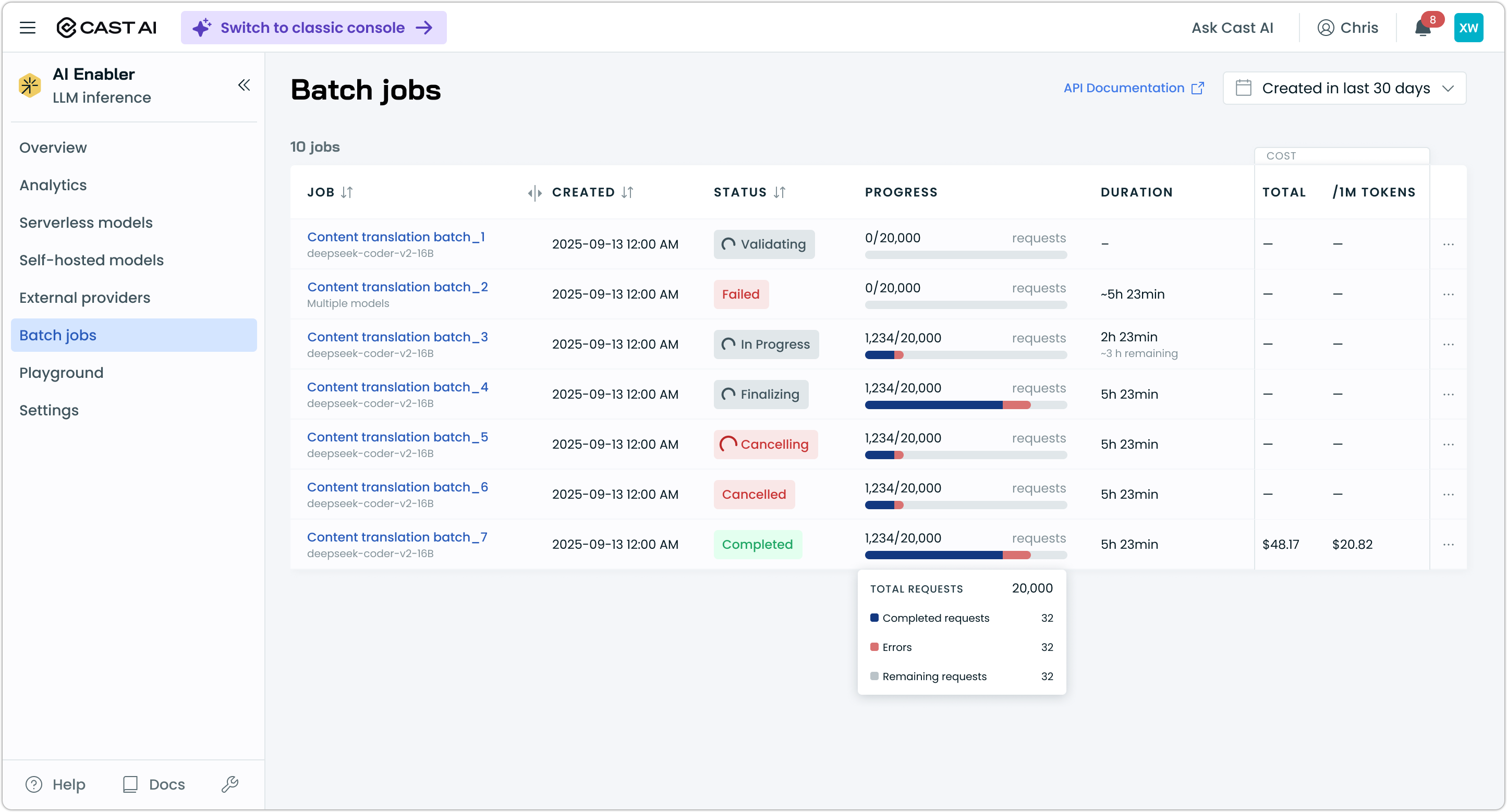
Click a job to open the detail drawer, which shows timestamps, GPU and instance type, a progress breakdown (completed, errors, remaining), links to the input, output, and error files, cost and token statistics, and estimated time remaining for in-progress jobs.
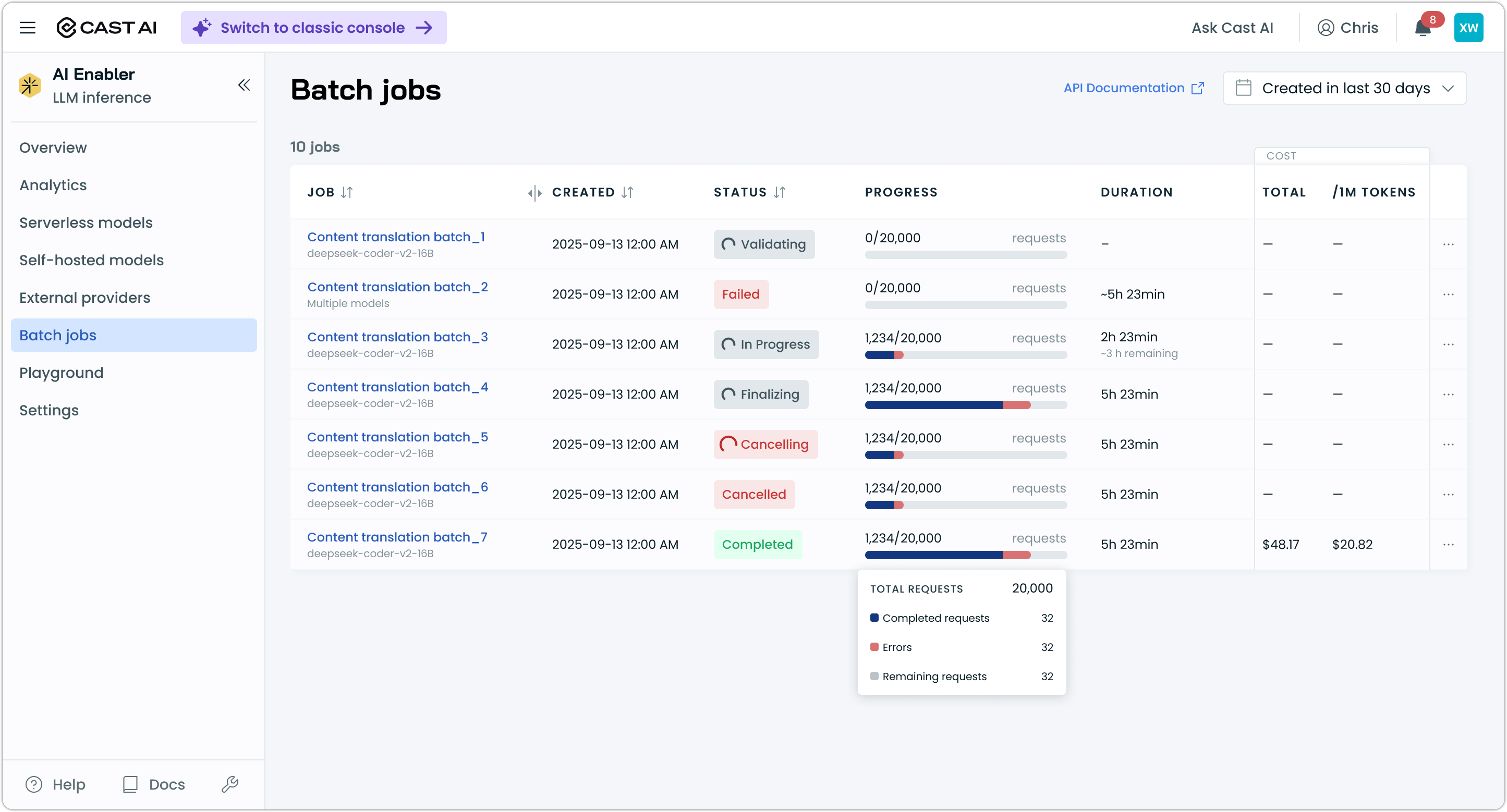
NoteFile links in the detail drawer point to objects in your GCS bucket. You need the appropriate bucket access permissions to download files directly. Alternatively, use the Files API to retrieve file contents.
Limits
| Limit | Value |
|---|---|
| Maximum input file size | 100 MB |
| Maximum requests per input file | 50,000 |
| Completion window | 24 hours (not configurable) |
| Supported endpoints | /v1/chat/completions, /v1/embeddings |
| Supported cloud providers | GCP only |
Current limitations
Batch processing is in its initial release. The following limitations apply:
- Self-hosted models only — SaaS provider batch support (OpenAI, Anthropic, Vertex AI, Azure OpenAI) is planned for a future release.
- GCP only — AWS and Azure storage support is not yet available.
- API-only job creation — batch jobs can only be created through the API. The console provides monitoring only.
- Model must be pre-deployed — batch processing uses an existing hosted model in your cluster. It does not automatically deploy or shut down models.
- Fixed completion window — the 24-hour window cannot be adjusted.