
Cline
Configure Cline to use AI Enabler's Model APIs for cost-effective AI-assisted coding.
This tutorial walks you through using Cast AI's Mode APIs with Cline, an agentic coding tool available as a standalone CLI and as a VS Code extension. You'll configure Cline to use MiniMax M2.7 via AI Enabler, providing a cost-effective setup for AI-assisted development.
Overview
By the end of this tutorial, you'll be able to:
- Authenticate Cline against AI Enabler as a model provider
- Use MiniMax M2.7 for code generation and execution tasks
- Run Cline interactively in your terminal or headlessly in scripts and CI/CD pipelines
This tutorial focuses on Cline CLI. If you use Cline inside an IDE, see IDE integration.
This tutorial is intended for developers familiar with command-line tools. It assumes basic knowledge of how LLM-based coding assistants work.
Prerequisites
Before starting, ensure you have:
-
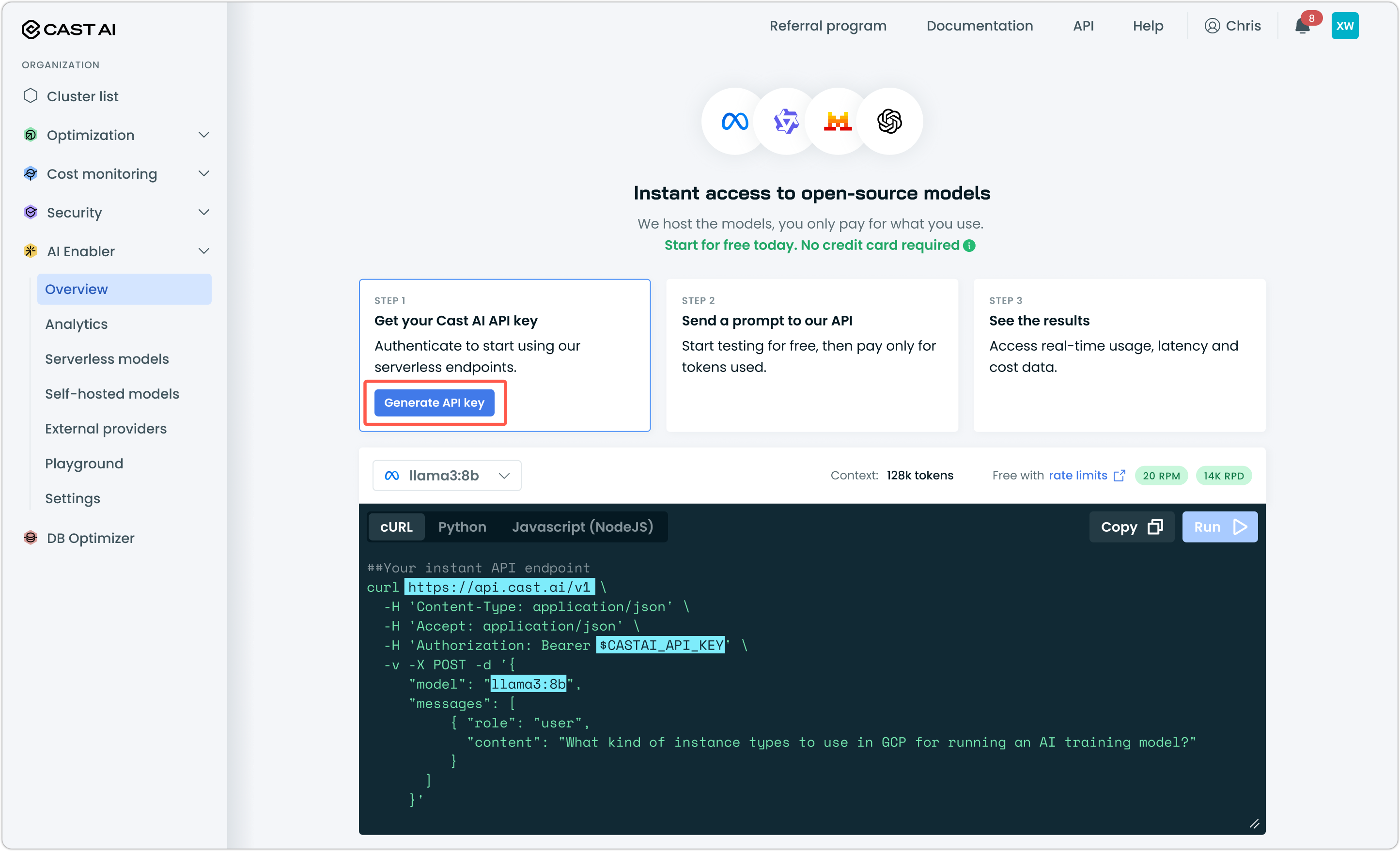
A Cast AI API key — Generate one from the Cast AI console under AI Enabler > Overview
-
Node.js 20 or higher — Check your version with
node --version. -
Cline CLI installed — Install globally via npm:
npm install -g cline
Verify the installation:
cline version
NoteServerless Endpoints work with any OpenAI-compatible client. This tutorial covers Cline, but the same AI Enabler base URL and API key work with OpenCode and other compatible tools.
Step 1: Authenticate Cline with AI Enabler
Unlike tools that use a JSON config file, Cline manages provider configuration through its auth command. Run the following to point Cline at AI Enabler's OpenAI-compatible endpoint:
cline auth -p openai -k YOUR_CASTAI_API_KEY -b https://llm.cast.ai/openai/v1 -m minimax-m2.7Here's what each flag does:
| Flag | Value | Purpose |
|---|---|---|
-p openai | openai | Tells Cline to use the OpenAI-compatible provider type, which AI Enabler supports |
-k | Your Cast AI API key | Authenticates your requests to AI Enabler |
-b | https://llm.cast.ai/openai/v1 | Points Cline at AI Enabler's inference endpoint instead of OpenAI's |
-m | minimax-m2.7 | Sets MiniMax M2.7 as the default model |
Replace YOUR_CASTAI_API_KEY with the key you generated from the Cast AI console.
Why MiniMax M2.7?
MiniMax M2.7 is a coding-capable model available through AI Enabler's Serverless Endpoints. Because you're accessing it through Cast AI rather than a direct provider API, you benefit from Cast AI's infrastructure pricing rather than paying per-token at retail rates. For high-volume coding tasks — refactoring, test generation, code review — this makes a meaningful cost difference compared to using a frontier model for every request.
You can use any model available through AI Enabler's Serverless Endpoints. See Serverless endpoints overview for the full model list.
Step 2: Verify your configuration
Confirm that Cline stored your settings correctly:
cline configYou should see https://llm.cast.ai/openai/v1 as the openAiBaseUrl and minimax-m2.7 as the planModeOpenAiModelId. If something looks wrong, re-run the cline auth command from Step 1. It overwrites the stored configuration.
Global Settings:
	actModeApiProvider: openai
  actModeOpenAiModelId: minimax-m2.7
	[...]
  openAiBaseUrl: https://llm.cast.ai/openai/v1
Step 3: Test the connection
Navigate to a project directory and run a simple test to confirm the connection to AI Enabler is working:
cd ~/your-project
cline "What files are in this directory?"
This is intentionally lightweight. It doesn't require Cline to write or modify any code, so if something goes wrong, you'll know immediately it's a connectivity or auth issue rather than a model behavior issue.
Once that succeeds, try a prompt that requires a real inference call:
cline "Explain what this project does in one paragraph"Using Cline
Cline operates in two modes depending on how you invoke it.
Interactive mode launches a full terminal interface for hands-on development sessions. Start it by running cline with no arguments from your project directory:
clineIn interactive mode, you can type tasks, review Cline's plan before it acts, and toggle between Plan and Act modes with Tab, and use /settings to adjust your configuration without leaving the session. For more information on Cline's Interactive mode, see Cline documentation.
Headless mode is designed for automation. It activates automatically when you pass the -y flag, pipe input, or redirect output — making it suitable for scripts and CI/CD pipelines:
# Run a task with automatic approval (no prompts)
cline -y "Fix all ESLint errors in src/"

# Pipe a diff for automated code review
git diff | cline -y "Review these changes and summarize any issues"
The -y flag gives Cline full autonomy to approve and execute actions. Use it on a clean git branch so you can revert easily if needed.
Advanced: Headless CI/CD workflows
Cline's headless mode makes it straightforward to integrate AI Enabler into automated pipelines. Because authentication is stored after the initial cline auth step, you can use Cline in CI environments by passing credentials as environment variables or by running cline auth as part of your pipeline setup.
A typical CI pattern for automated code review on pull requests:
# In your CI pipeline, authenticate first
cline auth -p openai -k $CASTAI_API_KEY -b https://llm.cast.ai/openai/v1 -m minimax-m2.7

# Then use Cline in headless mode
git diff origin/main | cline -y "Review these changes for bugs or regressions"
IDE integration
If you use Cline as a VS Code extension rather than the CLI, the provider configuration works differently — settings are stored in VS Code's settings.json rather than via the cline auth command.
- Open VS Code and navigate to Settings (
Cmd+,on macOS,Ctrl+,on Linux/Windows). - Search for Cline.
- Set API Provider to
OpenAI Compatible. - Set Base URL to
https://llm.cast.ai/openai/v1. - Set API Key to your Cast AI API key.
- Set Model to
minimax-m2.7.
Alternatively, add the following directly to your settings.json:
"cline.apiProvider": "openai",
"cline.openAiBaseUrl": "https://llm.cast.ai/openai/v1",
"cline.openAiApiKey": "YOUR_CASTAI_API_KEY",
"cline.apiModelId": "minimax-m2.7"
NoteSettings key names may change between Cline extension versions. If the keys above don't work, check the Cline extension documentation for the current field names.
Cursor is a VS Code fork and supports the Cline extension directly from the VS Code Marketplace. Once installed, provider configuration works the same way as in VS Code, with one difference in how you reach the settings.
- Install the Cline extension from the VS Code Marketplace — Cursor accepts VS Code extensions natively.
- Open Cursor's command palette (
Cmd+Shift+Pon macOS,Ctrl+Shift+Pon Linux/Windows) and search for Cline: Open Settings, or click the Cline icon in the sidebar and navigate to the settings panel. - Set API Provider to
OpenAI Compatible. - Set Base URL to
https://llm.cast.ai/openai/v1. - Set API Key to your Cast AI API key.
- Set Model to
minimax-m2.7. - Save your settings.
Alternatively, add the following directly to your settings.json (Cmd+Shift+P > Open User Settings JSON):
    "cline.apiProvider": "openai",
    "cline.openAiBaseUrl": "https://llm.cast.ai/openai/v1",
    "cline.openAiApiKey": "YOUR_CASTAI_API_KEY",
    "cline.apiModelId": "minimax-m2.7"
NoteSettings key names may change between Cline extension versions. If the keys above don't work, check the Cline documentation for the current field names.
Next steps
Updated 2 months ago