
Cursor
This tutorial walks you through configuring Cursor to use an OpenAI-compatible API to access LLMs hosted by AI Enabler in Chat, inline edits, and Agent mode. You'll point Cursor at an AI Enabler base URL so that all built-in AI features run through Cast AI infrastructure.
Overview
By the end of this tutorial, you'll be able to:
- Use GLM 5, MiniMax M2.7, or Kimi K2.5 through Cursor's native Chat and Agent modes
- Route all Cursor AI requests to AI Enabler
- Switch between available models directly from Cursor's model selector
This tutorial is intended for developers who have a Cursor Pro subscription or higher. The free tier does not allow configuring custom API keys.
NoteAI Enabler Base URL works with any OpenAI-compatible client. This tutorial covers Cursor, but the same AI Enabler base URL and API key work with OpenCode and other compatible tools.
Prerequisites
Before starting, ensure you have:
- A Cast AI API key — Generate one from the Cast AI console under AI Enabler > Overview
- Cursor IDE — Download from cursor.com
- A Cursor Pro subscription or higher
Step 1: Open Cursor Settings
Open Cursor and navigate to Cursor Settings:
- macOS: Menu bar > Cursor > Settings > Cursor Settings
- Windows/Linux: Menu bar > File > Settings > Cursor Settings
In the left sidebar, click Models.
Step 2: Configure the OpenAI base URL
In the Models settings page, scroll down to API Keys and configure the following:
- Enter your Cast AI API key in the OpenAI API Key field, then toggle it ON.
- Toggle Override OpenAI Base URL to ON, then enter
https://llm.cast.ai/openai/v1in the field.
This tells Cursor to route all OpenAI-compatible requests through AI Enabler instead of OpenAI's default endpoint.
Step 3: Add models
In the same Models page, use the Add or search model field at the top to add the following models:
kimchi/glm-5-fp8kimchi/minimax-m2.7kimchi/kimi-k2.5
The kimchi/ prefix is required because Cursor ships with its own built-in versions of some of these models under the same names. Without the prefix, Cursor routes requests to its own models rather than the ones hosted by AI Enabler.
Toggle each model ON after adding it.
Your settings should look like this:
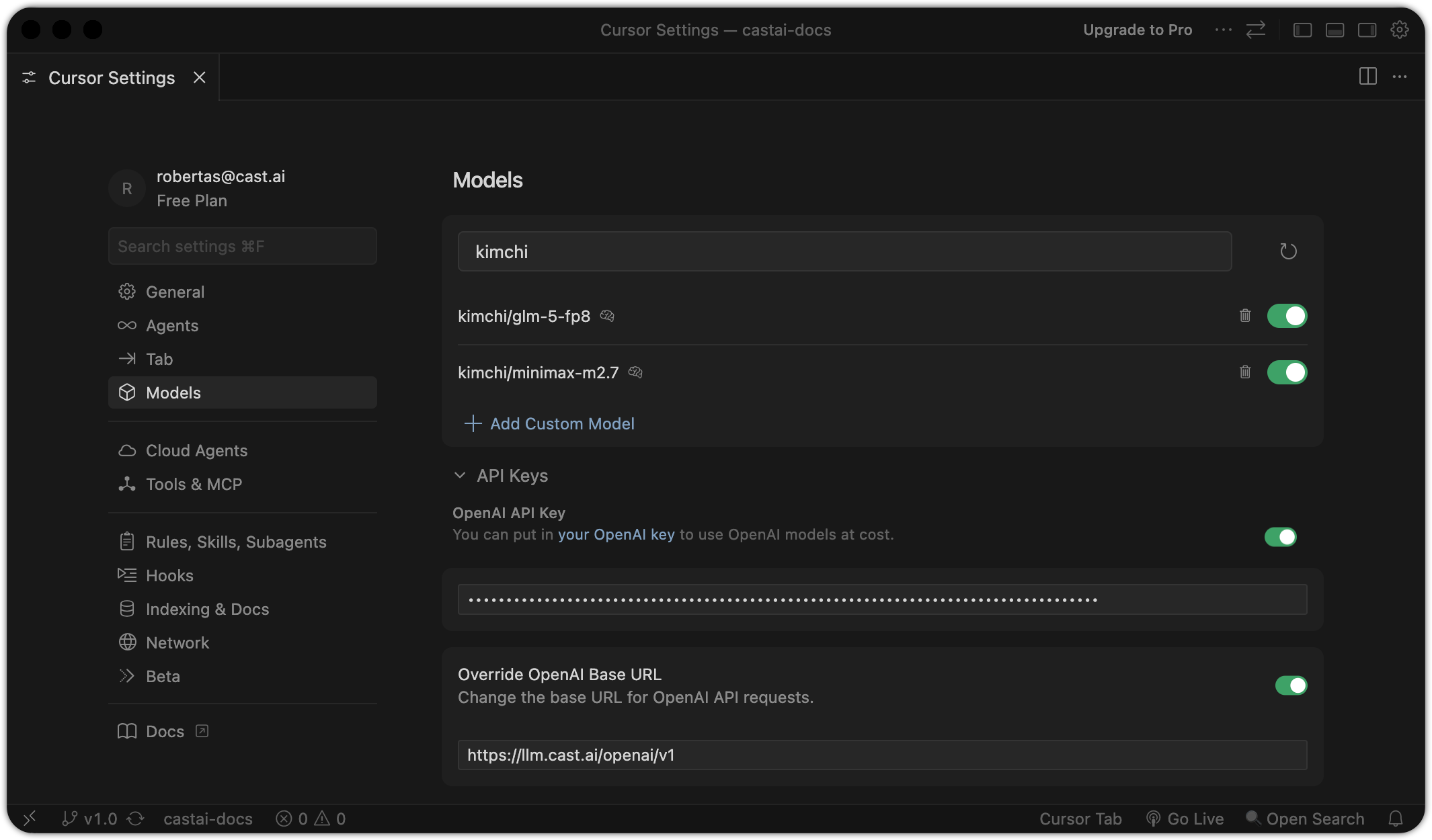
Cursor Settings — Models page with minimax-m2.7 and glm-5-fp8 enabled, API key and Override OpenAI Base URL configured
Step 4: Verify your configuration
-
Open Cursor Chat.
-
Click the model selector at the bottom of the chat input panel and switch from Auto to minimax-m2.7.
The model selector should show
kimchi/minimax-m2.7andkimchi/glm-5-fp8as available options:
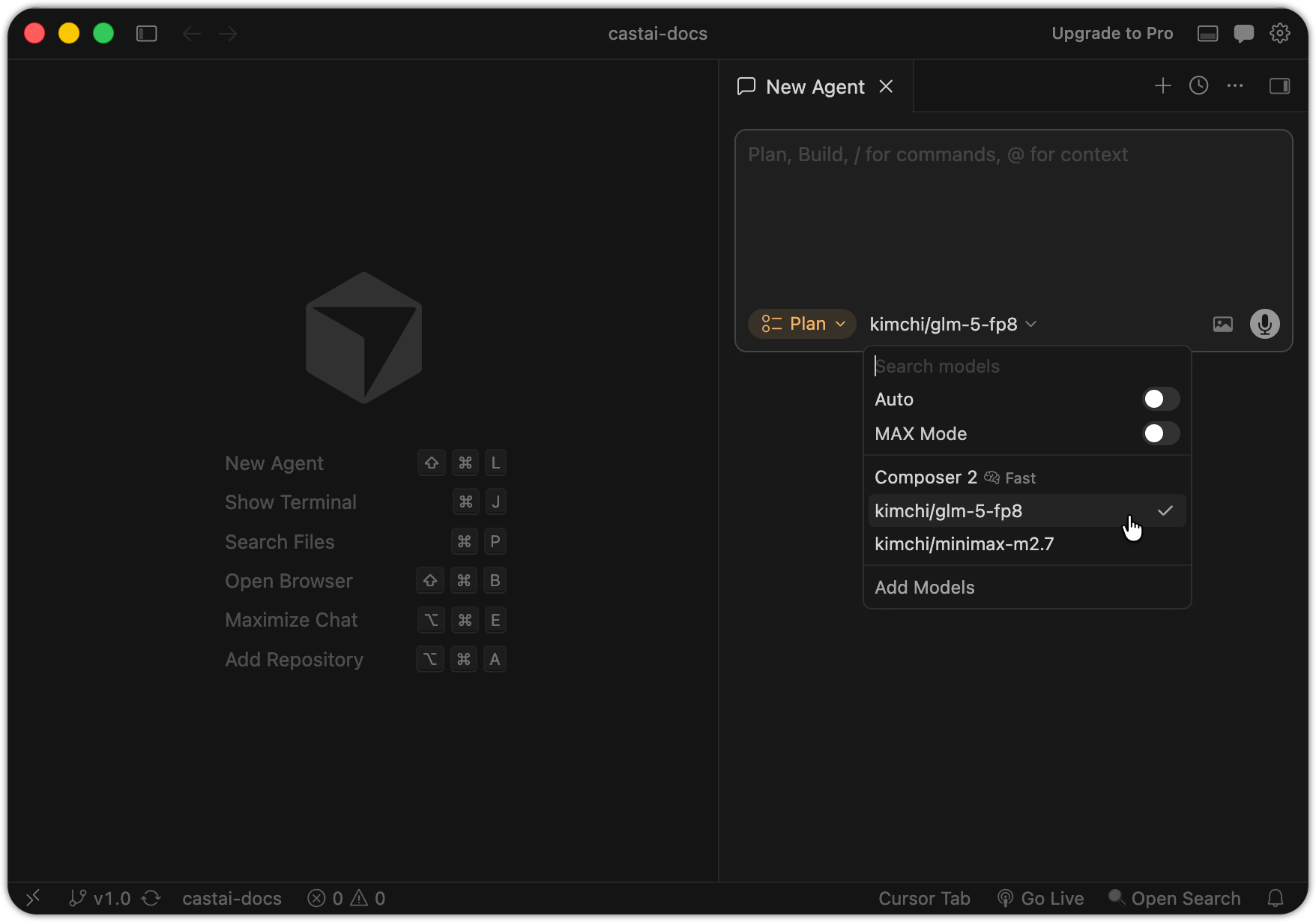
Cursor Chat – model selector showing kimchi/glm-5-fp8 selected
Send a test prompt — for example, Hello. If you get a response, the connection is working.
Troubleshooting
"Model not found" after the integration was working
Cursor occasionally resets the OpenAI API Key toggle to OFF in the Models settings. If requests that previously worked start returning a "model not found" error, check that the OpenAI API Key toggle is still enabled. Re-enable it if needed — no other settings should be affected.