
Tags
Attach custom metadata to AI Enabler requests to track and analyze usage across teams, environments, and projects.
Tags let you attach custom key:value metadata to chat completion and embedding requests sent through AI Enabler. Once attached, tags appear in the Analytics page, where you can filter usage and cost data by any combination of tags.
Common tagging patterns include environment (env:prod), team (team:ml-platform), project (project:search-v2), and cost center (cost-center:engineering).
Tag format
Tags follow a key:value format. Both the key and value must start and end with an alphanumeric character, and can contain letters, numbers, hyphens (-), underscores (_), and dots (.) in between.
| Constraint | Limit |
|---|---|
| Key length | 1–64 characters |
| Value length | 1–64 characters |
| Tags per request | 10 maximum |
| Allowed characters | a-z, A-Z, 0-9, -, _, . |
Valid example tags: env:prod, team:ml-platform, experiment.v2:run-42, region:us.west.1, cost-center:engineering, app:chat-bot.v3
Attaching tags to requests
You can attach tags via the request body, HTTP headers, or both. When you use both methods, the proxy merges and deduplicates the tags.
Request body
Add a tags array to the JSON request body:
curl -X POST https://llm.cast.ai/openai/v1/chat/completions \
  -H "Authorization: Bearer $CASTAI_API_KEY" \
  -H "Content-Type: application/json" \
  -d '{
    "model": "gpt-4",
    "messages": [
      {"role": "user", "content": "Hello!"}
    ],
    "tags": ["env:prod", "team:ml", "feature:onboarding"]
  }'
The same tags field works for embedding requests.
HTTP headers
Send tags as comma-separated values in the X-Tags header:
curl -X POST https://llm.cast.ai/openai/v1/chat/completions \
  -H "Authorization: Bearer $CASTAI_API_KEY" \
  -H "Content-Type: application/json" \
  -H "X-Tags: env:prod,team:ml,feature:onboarding" \
  -d '{
    "model": "gpt-4",
    "messages": [
      {"role": "user", "content": "Hello!"}
    ]
  }'
Two header names are supported:
| Header | Description |
|---|---|
X-Tags | Primary tag header |
X-LiteLLM-Tags | Alternative header for LiteLLM compatibility |
Filtering analytics by tags
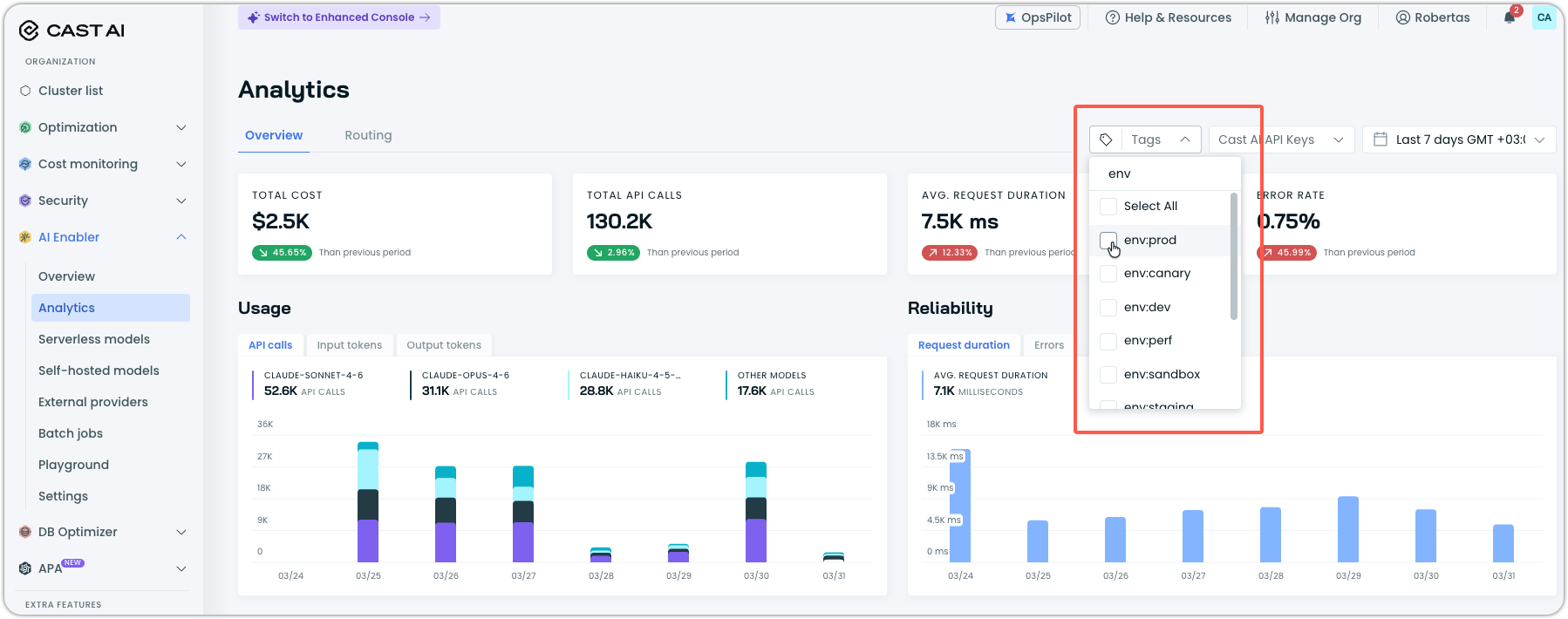
After you start sending tagged requests, use the Tags filter on the Analytics page to break down usage and cost data by tag.
Navigate to AI Enabler > Analytics and select one or more tags from the Tags dropdown. The page updates to show metrics only for requests matching the selected tags. The tag filter can be combined with other filters as well.
For API-level tag querying and advanced filtering with CEL expressions, see Tag support reference.