

AWS capacity reservations
Learn how to use AWS On-Demand Capacity Reservations (ODCRs) and EC2 Capacity Blocks for ML with Cast AI to guarantee instance availability for critical workloads.
AWS capacity reservations guarantee EC2 instance availability in a specific Availability Zone and instance type. Unlike Reserved Instances and Savings Plans, which reduce costs through long-term pricing commitments, capacity reservations ensure that the instances you need are available when you need them, regardless of overall AWS capacity constraints.
Cast AI treats capacity reservations as first-class commitments. Once imported, they appear on the Commitments page under the Capacity reservations tab, where you can assign them to clusters, track their utilization, and configure the autoscaler to provision nodes into reserved capacity.
Cast AI supports two types of AWS capacity reservations:
On-Demand Capacity Reservations (ODCRs) reserve instance capacity in a specific AZ for as long as needed. ODCRs are a good fit for planned migrations, high-availability setups, and any scenario where you need guaranteed capacity. Cast AI supports both non-interruptible and interruptible ODCRs, as well as open and targeted reservation types.
EC2 Capacity Blocks for ML reserve GPU instance capacity for a fixed time window in the future. Capacity Blocks are designed for ML training jobs and AI workloads that require scarce GPU instances (such as p5, p5en, or p4d families). You purchase a block in advance, specifying the instance type, quantity, start date, and duration. Cast AI supports instance-level Capacity Blocks. UltraServer Capacity Blocks are not currently supported.
Key difference from other commitmentsMost capacity reservations require explicit targeting through Node Templates. The node autoscaler does not automatically consume these capacity reservations the way it does with Reserved Instances or Savings Plans. You must configure a Node Template to target specific reservations before the autoscaler will provision nodes based on them. An exception to this treatment is Open ODCRs, which are treated by Cast in the same way as Reserved Instances in terms of consumption.
How capacity reservations work in Cast AI
The overall workflow is:
- Purchase capacity in AWS. Create ODCRs or Capacity Blocks through AWS.
- Import into Cast AI. Run the commitments import script or wait for an active Cloud Connect integration to sync. Cast AI discovers capacity reservations by calling the AWS
DescribeCapacityReservationsAPI. - Assign to clusters. On the Commitments page, assign the imported reservation to the clusters that should use it.
- Configure Node Templates. For each assigned cluster, select which Node Templates should target the reservation. The autoscaler only provisions nodes into a capacity reservation when a Node Template explicitly targets it.
- Run workloads. When pending pods match the constraints of a Node Template targeting a capacity reservation, the autoscaler provisions nodes into the reserved capacity first.
Two ways to link reservations and Node TemplatesYou can configure the relationship between capacity reservations and Node Templates from either direction: in the commitment detail drawer, assign one reservation to multiple Node Templates across clusters, or in the Node Template editor, target multiple reservations from a single template.
Provisioning order
When a Node Template targets one or more capacity reservations, the autoscaler follows this priority order:
- Capacity reservations — Provisions into the targeted reservation first, up to the reserved instance count. Cast AI is also aware of and will take into account any external usage of a reservation by systems outside of Cast-managed clusters.
- Other commitment-covered On-Demand — If the reservation is fully utilized, it falls back to RI/SP-covered capacity if available.
- Regular On-Demand/Spot — Standard On-Demand/Spot Instances if no commitment capacity remains.
If the Node Template lacks fallback options and the reservation is fully utilized, pods remain pending until capacity becomes available.
Reservation statuses
Each capacity reservation has a lifecycle status visible on the Commitments page:
Scheduled — The reservation exists but has not yet reached its start time. This status applies primarily to Capacity Blocks, which are purchased in advance for a future time window. The autoscaler does not provision into scheduled reservations.
Active — The reservation is currently available for use. The autoscaler can provision nodes into active reservations when matching pending pods exist.
Cancelled — The reservation has been cancelled in AWS. Cast AI reflects this status after the next Cloud Connect sync (up to 1 hour). The autoscaler ignores cancelled reservations.
Expired — The reservation's time window has ended. This status applies to Capacity Blocks that have reached their end time. The autoscaler ignores expired reservations.
Prerequisites
Before importing capacity reservations, ensure the following:
AWS permissions. Your Cloud Connect role must include the ec2:DescribeCapacityReservations permission. See Cloud permissions for the full policy. The script for uploading commitments requires the same permission.
Existing integration. You need either Cloud Connect configured for your AWS or use the commitments import script. Capacity reservations are discovered through the same import mechanism used for Reserved Instances and Savings Plans.
Cluster connected. At least one AWS cluster must be connected to Cast AI in the same region as the capacity reservation for them to be visible in the user interface after importing.
Importing capacity reservations
Capacity reservations are imported using the same workflow as other AWS commitments.
If you already have a commitments import or Cloud Connect set up, newly created capacity reservations are discovered automatically during the next sync cycle.
To import manually:
- Navigate to Optimization > Commitments (Classic Console) or Settings > System > Commitments (Enhanced Console) in the left sidebar.
- Click Upload commitments in the top right corner.
- Run the script. Cast AI discovers all commitment types, including capacity reservations.
Once imported, capacity reservations appear under the Capacity reservations tab on the Commitments page:
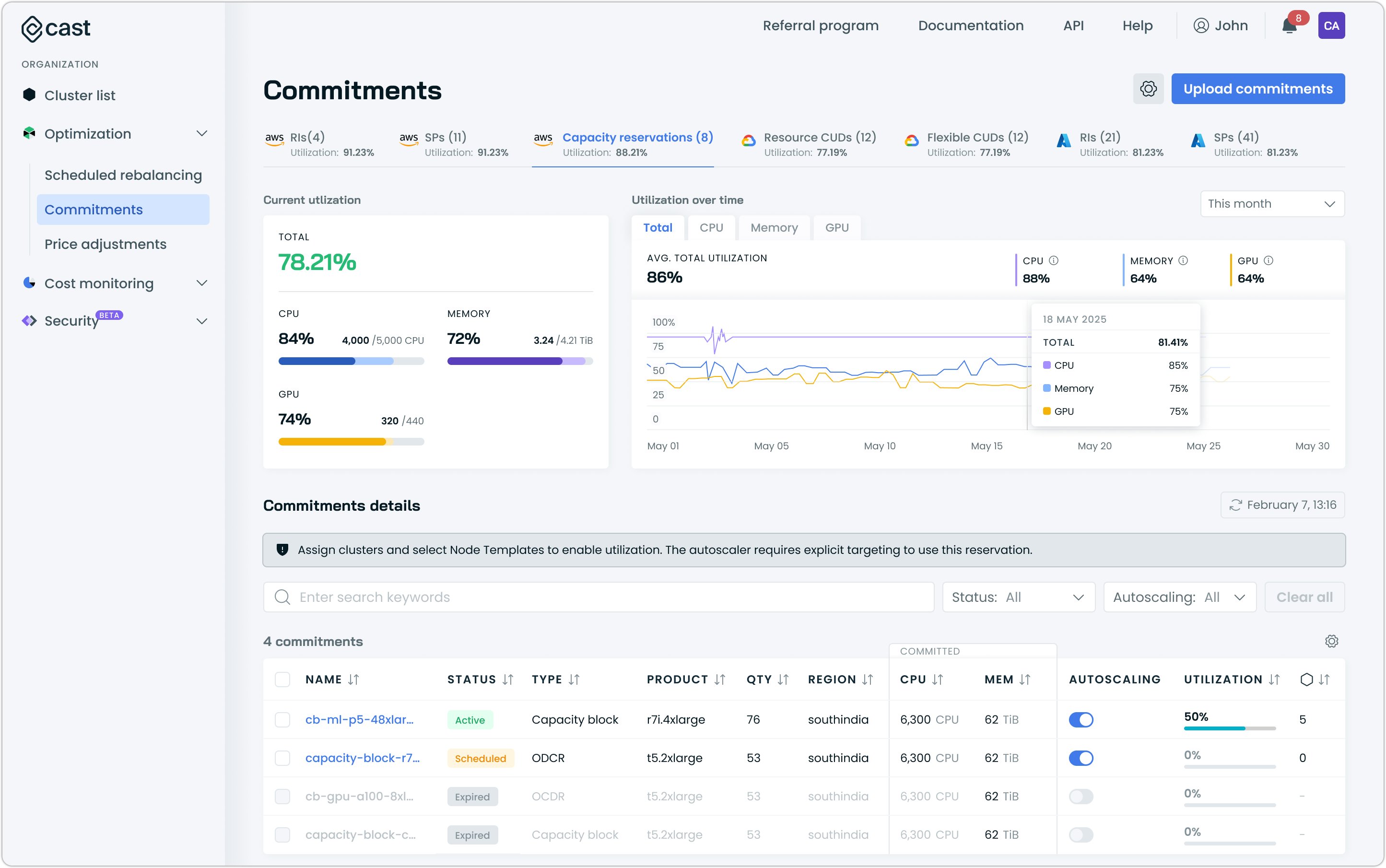
The Capacity reservations tab on the Commitments page showing imported reservations
Assigning capacity reservations to clusters
After importing, assign the reservation to the clusters that should use it:
- Click on a reservation name to open the detail drawer.
- Under Assign clusters to the commitment, select the clusters that should have access to this reservation.
- For each assigned cluster, select at least one Node Template from the dropdown. This is a mandatory step. The autoscaler requires explicit Node Template targeting to use capacity reservations.
- Click Save.
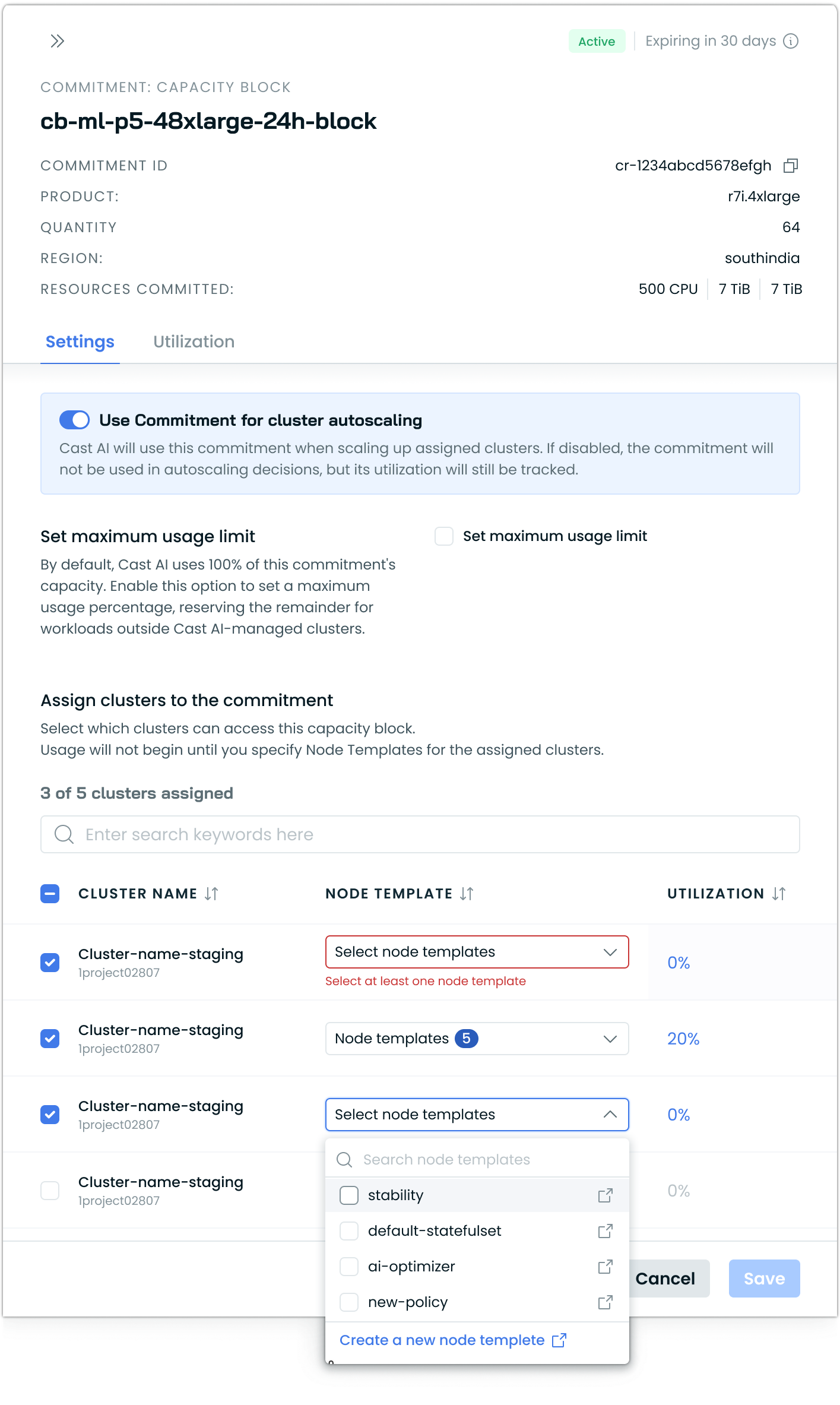
The detail panel also allows you to configure:
Use Commitment for cluster autoscaling — When enabled, Cast AI uses this reservation when scaling up assigned clusters. When disabled, the reservation is not used in autoscaling decisions, but its utilization is still tracked.
Set maximum usage limit — Optionally restrict Cast AI to use only a percentage of the reservation's capacity, reserving the remainder for workloads outside Cast AI-managed clusters.
Node Template selection is mandatoryUnlike RIs and Savings Plans, capacity reservations require you to select Node Templates for each assigned cluster. If no Node Template is selected, the autoscaler cannot provision into the reservation.
Configuring Node Templates for Capacity Reservations
To target a capacity reservation from a Node Template, use the Target capacity reservations field in the Node Template configuration:
- Navigate to your cluster's Configuration > Node autoscaler page, then choose the Node templates tab.
I'm using Classic Console
Navigate to your cluster's Autoscaler > Node templates page.
- Create a new Node Template or edit an existing one.
- In the Target capacity reservations section, select one or more capacity reservations from the dropdown.
- Save the template.
When you select a reservation, Cast AI automatically populates and locks certain constraints inherited from the reservation:
Instance type — Locked to the reservation's instance type.
Availability Zone — Locked to the reservation's AZ.
These inherited constraints cannot be removed unless you remove the reservation targeting. You can still configure additional settings on the Node Template.
The Node Template also automatically applies a reserved=only:NoSchedule taint to nodes provisioned from a capacity reservation. Your workloads must include a matching toleration to be scheduled on these nodes.
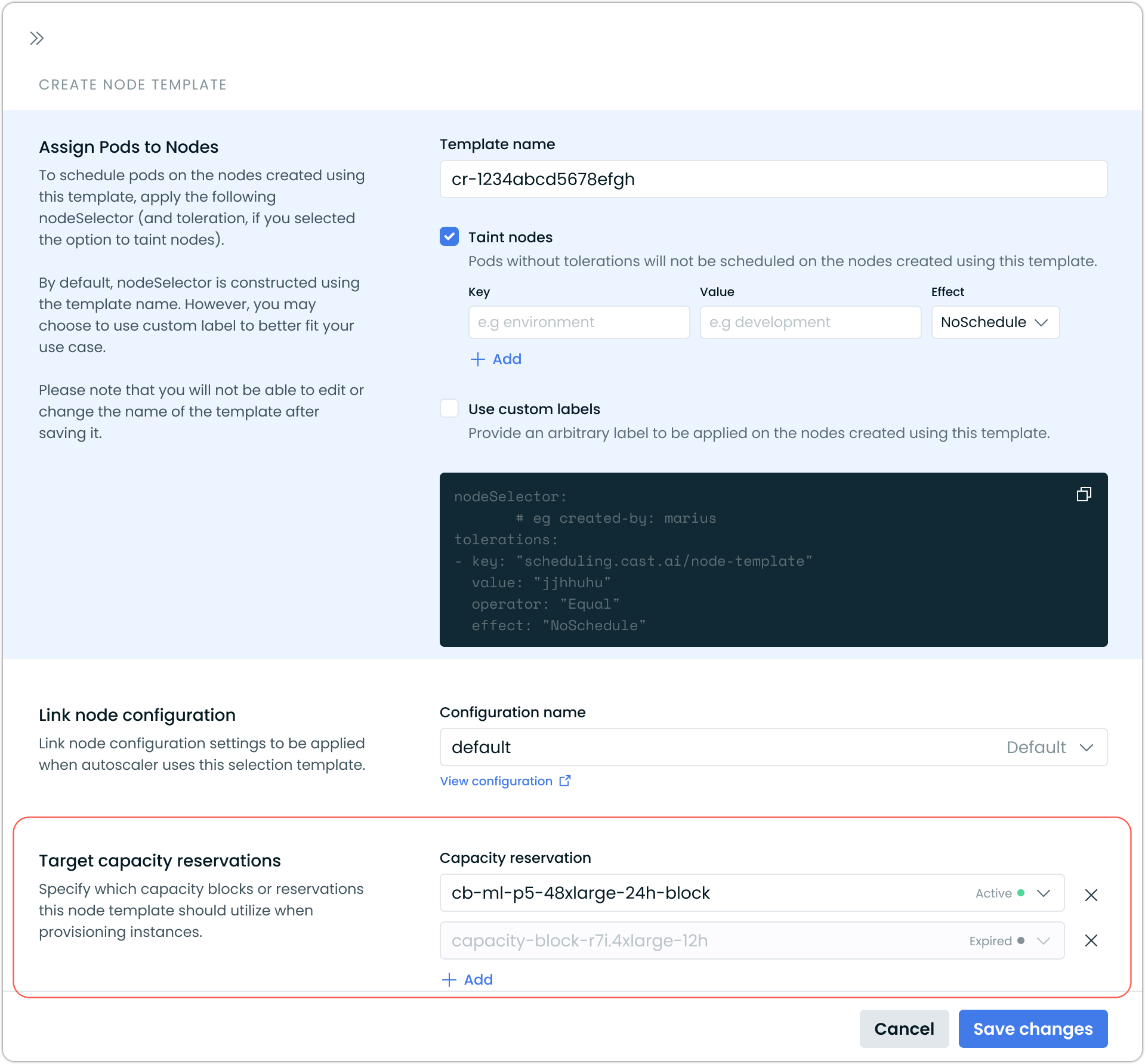
Node Template configuration showing the field for targetting capacity reservations
For full Node Template documentation, see Node Templates.
Capacity Blocks
Capacity Blocks reserve GPU instance capacity for a fixed time window, making them the primary mechanism for ensuring availability of scarce GPU instances for ML training jobs.
Setting up Capacity Blocks
-
Purchase a Capacity Block through AWS.
-
Import into Cast AI. Navigate to Optimization > Commitments and import commitments, or wait for your existing integration to sync. The Capacity Block appears under the Capacity reservations tab with a Scheduled status until its start time.
-
Assign to your ML cluster. Click the Capacity Block and assign it to the cluster running your ML workloads. Select the Node Template(s) that should target this block.
-
Configure the Node Template. Create or edit a Node Template and select the Capacity Block under Target capacity reservations. Cast AI locks the instance type and AZ to match the block. Add taints and tolerations to ensure only your ML workloads are scheduled on these nodes.
-
Submit ML workloads. When the block's start time arrives, and you submit training jobs, the autoscaler detects pending GPU pods and provisions nodes into the Capacity Block. Cast AI provisions nodes up to the reserved instance count.
-
Monitor utilization. Track utilization on the Commitments page. Since you pay for the entire block duration regardless of usage, maximizing utilization reduces wasted spend.
Capacity Block expiration
When a Capacity Block's end time approaches, AWS terminates the instances running within it. Cast AI automatically handles node drain before AWS begins termination, giving your workloads time to be evicted more gracefully. After expiration, Cast AI marks the block as Expired and the autoscaler stops considering it for scheduling.
If your workload is still running when the block expires, the affected pods go pending. The autoscaler then attempts to schedule them on other available capacity, depending on your Node Template configuration.
On-Demand Capacity Reservations (ODCRs)
On-Demand Capacity Reservations let you reserve instance capacity in a specific AZ without a fixed end date. They are ideal for migrations, recovery, and other scenarios requiring guaranteed instance availability.
Open vs. targeted ODCRs
AWS supports two types of ODCRs, and Cast AI handles each differently:
Open ODCRs are automatically applied to any node being provisioned matching the reservation's instance type, AZ, and platform. Note that other systems in your AWS account may also consume open ODCR capacity.
Targeted ODCRs are only applied when you explicitly provision nodes using a specific Node Template that is tied to the ODCR in the Commitments interface.
Interruptible vs. non-interruptible ODCRs
Cast AI supports both non-interruptible and interruptible ODCRs:
Non-interruptible ODCRs provide guaranteed, uninterrupted capacity for the duration of the reservation. Once an instance is running in a non-interruptible ODCR, AWS will not reclaim it.
Interruptible ODCRs provide capacity that AWS may reclaim under certain conditions. When setting up these types of interruptible commitments, users should be aware of the risk of the instance being reclaimed and the effects that this may have on their workloads.
Setting up ODCRs
-
Create ODCRs in AWS. Create capacity reservations for the instance type and AZ you need.
-
Import into Cast AI. Import commitments or wait for Cloud Connect to sync. ODCRs appear under the Capacity reservations tab with their current status.
-
Assign to your cluster. Select the cluster and Node Templates that should use this ODCR.
-
Configure the Node Template. Select the ODCR under Target capacity reservations.
-
Deploy workloads. The autoscaler provisions nodes into the ODCR when matching pods are pending, up to the reserved instance count. If the reservation is fully utilized, the autoscaler falls back to other options configured on the Node Template.
Interaction with Rebalancer
The Rebalancer respects capacity reservations when evaluating node replacements. Nodes backed by active capacity reservations are not replaced with non-reserved alternatives during their active windows. For Capacity Blocks specifically, the Rebalancer can help re-pack workloads onto reserved nodes to maximize utilization during the block window.
Troubleshooting
Capacity reservation not being utilized
If the autoscaler is not provisioning into an available capacity reservation, verify:
Node Template targeting. The reservation must be selected in the Target capacity reservations field of at least one enabled Node Template assigned to the cluster.
Cluster assignment. The reservation must be assigned to the cluster, and Node Templates must be selected for that cluster.
Reservation status. The reservation must be Active. Scheduled reservations (Capacity Blocks that haven't reached their start time) are not used for provisioning. Expired reservations are ignored.
Matching workloads. Pending pods must match the Node Template's constraints (labels, tolerations, resource requests) and the reservation's inherited constraints (instance type, AZ).
Autoscaling toggle. The Use Commitment for cluster autoscaling toggle must be enabled on the reservation.
Toleration. Workloads must include a reserved=only:NoSchedule toleration to be scheduled on reservation-backed nodes.
Known limitations
AWS only. Capacity reservations are supported only for AWS clusters.
UltraServer Capacity Blocks. Cast AI supports instance-level Capacity Blocks. UltraServer Capacity Blocks are not currently supported.
Shared reservation tracking. If multiple clusters or Node Templates target the same reservation, Cast AI tracks utilization per Reservation ID across all of them. AWS enforces capacity limits, so over-assignment may result in some workloads not receiving reserved capacity.
See also
- Commitments — Overview of discount-based commitments (RIs, Savings Plans, CUDs)
- Node Templates — Configure Node Templates including capacity reservation targeting
- Cloud permissions — Required AWS permissions for importing capacity reservations
- AWS On-Demand Capacity Reservations — AWS documentation
- Amazon EC2 Capacity Blocks for ML — AWS documentation
Updated 3 months ago