Continue
This tutorial configures Continue, an agentic coding tool available as a CLI and IDE extension, to use Large Language Models hosted by AI Enabler.
This tutorial focuses on the Continue CLI. IDE extensions automatically pick up the same configuration file — see IDE integration after completing the CLI setup.
Overview
By the end of this tutorial, you'll be able to use Kimi K2.5, GLM 5, and MiniMax M2.7 with Continue in your terminal, VS Code, and JetBrains IDEs.
This tutorial is intended for developers familiar with command-line tools and YAML configuration files.
Prerequisites
Before starting, ensure you have:
-
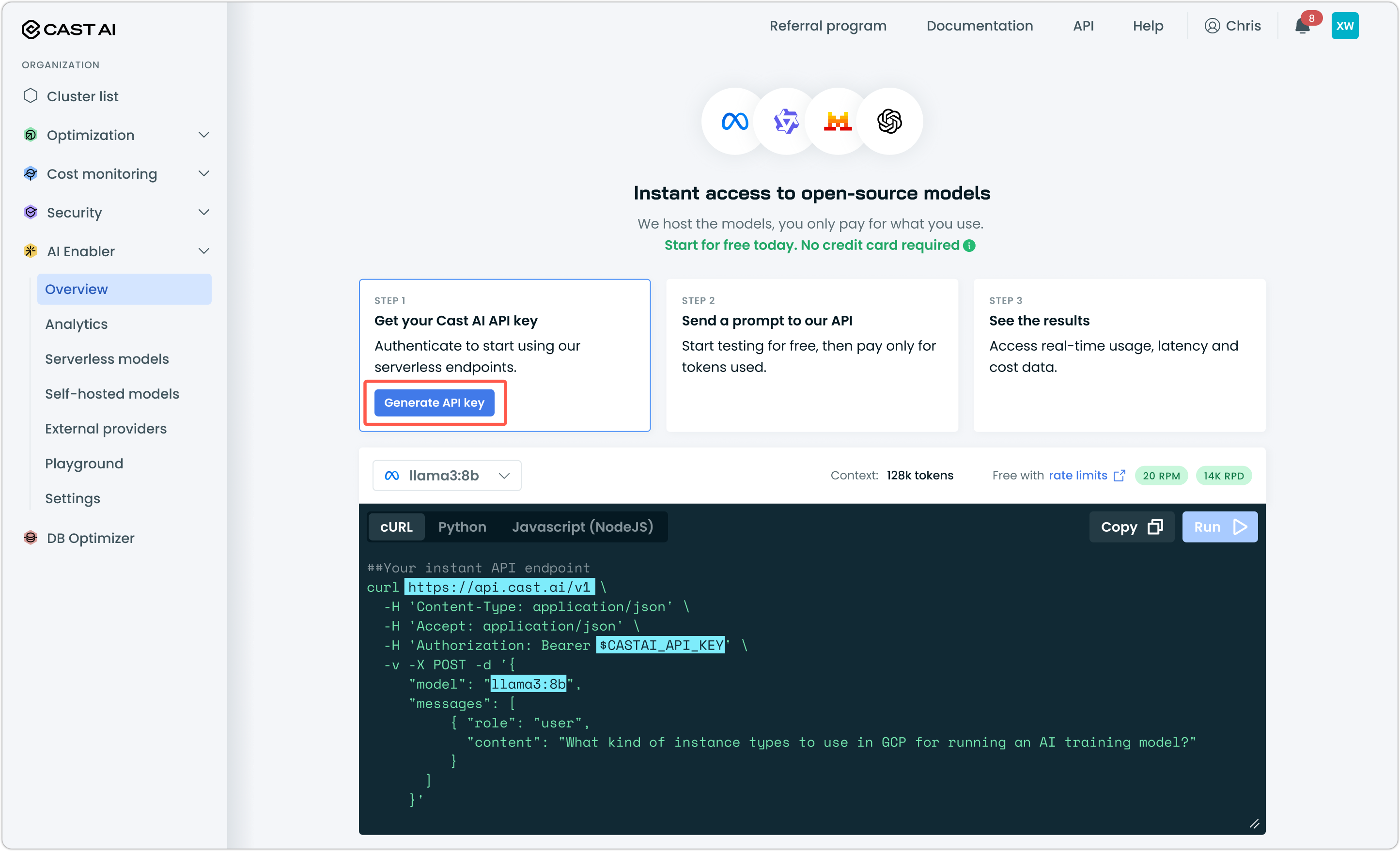
A Cast AI API key — Generate one from the Cast AI console under AI Enabler > Overview
-
Continue CLI installed — Follow the official install instructions.
NoteAI Enabler base URL is OpenAI-compatible. Although this tutorial covers Continue, information explained here should be transferable to other tools and IDEs, assuming they offer integration with third-party model providers who expose an OpenAI-compatible API.
NoteAlthough Kimi K2.5 supports image analysis, Continue does not currently support this feature and is limited to text files.
Step 1: Create the Continue configuration file
Create the configuration file for your OS:
~/.continue/config.yamlAdd the following content:
%YAML 1.1
# Reference: https://docs.continue.dev/reference#data
---
name: My Config
version: 1.0.0
schema: v1
model_defaults: &model_defaults
  provider: "openai"
  apiBase: "https://llm.cast.ai/openai/v1"
  apiKey: "YOUR_CASTAI_API_KEY"
models:
  - name: "kimi-k2.5"
    model: "kimi-k2.5"
    <<: *model_defaults
  - name: "glm-5-fp8"
    model: "glm-5-fp8"
    <<: *model_defaults
  - name: "minimax-m2.7"
    model: "minimax-m2.7"
    <<: *model_defaults
  - name: "minimax-m2.5"
    model: "minimax-m2.5"
    <<: *model_defaults
Replace YOUR_CASTAI_API_KEY with the API key you generated from the Cast AI console.
The model_defaults anchor (&model_defaults) avoids repeating the provider, base URL, and API key for each model.
Step 2: Verify your configuration
Launch Continue with the --config flag:
cn --config ~/.continue/config.yamlSend a test prompt like "Hello" to confirm the connection.
IDE integration
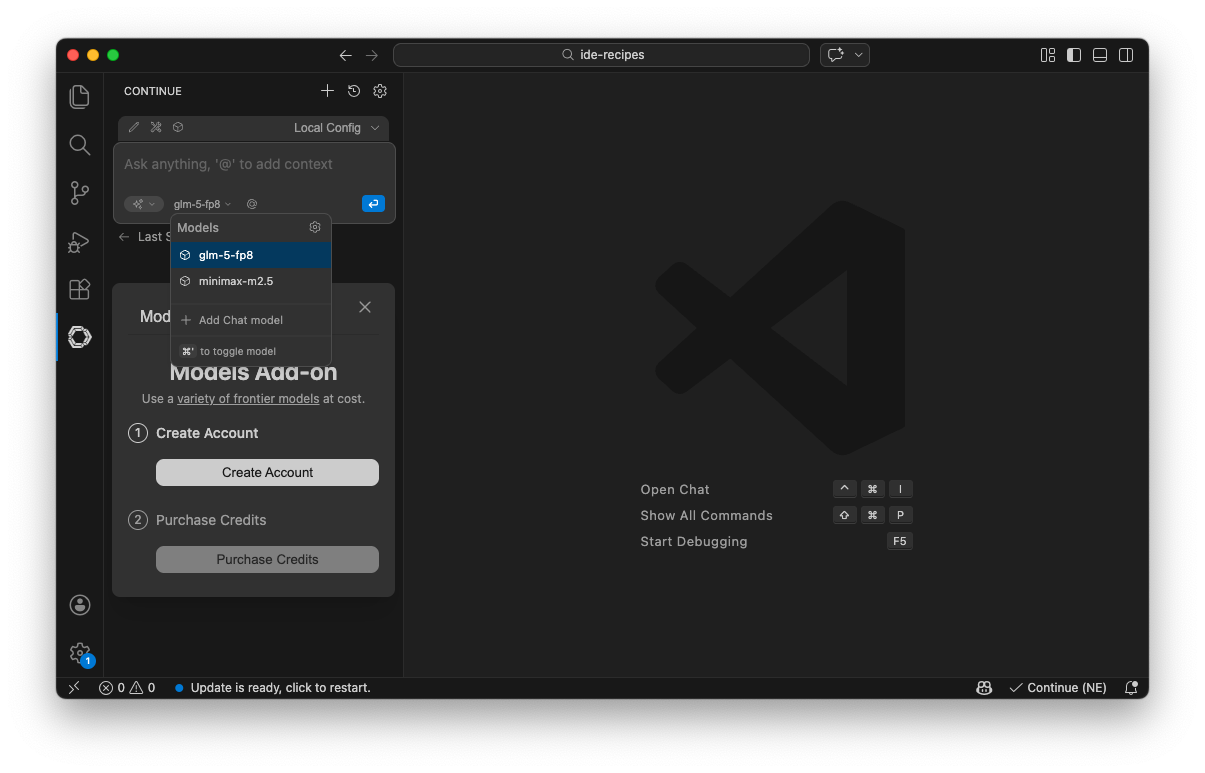
The configuration file is automatically recognized by Continue extensions for VS Code and JetBrains. No additional setup is needed — install the extension and it picks up the same config.
If the extension doesn't load the config, confirm that ~/.continue/config.yaml (macOS/Linux) or %USERPROFILE%\.continue\config.yaml (Windows) exists and contains valid YAML.
-
Install the Continue extension from the VS Code Marketplace.
2. Open the Continue panel from the sidebar and send a test prompt to verify the connection.The Continue icon appears in the sidebar. Clicking it opens the Continue panel. Confirm that
Local Configis loaded and the model selector points to a model from the config file.