
CLI
Kimchi is a CLI tool that detects your installed AI coding assistants and configures them to use open-source models hosted on Cast AI. Instead of manually editing config files for each tool, Kimchi handles it with a single interactive wizard.
No API keys from Anthropic or OpenAI needed — just your Cast AI API key.
Available models
| Model | Best for | Context | Output |
|---|---|---|---|
glm-5-fp8 | Reasoning, planning, analysis | 202K tokens | 32K tokens |
kimi-k2.5 | Code generation from visual specs, planning, analysis | 262K tokens | 32K tokens |
minimax-m2.7 | Code generation, debugging | 196K tokens | 32K tokens |
minimax-m2.5 | Code generation, debugging | 196K tokens | 32K tokens |
Prerequisites
Before starting, ensure you have:
-
A Cast AI account — Sign up or log in at console.cast.ai.
-
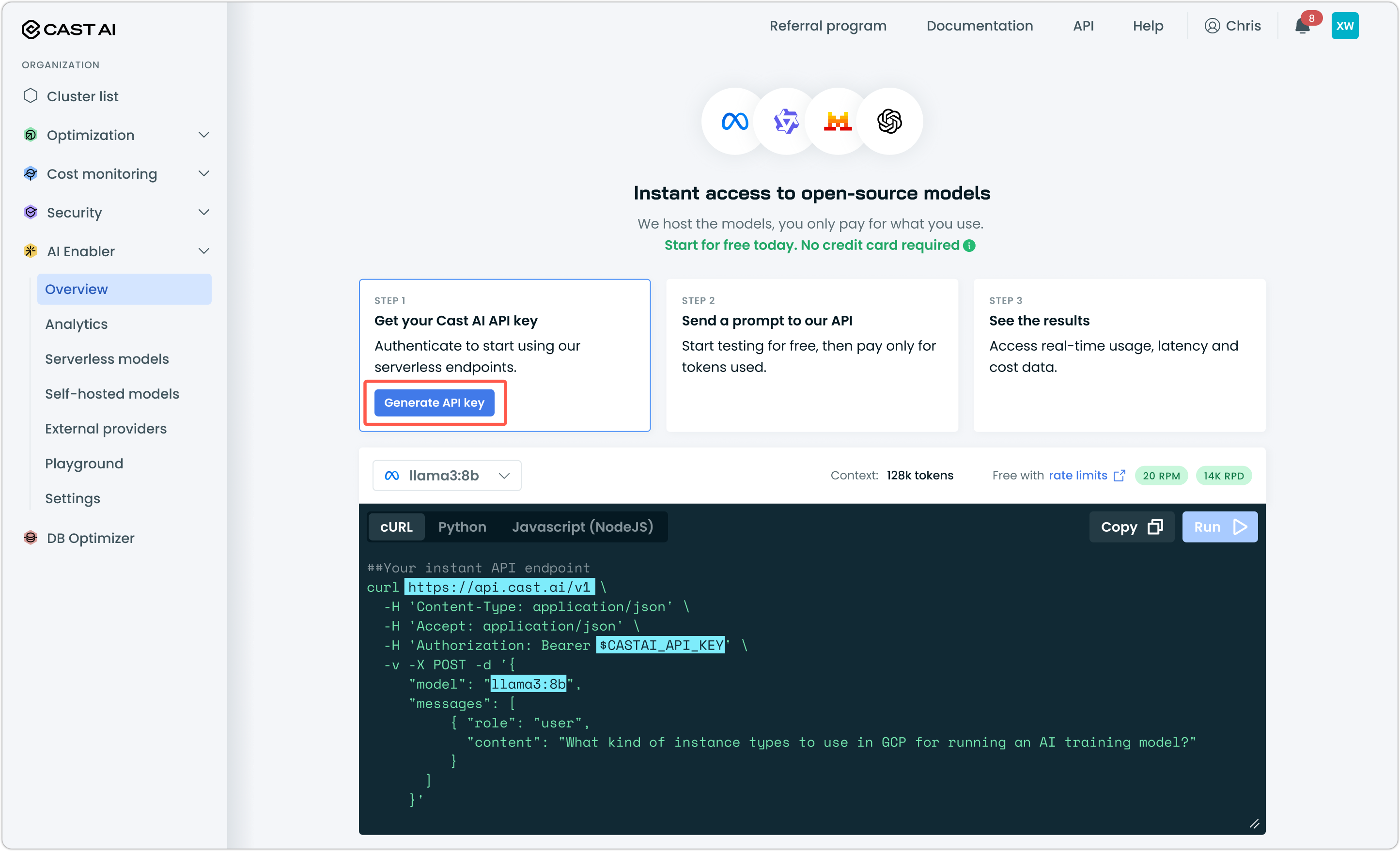
A Cast AI API key — Generate one from the Cast AI console under AI Enabler > Overview.
-
At least one supported AI coding tool installed — See Supported tools for the full list.
Getting started
Step 1: Install Kimchi
The fastest way to install Kimchi is the one-line installer, which downloads the binary and launches the setup wizard automatically:
curl -fsSL https://github.com/castai/kimchi/releases/latest/download/install.sh | bashIf you prefer to install manually, download the release for your platform:
curl -fsSL https://github.com/castai/kimchi/releases/latest/download/kimchi_darwin_arm64.tar.gz | tar xzf -Make the binary executable:
chmod +x kimchiMove it to a directory on your PATH so you can run it from anywhere:
sudo mv kimchi /usr/local/bin/Verify the installation:
kimchi versionStep 2: Run the setup wizard
If you used the one-line installer, the wizard starts automatically. For manual installs, launch it with:
kimchiThe wizard walks you through six steps:
- Auth — Enter your Cast AI API key. Kimchi validates it against the AI Enabler endpoint before proceeding.
- Detect tools — Kimchi scans your system for installed AI coding tools (Claude Code, OpenCode, Cursor, Cline, and others listed under Supported tools).
- Select tools — Choose which of the detected tools you want to configure. You can select one or all of them.
- Scope — Choose whether to apply configuration globally (all projects) or to the current project only. Global scope is recommended for most users.
- GSD setup — Optionally install GSD (Get Shit Done) agents for multi-agent orchestration. You can skip this step if you don't need it.
- Configure — Kimchi writes the appropriate configuration files for each selected tool. It preserves your existing settings and only adds its own provider block.
Once complete, open any of your configured tools and start coding with Cast AI models.
Supported tools
| Tool | Description | Config file |
|---|---|---|
| OpenCode | Agentic coding CLI | ~/.config/opencode/opencode.json |
| Claude Code | Anthropic's coding agent | ~/.claude/settings.json |
| Codex | OpenAI's coding CLI | ~/.codex/.env |
| Zed | High-performance editor | ~/.zed/settings.json |
| Cline | VS Code extension | ~/.cline/data/globalState.json |
| Generic | Environment variables | Prints to stdout |
For tool-specific setup instructions that walk through editing config files directly (without Kimchi), see the individual tutorials:
Usage
Launch the interactive setup wizard:
kimchiCheck your installed version:
kimchi versionEnable debug output for troubleshooting:
kimchi --debugShell completions
Generate shell completions for your preferred shell:
kimchi completion bash > /etc/bash_completion.d/kimchiHow it works
Kimchi configures each tool to route inference requests through Cast AI's endpoint:
flowchart LR
    A["Your AI Tool"] --> B["Kimchi Config"] --> C["Cast Endpoint https://llm.cast.ai"] --> D["Cost Efficient Open-Source Models"]
For each tool, Kimchi writes a provider block into the tool's config file. For example, an OpenCode configuration looks like this:
{
  "provider": {
    "kimchi": {
      "name": "Kimchi by Cast AI",
      "options": {
        "baseURL": "https://llm.cast.ai/openai/v1",
        "apiKey": "your-api-key"
      },
      "models": {
        "glm-5-fp8": { "reasoning": true },
        "kimi-k2.5": { "reasoning": false },
        "minimax-m2.7": { "reasoning": false },
      }
    }
  }
}
Kimchi preserves your existing tool configurations and only adds its own provider settings. Nothing else is modified.
FAQ
Will this break my existing config?
No. Kimchi preserves your existing tool configurations and only adds its provider settings. Your current models, keybindings, and preferences remain untouched.
Can I switch back?
Yes. Remove the kimchi provider from your tool's config file, or re-run the tool's original setup. Kimchi doesn't modify anything outside its own provider block.
Where is my API key stored?
Your API key is stored in ~/.config/kimchi/config.json with file permissions set to 600 (readable only by your user). It's also available as the KIMCHI_API_KEY environment variable.
Can I configure tools individually without the wizard?
Kimchi is designed around the interactive wizard. If you prefer manual setup, see the individual tool tutorials linked above — they walk through editing config files directly.