
Claude Code
This tutorial configures Claude Code, Anthropic's agentic coding tool, to use Large Language Models hosted by AI Enabler. You'll run a setup script that configures Claude Code to use Kimi K2.5 or GLM 5 for planning and MiniMax M2.7 for code execution, giving you a cost-effective multi-model workflow directly from your terminal.
Overview
By the end of this tutorial, you'll be able to:
- Configure Claude Code to use AI Enabler as a model provider
- Use Kimi K2.5 or GLM 5 for planning and deep reasoning tasks
- Use MiniMax M2.7 for code generation and execution tasks
- Switch between plan and execution modes using keyboard shortcuts
This tutorial is intended for developers familiar with command-line tools.
NoteThis tutorial uses a shell script to configure Claude Code. The script has been superseded by the Kimchi CLI, a dedicated command-line tool with a rich terminal experience. Switch to Kimchi CLI for an easier setup.
Prerequisites
Before starting, ensure you have:
-
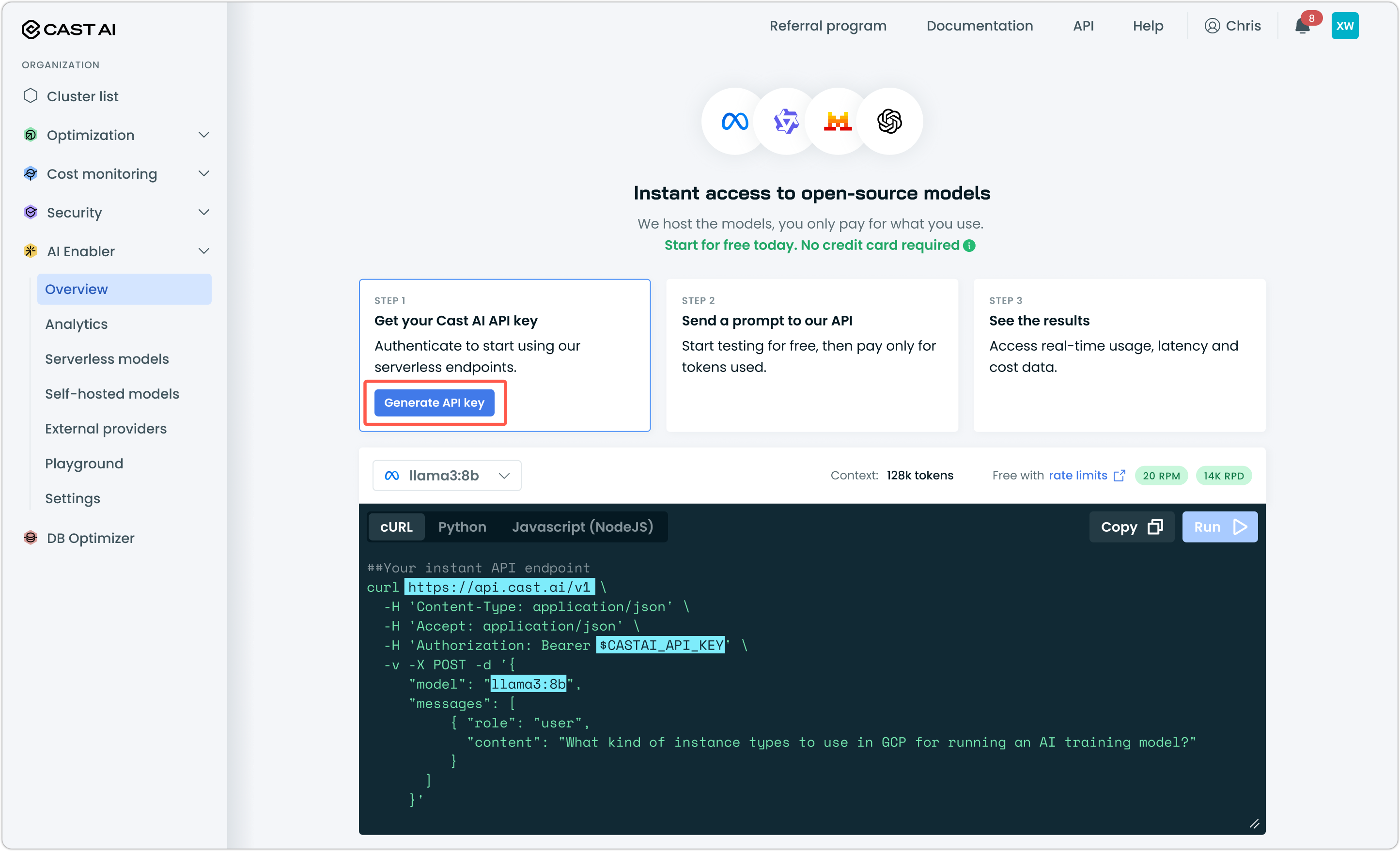
A Cast AI API key — Generate one from the Cast AI console under AI Enabler > Overview
-
Claude Code installed — Install from the Claude Code docs or run the following in your terminal:
npm install -g @anthropic-ai/claude-code
NoteAI Enabler base URL is OpenAI-compatible. Although this tutorial covers Claude Code, the same base URL and API key work with Cursor, OpenCode, and other compatible tools.
Step 1: Run the setup script
Run the interactive setup script in your terminal:
bash <(curl -fsSL "https://api.cast.ai/ai-optimizer/v1beta/setup-scripts/claude-code")The script will walk you through connecting Claude Code to AI Enabler. It configures model aliases so that GLM 5 is used in plan mode and MiniMax M2.7 is used as the execution model.
Step 2: Verify your configuration
Open a terminal, navigate to a project directory, and start Claude Code:
cd ~/your-project
claude
Send a test prompt. For example, Hello. If you receive a response, the connection to AI Enabler is working.
Use Shift + Tab to cycle between plan mode (GLM 5) and execution mode (MiniMax M2.7).
IDE integration
If you use the Claude Code extension for VS Code or Cursor, your CLI configuration is automatically carried over — model aliases, API endpoints, and provider settings all apply without additional setup.
Select Opus Plan Mode from the model selector in the extension. This routes to the AI Enabler models through the aliases configured during setup.