

Budgets
Create cost budgets in Cast AI and get email alerts as spend approaches or exceeds the limit for your organization, clusters, namespaces, workloads, or allocation groups.
Budgets help you keep Kubernetes costs under control. You set a spending cap for your organization or part of it and choose the period the cap applies to. Cast AI emails you when spend approaches the limit.
You can create and manage budgets under Radar → Budgets in the main console menu.
How budgets work
A budget has four parts:
- Scope: the entity whose spend the budget tracks, such as the whole organization, a cluster, or a workload.
- Window: the period over which spend accumulates. A window resets every month or rolls forward continuously.
- Amount: the spending cap in USD.
- Alerts: thresholds at a percentage of the amount that trigger email notifications.
Budget scope
Choose what the budget tracks:
- Organization: the whole organization. You can limit the budget to selected clusters and leave the rest of the organization outside it.
- Allocation group: an organizational allocation group.
- Cluster: a single cluster.
- Namespace: a namespace within a cluster.
- Workload: a single workload (for example a Deployment or a StatefulSet) within a cluster.
The budget tracks the compute cost of its scope: the same spend you see in the cost report.
Budget window
The window (called Cadence in the console) defines the period over which spend accumulates.
- Monthly: spend accumulates over the month and resets on a chosen day (1st to 31st). If the month does not have the chosen day, the window resets on its last day. The reset happens in the timezone you select, so budgets can follow your local business calendar rather than UTC.
- Trailing hours or trailing days: spend accumulates over the last N hours or days. N is 1 to 24 for hours and 1 to 31 for days. The window rolls forward continuously and never resets.
Amount and pricing
- Amount: the spending cap in USD.
- Price type: how the scope's spend is computed:
- Discounted price (default): Cast AI's real prices, including discounts.
- List price: retail listing prices, without discounts.
- Include idle costs: adds the idle capacity cost of cluster nodes to the scope's spend. It is available for allocation group, namespace, and workload scopes and works the same way as in the cost report. See How idle cost is calculated.
The console shows the scope's spend for the previous period under the amount field, for example Spend for the previous period was $1,810.42. Click it to use that value as the budget amount.
Alerts
Alerts are thresholds at a percentage of the budget amount. When spend reaches a threshold within the current window, Cast AI emails the alert's recipients. You get notified as spend approaches the budget without checking the console.
- Each alert has its own threshold (1 to 100%, 80% by default) and its own recipients.
- Recipients can be any member of your organization. Each alert needs at least one recipient.
- You can add up to 10 alerts, for example at 80% and 100%. When an alert fires, the email also mentions the next higher threshold, if one is configured.
- Each alert fires once per window. In a monthly window, the alert can fire again in the next period. In a trailing window, the alert can fire again once spend drops back under the threshold.
- Paused budgets do not send alerts.
Alert emails include the budget name, the threshold reached, the allocated amount, the current spend and percentage used, the window, and the next reset date. Each email links to the budget in the console.
How Cast AI evaluates budgets
Cast AI checks every budget once per hour, except paused budgets. Budget spend and the cost report use the same data, so both show the same numbers. An alert email can arrive up to one hour after spend crosses a threshold.
A paused budget keeps its configuration but is not evaluated and does not send alerts. The same settings apply again when you resume it.
The budgets table
The budgets table lists every budget with its current state:
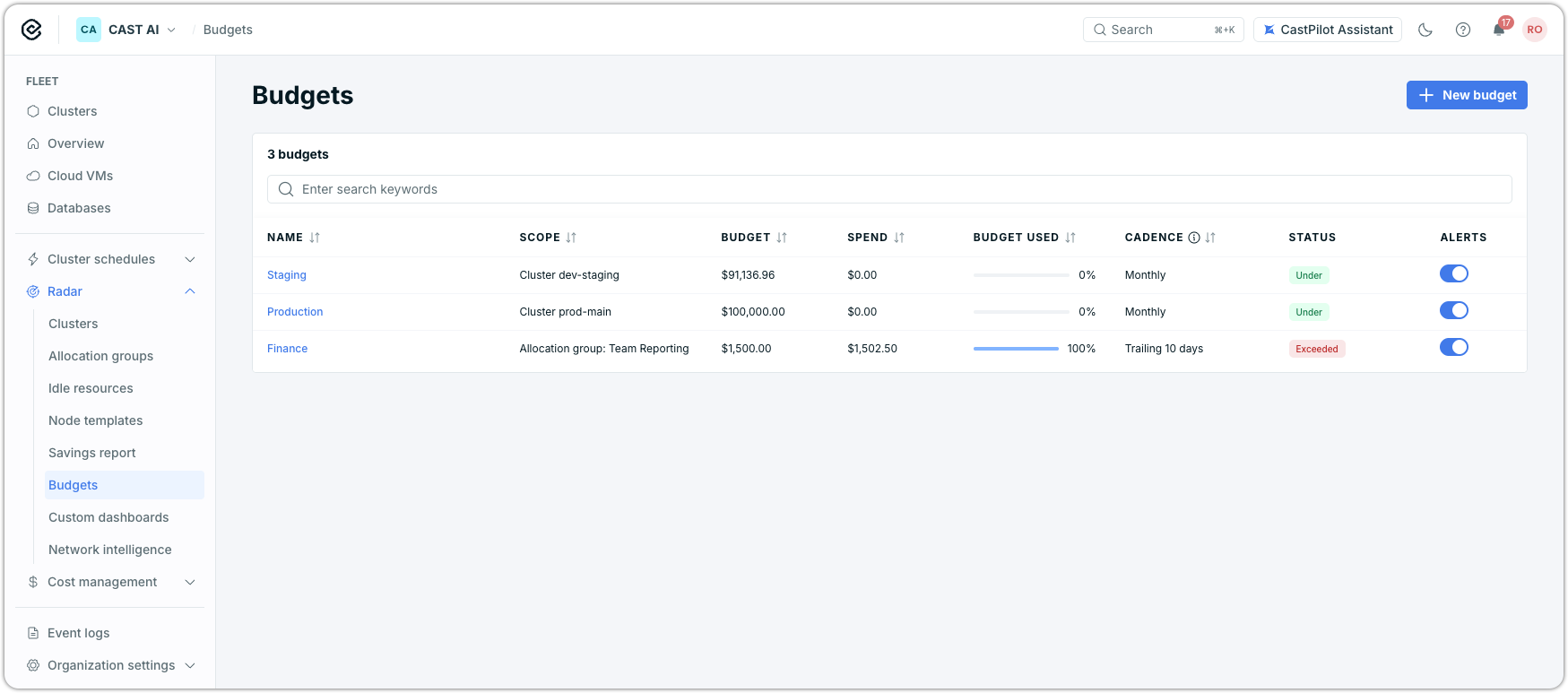
The Budgets page, with the budgets table showing spend, budget used, cadence, status, and alerts for each budget.
| Column | What it shows |
|---|---|
| Name and Scope | The budget's name and the entity it tracks |
| Budget | The spending cap |
| Spend | Spend accumulated in the current window |
| Budget used | Percentage of the budget consumed, with a progress bar |
| Cadence | The budget's window: monthly, or trailing hours or days |
| Status | Under, Approaching limit, or Exceeded |
| Alerts | Toggle to pause or resume all configured alerts |
Use the search field to filter budgets by name.
| Status | Meaning |
|---|---|
| Under | Spend is under the lowest alert threshold. |
| Approaching limit | Spend is within 5% of the lowest alert threshold. |
| Exceeded | Spend reached or passed 100% of the budget. |
Click a budget in the table to open its details. The details show the allocated amount, current spend, budget used, and scope, plus each alert's last fire state: Sent or Pending.
Updated 39 minutes ago