

How-to: Generate scaling policies with OpsPilot
Instead of building scaling policies by hand, you can let OpsPilot analyze your cluster and generate a complete set of policies and assignment rules for you. You describe your environment and reliability targets, OpsPilot proposes tailored policies, and you apply them with one click.
OpsPilot doesn't stop at the first run. As your cluster evolves, you can re-run OpsPilot to keep your policies aligned with how your workloads actually behave. On a re-run, OpsPilot adjusts existing policies, creates new ones where the fit has changed, and reorders policy priority for you.
This guide covers the full lifecycle: generating policies the first time, then maintaining them through re-runs.
How it works
When you start a policy-generation run, OpsPilot takes a real-time snapshot of your cluster that covers every workload, recent resource usage history, and current policy assignments. It then uses that snapshot to generate custom policies tailored to what it actually found.
These are not pre-defined templates. The policies are shaped by what OpsPilot detected:
- Workload behavior: resource usage patterns and scaling characteristics
- Workload type: stateful vs. stateless, Deployment vs. StatefulSet vs. DaemonSet, and so on
- Namespace context: environment signals from namespace naming and structure
OpsPilot groups workloads by these characteristics, not just by namespace. A stateful database and a stateless API running in the same namespace receive different policies because they call for different scaling behavior.
Every recommendation comes with a rationale explaining why OpsPilot chose those settings for that group. Before anything is applied, you review which workloads land where, what percentiles are set, and what constraints apply.
When you apply, OpsPilot creates all policies and assignment rules, and everything appears on the Scaling policies page, where it is visible, editable, and reversible.
Before you begin
- Your cluster is connected to Cast AI
- Workload Autoscaler is installed and enabled. OpsPilot generates Workload Autoscaler policies, so the component must be running. See Workload Autoscaling overview
Generate policies the first time
Set your intent
Start a run from the workload optimization page by clicking Run OpsPilot. OpsPilot asks you three questions to set your intent:
- What to prioritize: savings, reliability, or a balance between the two
- What kind of workloads are running: production, non-production, or mixed
- Which namespaces to leave alone (optional): namespaces you want OpsPilot to exclude from analysis
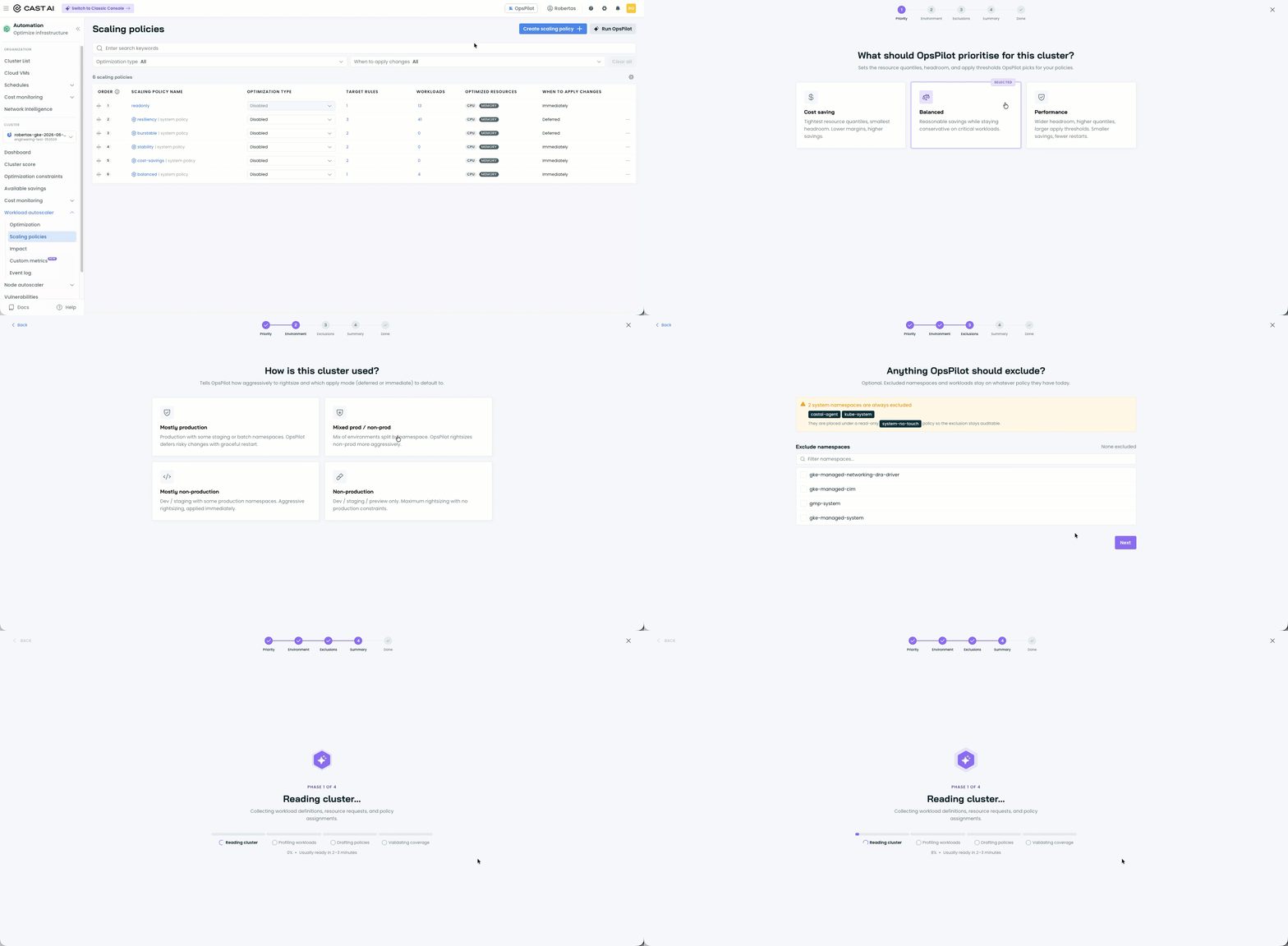
These answers calibrate the policies OpsPilot generates. For example, prioritizing savings on a non-production cluster produces aggressive rightsizing toward observed usage, while prioritizing reliability on a production cluster produces more conservative scaling with greater headroom.
Review the proposed policies
OpsPilot takes it from there. After analyzing the snapshot, it presents a complete set of policies and assignment rules for your review.
For each proposed policy you can review:
- Which workloads land where: the workloads matched to each policy
- Vertical scaling settings: recommendation percentile, overhead, resource constraints, look-back period, scaling mode
- Horizontal autoscaling settings (if applicable): pod count range, utilization triggers, autoscaling behavior
- Assignment rules: the namespace, workload type, and label filters that determine which workloads each policy captures
- A rationale: why OpsPilot chose those settings for that group
A typical output groups workloads into policies such as:
| Policy | Matches | Strategy |
|---|---|---|
| Stateful (conservative) | Databases, queues, caches identified by workload type and behavior | Conservative scaling with generous headroom |
| Production (balanced) | Stateless production services with stable usage patterns | Balanced scaling: savings without aggressive cuts |
| Cost-saving deployments | Stateless application services in non-production: APIs, web servers, workers | Aggressive rightsizing toward observed usage for maximum savings |
The exact policies depend on what OpsPilot found in your cluster. Workloads that don't fit a clear group remain on their existing system policy.
Apply the policies
Once you're satisfied with the review, click Apply policies. A single click creates all the policies and assignment rules.
Cautious rolloutIf you want to be cautious, you can create the policies with automation disabled. This lets you review the recommendations and assignment rules without any changes being applied to your workloads. Once you're confident, enable automation on the policies. See Manage scaling policies.
After applying, the generated policies appear alongside your system and custom policies on the Scaling policies page. They are fully editable and reversible: OpsPilot uses the same policy model as manual creation, so everything you can do with a manually created policy you can do with an OpsPilot-generated one.
Maintain and update policies with re-runs
Your cluster changes over time. New services get deployed, usage patterns shift, and the policies that fit a few months ago may no longer match what your cluster needs. OpsPilot is designed to be re-run, not run once.
Re-running OpsPilot on a cluster that already has generated policies does not start from scratch. Instead, it works with what's already there:
- Updates existing policies: when a policy still fits but its settings have drifted from your goals or from how the cluster has changed, OpsPilot adjusts the existing policy in place
- Creates new policies when the fit has changed: if a policy no longer fits at all, OpsPilot creates a new one rather than forcing a bad fit onto workloads it no longer describes
- Reorders policy priority: OpsPilot reorders your policies so the most relevant ones are evaluated first when multiple assignment rules could match the same workload
This makes re-running OpsPilot an alternative to manually editing and reordering policies as your infrastructure evolves. The same intent questions apply: set what to prioritize, what's running, and what to leave alone, and OpsPilot re-evaluates against the latest cluster data.
When to re-runRe-run OpsPilot whenever your cluster has materially changed: after deploying new services, once more usage history is available, or when your optimization priorities shift. Each run starts fresh with the latest data, so better data means better recommendations.
What happens to manual assignments
Workloads that were manually assigned to a policy (via the Cast AI API, Kubernetes annotations, or the Cast AI Console) keep that manual assignment. Manual assignments always take precedence over assignment rules, including rules generated or updated by OpsPilot.
For the full priority hierarchy, see Policy assignment priority hierarchy.
Next steps
Updated last month